How to Turn Business Cards Into CRM Contacts Automatically
Learn how to capture contact details from business cards, extract structured data automatically, and send it into your CRM without manual data entry.

Business cards still show up everywhere: trade shows, sales meetings, conferences, local networking events, and customer visits. The problem starts right after the exchange. Someone on your team still has to type the contact into a CRM, double-check the email address, split the full name, and hope nothing gets lost along the way.
That manual process is slow, easy to postpone, and surprisingly error-prone. A missing digit in a phone number or a misspelled email address can turn a promising lead into a dead end.
In this guide, you’ll learn how to turn business cards into CRM-ready contact data automatically using Parsio. We’ll cover when this workflow works best, how to set it up, what fields to extract, and how to send the results into tools like Salesforce, HubSpot, or Google Sheets.
Why automate business card data entry?
Business card processing looks simple until the volume starts growing. If your team collects a handful of cards every week, manual entry may feel manageable. But once cards start coming in from multiple reps or multiple events, the bottlenecks show up fast.
Common problems include:
- contacts sitting in a desk drawer for days before they enter the CRM
- inconsistent field formatting across team members
- duplicate or incomplete contact records
- lost context around who met whom and where
- time wasted on repetitive admin work instead of follow-up
An automated workflow helps by converting each business card into structured fields such as first name, last name, company, title, email, phone number, website, and address. Once those fields exist in a clean format, you can send them straight into your CRM or review them in a spreadsheet before syncing them further.
When this workflow is a good fit
This setup works especially well if you:
- collect business cards regularly at events or meetings
- want to centralize lead capture for multiple team members
- need contact details in Salesforce, HubSpot, Pipedrive, or another CRM
- want a lightweight no-code workflow instead of building custom OCR pipelines
It is also a good fit when you receive business cards in different formats, such as photos taken on a phone, JPEG or PNG files, or PDFs from a scanning app.
If you’re new to the underlying parsing flow, Parsio’s existing guide on extracting data from business cards is a useful starting point.
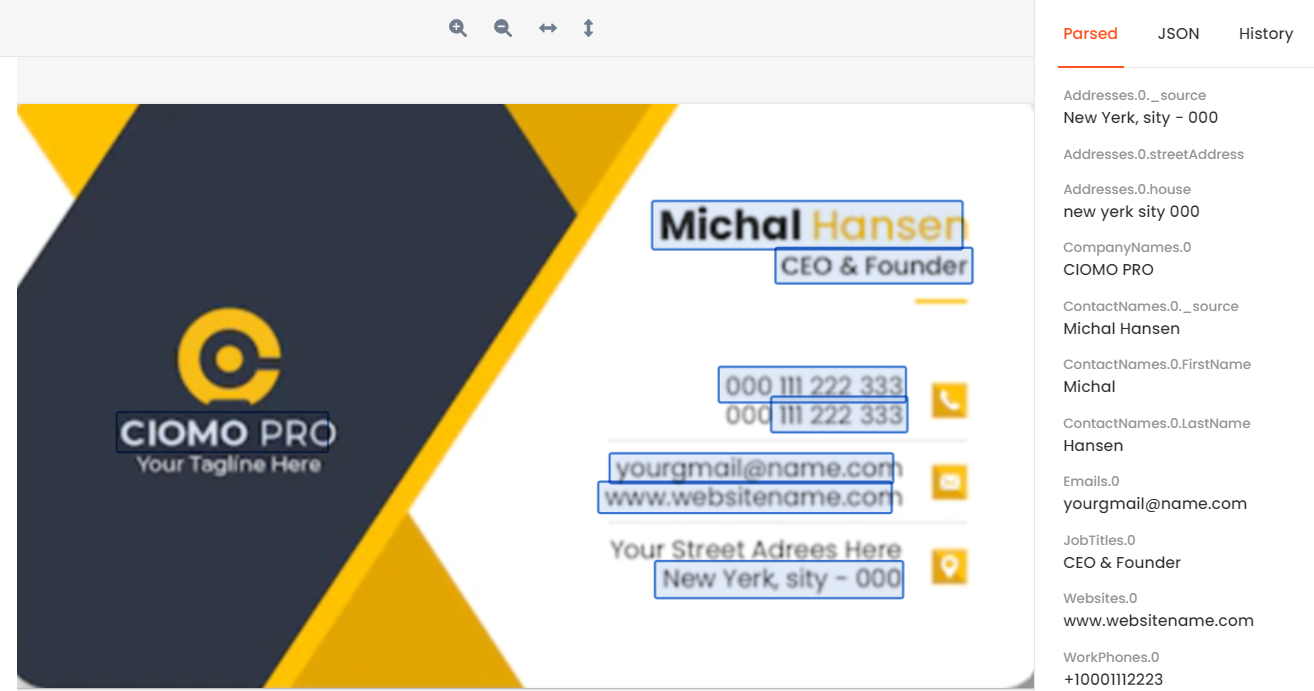
What Parsio extracts from a business card
Business cards are a good match for Parsio’s AI-powered PDF and image parsing because the target fields are usually clear and repeatable, even when layouts vary.
Typical fields include:
- full name
- job title
- company name
- email address
- phone number
- website
- street address
- city, region, postal code, and country
That means you can turn a small image into structured contact data without asking someone to retype every line manually.
Step 1: Create a business card parsing inbox
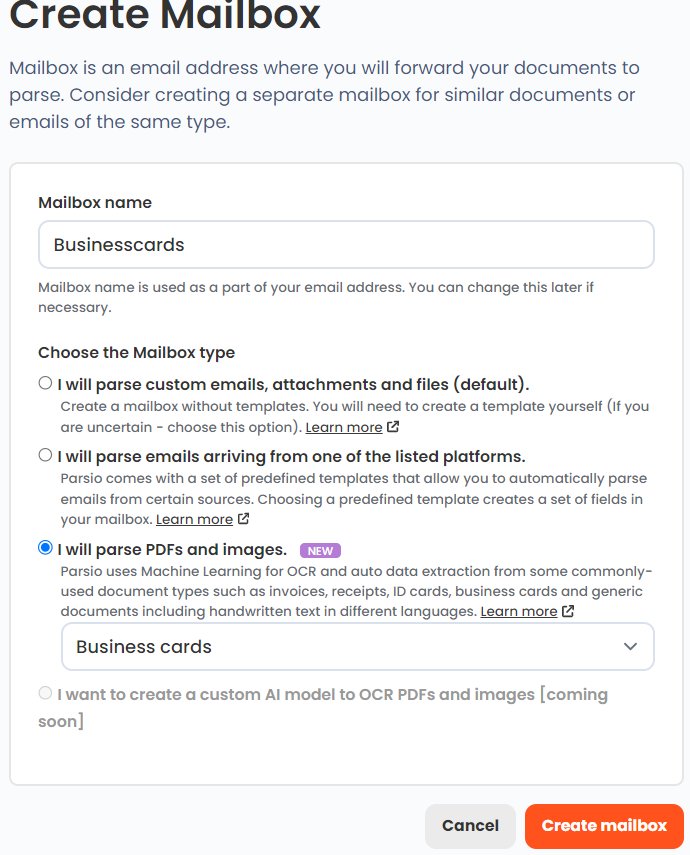
Start by creating a new mailbox in Parsio. During setup, choose the PDF and image parsing flow and select the business cards model.
This is important because Parsio uses different parser types for different jobs. For business cards, the best option is the pre-trained AI parser, not the template-based email parser and not the OCR converter alone.
The AI parser is a better fit here because it is designed to recognize contact-style fields from common business card layouts. You still get OCR support for scanned cards and images, but the goal is structured extraction, not just raw text conversion.
Step 2: Import cards from your preferred source
Once the mailbox is ready, you can bring cards into Parsio in several ways:
- upload files manually after an event
- forward cards captured by email
- send files through an API or automation tool
- collect images from cloud storage workflows
If your team stores card photos in Google Drive, you can automate ingestion with a workflow similar to this Google Drive extraction setup. If you prefer a broader no-code orchestration layer, Parsio also works well with Zapier, Make, and n8n.
Step 3: Review the parsed contact fields
After import, review the first few cards to make sure the extracted fields map cleanly to the structure you want in your CRM.
In most cases, you’ll want to check:
- whether the full name should stay combined or be split into first and last name
- whether the job title and company were separated correctly
- whether multiple phone numbers need different destinations
- whether addresses should stay as one field or be broken into components
This quick review step is worth doing before you connect any downstream automation. It keeps your CRM cleaner and helps prevent messy imports later.
Step 4: Decide where the contacts should go
Once the card data looks good, decide what your first destination should be.
The most common options are:
- CRM: create or update contacts or leads in Salesforce, HubSpot, Zoho, or Pipedrive
- Google Sheets: keep a simple event lead sheet that sales or marketing can review
- Webhook or API: send data to an internal system or custom workflow
If your team wants a review layer before pushing contacts into the CRM, a spreadsheet is often the easiest first destination. If speed matters more than review, you can route the parsed data straight into a CRM workflow.
Step 5: Send the data into your CRM
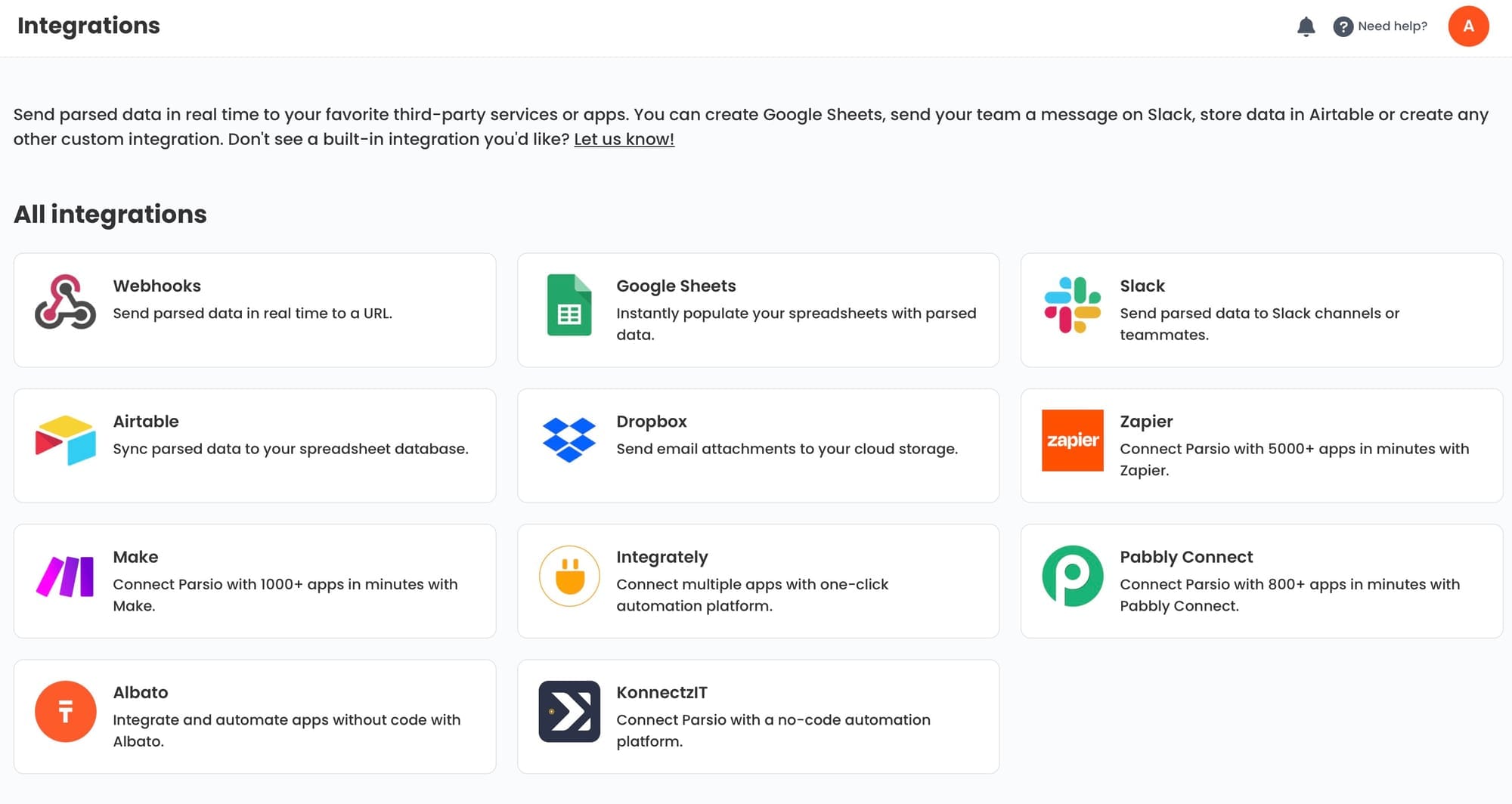
There are a few practical ways to connect business card data to a CRM:
Option 1: Use Zapier
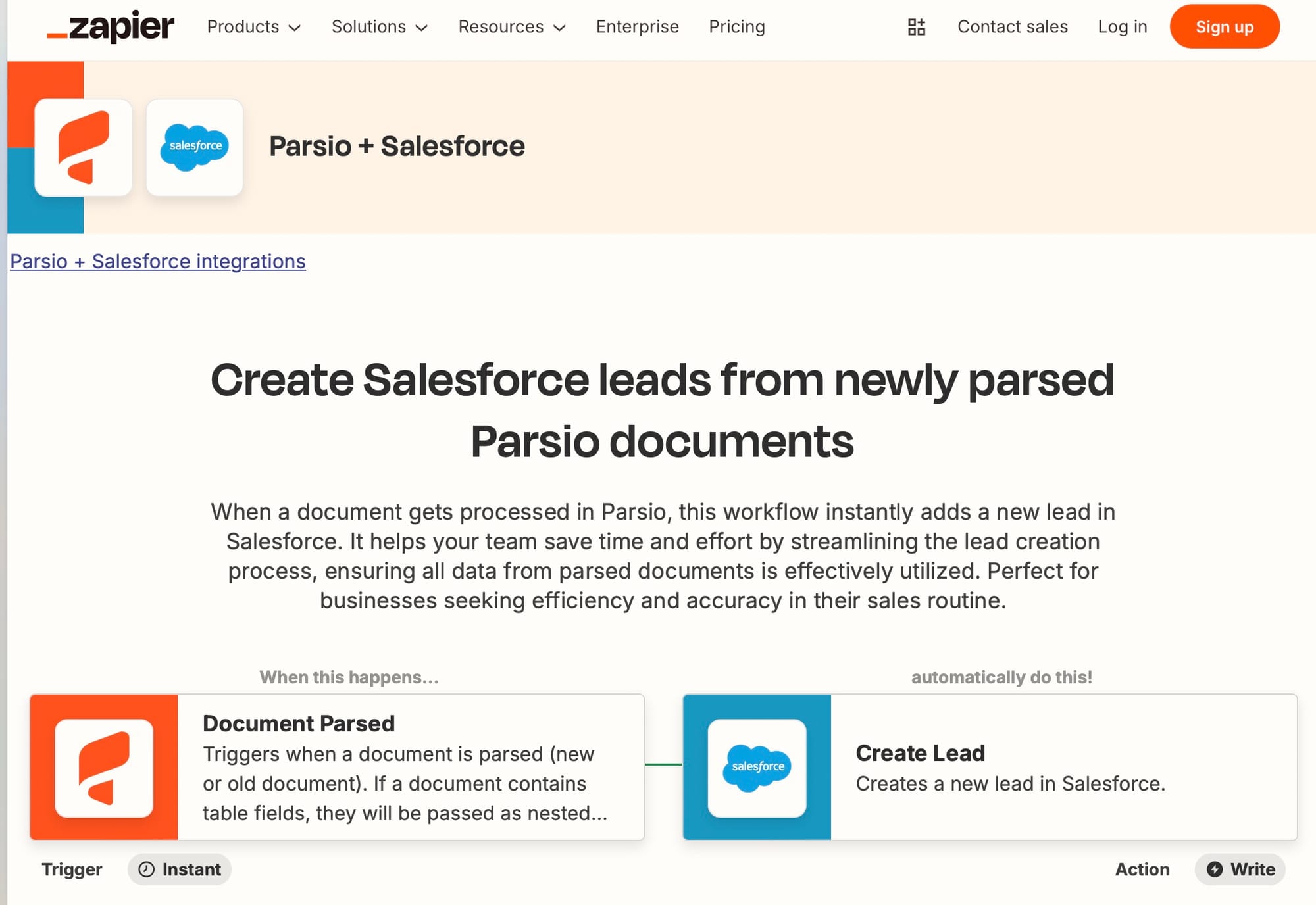
Zapier is a good choice if you want a simple no-code workflow and already use SaaS tools heavily. For example, you can trigger a workflow when a document is parsed in Parsio and then create a new lead or contact in Salesforce.
Option 2: Use Make or n8n
If you need branching logic, filters, or heavier routing, Make and n8n give you more control. That can be useful when you want to:
- send different cards to different sales teams
- avoid duplicates before creating a CRM record
- tag contacts by event name or source
- store the original card image alongside the parsed data
Parsio’s article on automation platforms for document parsing is a good companion if you need help choosing between them.
Option 3: Start with Google Sheets, then sync later
This is often the easiest rollout for teams that want a review step. You can push new card data to Google Sheets first, clean up anything unusual, and then sync approved rows into the CRM.
That approach works well when:
- multiple reps are collecting cards at the same event
- you need to enrich contacts before import
- your CRM structure is strict and you want human review before creation
Suggested field mapping for CRM contacts
Here is a practical starting point for mapping business card data into CRM fields:
| Business card field | CRM destination |
|---|---|
| Full name | First name + last name or full name |
| Job title | Title |
| Company name | Company / Account name |
| Phone | Phone or mobile |
| Website | Website / domain |
| Address | Street, city, region, postal code, country |
| Event source | Lead source or custom property |
If your CRM supports duplicate detection, enable it before rolling the workflow out to the whole team. That will help prevent the same contact from being created multiple times after an event.
Common mistakes to avoid
Business card automation is straightforward, but a few issues come up often:
- Skipping the review step on the first batch. Always validate the first few cards before automating downstream actions.
- Sending everything straight into the CRM without deduplication. This creates clutter fast.
- Treating OCR text as enough. Raw text is useful, but structured fields are what make CRM automation practical.
- Ignoring image quality. Blurry photos and poor lighting lower accuracy, especially on small text.
A simple workflow you can start with
If you want the fastest practical setup, this is a good starter workflow:
- Create a business-card mailbox in Parsio.
- Upload 5 to 10 sample business cards.
- Review extracted name, title, company, email, and phone fields.
- Connect Parsio to Google Sheets or a CRM through Zapier.
- Map the fields into your destination columns or contact properties.
- Test with another small batch before rolling it out team-wide.
This gives you a low-risk path to automation without overengineering the process.
Final thoughts
Turning business cards into CRM contacts automatically is one of the most practical document automation workflows for sales and operations teams. The data is high value, the structure is usually clear, and the payoff is immediate: faster follow-up, less manual typing, and cleaner contact records.
Parsio works well here because it combines OCR and structured extraction in the same workflow, then lets you route the result into the tools your team already uses.
If you want to test the process with your own cards, try Parsio for free and start with a small batch. You’ll quickly see which fields matter most for your CRM workflow.