How to Extract Data from PDF Forms Automatically
PDF forms lock useful data behind static files. Learn the difference between fillable and scanned forms, why that changes your extraction approach, and how to automate the whole process.

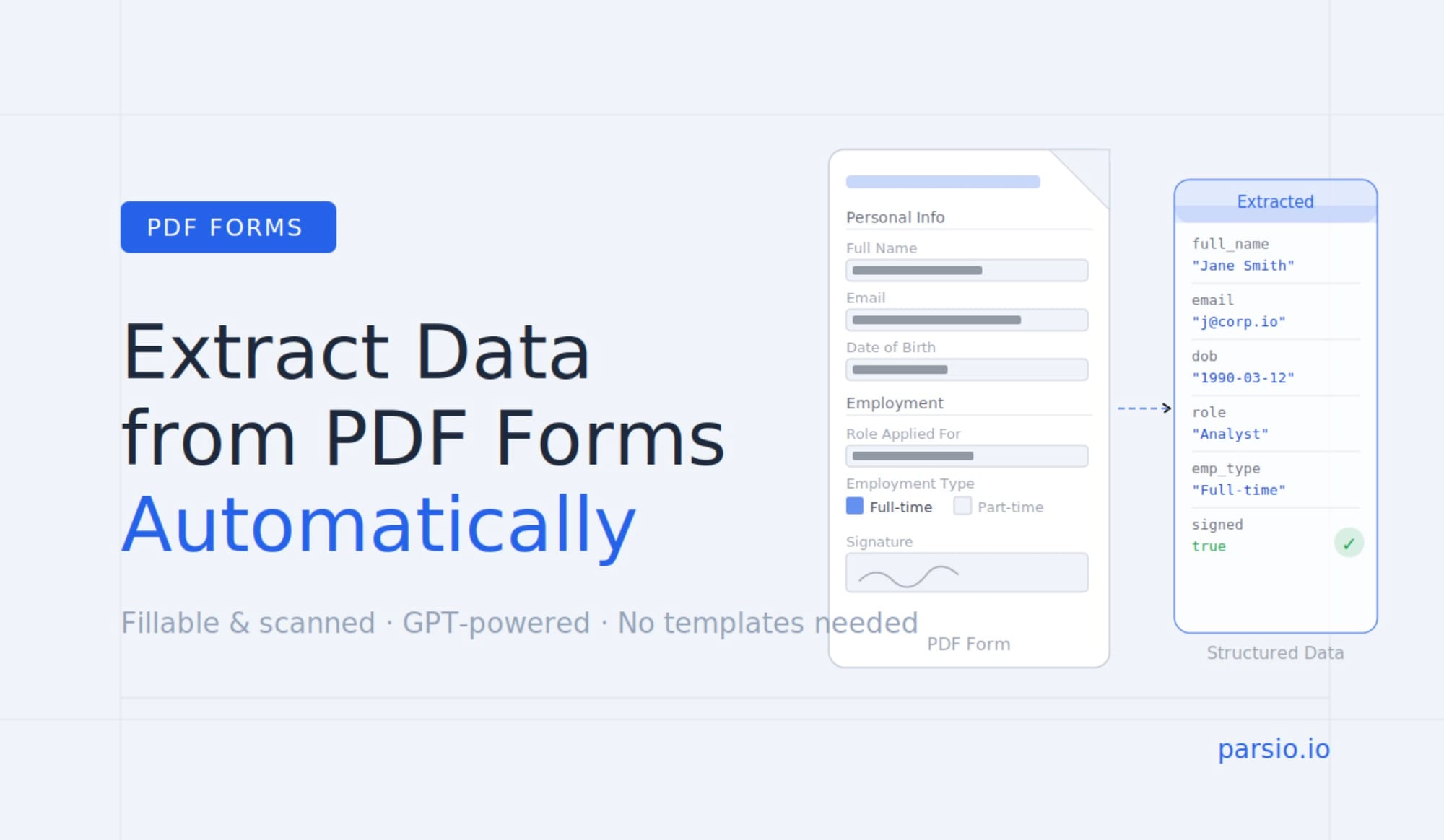
Forms are one of the most common ways businesses collect information. Employment applications, customer registration forms, insurance claim forms, vendor onboarding questionnaires, compliance checklists — the list is long, and nearly all of them end up as PDFs.
The problem is that once data is inside a PDF form, getting it back out is surprisingly difficult. Printing, reading, and manually re-entering form responses into a spreadsheet or database is slow, error-prone, and completely unscalable once volume picks up.
This guide covers how PDF form extraction actually works, why the type of form changes everything, and how to automate the process without writing code.
The Two Types of PDF Forms — And Why It Matters
Before automating anything, it helps to understand that not all PDF forms are the same. The way a form was created determines how extraction needs to work.
Fillable (interactive) PDFs
A fillable PDF has interactive fields built in — text boxes, checkboxes, dropdown menus, radio buttons. When someone fills one out on screen, the data they enter is embedded in the file as structured field data. You can often copy text from these fields directly.
Examples: employment application forms created in Adobe Acrobat, W-9 tax forms, government permit applications, digital onboarding packets.
Extraction from fillable PDFs is generally more reliable because the field data is technically accessible — it exists as structured information, not just as a visual image.
Flat or scanned PDFs
A flat PDF is a document that looks like a form but has no interactive fields underneath. This includes:
- Paper forms that were printed, filled in by hand, and then scanned
- Completed forms saved as a flattened PDF (all interactivity removed)
- Forms photographed and converted to PDF
- PDFs printed from a system that does not preserve field data
To a computer, a flat PDF is essentially an image. There are no accessible field objects — just pixels. Extracting data from these requires OCR to read the text, followed by a parser that understands where the fields are and what they contain.
This distinction matters because it determines your extraction approach. Using an interactive-field extractor on a scanned form will return nothing. Using only OCR on a fillable PDF will get you the text but lose all the field structure. Getting the approach right from the start saves a lot of troubleshooting later.
What Data People Typically Need from PDF Forms
The fields that matter most depend on the form type, but common extraction targets include:
- HR and onboarding forms: full name, address, date of birth, national insurance or social security number, emergency contacts, start date, role, department, tax declarations
- Customer registration forms: name, email, phone number, company, preferences, consent fields
- Insurance claim forms: policy number, incident date, claimant details, description, amount claimed, supporting references
- Vendor onboarding forms: company name, registration number, bank details, contact information, product or service categories
- Compliance and audit forms: signatory name, date, checkboxes confirming specific conditions, reference numbers
In most cases the goal is the same: get these fields out of the PDF and into a spreadsheet, database, or business system — automatically, every time a new form arrives.
Why Copy-Paste and Basic Tools Do Not Scale
For a handful of forms, manually copying field values into a spreadsheet is manageable. At twenty forms a week, it starts to consume real time. At fifty or a hundred, it becomes a significant operational cost — and the error rate climbs with the volume.
Adobe Acrobat can export field data from fillable PDFs into CSV or XML, but this requires opening each file individually, running the export, and then combining the outputs. It also does nothing for scanned or flat PDFs.
Spreadsheet formulas and basic scripts cannot read PDF files at all without additional tooling. And when form layouts vary — different templates from different departments, different versions from different years — any template-based approach requires constant maintenance.
Automated extraction solves all of this: forms come in, data comes out, no manual handling required.
How to Choose the Right Extraction Approach
The right tool for PDF form extraction depends on two factors: whether the form is fillable or flat, and whether the layout is consistent or varies across submissions.
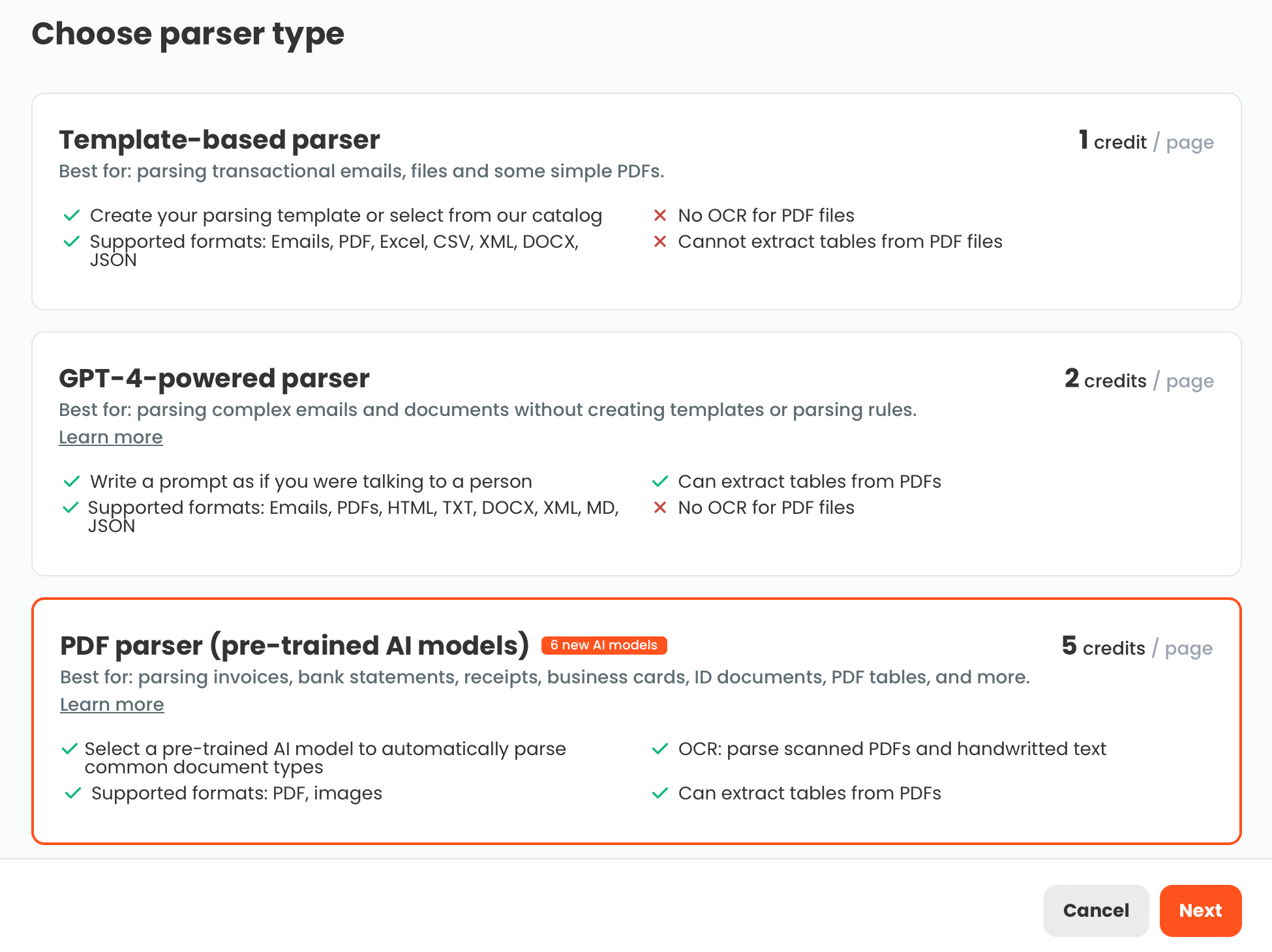
Template-based parser — best when you always receive the same form in the same layout. You define the fields once against a sample, and the parser extracts the same fields from every future submission. Accurate and fast for stable formats. A good choice for a company-standard onboarding form or a recurring compliance checklist.
GPT-powered parser — best when form layouts vary across sources, versions, or departments. Instead of drawing zones or building templates, you describe the fields you want to extract in plain language. The GPT parser reads the form, locates the relevant information, and returns it as structured data — regardless of where on the page it appears. This handles variation well without requiring a new template for every layout change.
OCR converter — needed first when working with scanned or image-based forms. OCR converts the visual content into readable text, which can then be passed to a parser for field extraction. If your forms come in as scanned paper, enable OCR before applying any extraction logic.
For most teams dealing with forms from multiple sources or multiple versions, the GPT-powered approach is the most practical starting point. You spend time defining what you want rather than where to find it.
Step by Step: How to Automate PDF Form Extraction with Parsio
Step 1: Create a form inbox
In Parsio, create a new inbox for your form documents. Give it a name that reflects the form type — for example, "Customer Registration Forms" or "Onboarding Packets". Keeping form types in separate inboxes makes it easier to manage parser settings and export destinations independently.
Step 2: Select the GPT-powered parser and define your fields
For variable-layout forms, choose the GPT-powered parser. You will be prompted to describe what you want to extract. Write this as a simple list of field names with brief descriptions where helpful:
- Full name
- Email address
- Date of birth
- Role applied for
- Start date
- Signature date
For forms with a fixed layout that never changes, use the template-based parser instead. Upload one sample form and highlight the fields you want to capture — Parsio builds the template from that example.
Step 3: Send forms to the inbox
Forms can arrive in several ways:
- Forward the email with the attached PDF to your Parsio inbox address
- Upload files directly through the interface
- Connect a Zapier or Make automation to pull forms from cloud storage, email, or a form submission tool
- Use the Parsio API if forms are generated programmatically
Once the inbox is receiving documents, Parsio processes each one automatically as it arrives.
Step 4: Review the extracted fields
Check the first batch of forms carefully. For GPT-powered extraction, verify that the field descriptions you provided are returning the right values. If a field is consistently off — for example, the parser is picking up the label instead of the value — adjust the field description to be more specific. A small amount of tuning at this stage improves accuracy across the full volume.
Step 5: Export to your destination
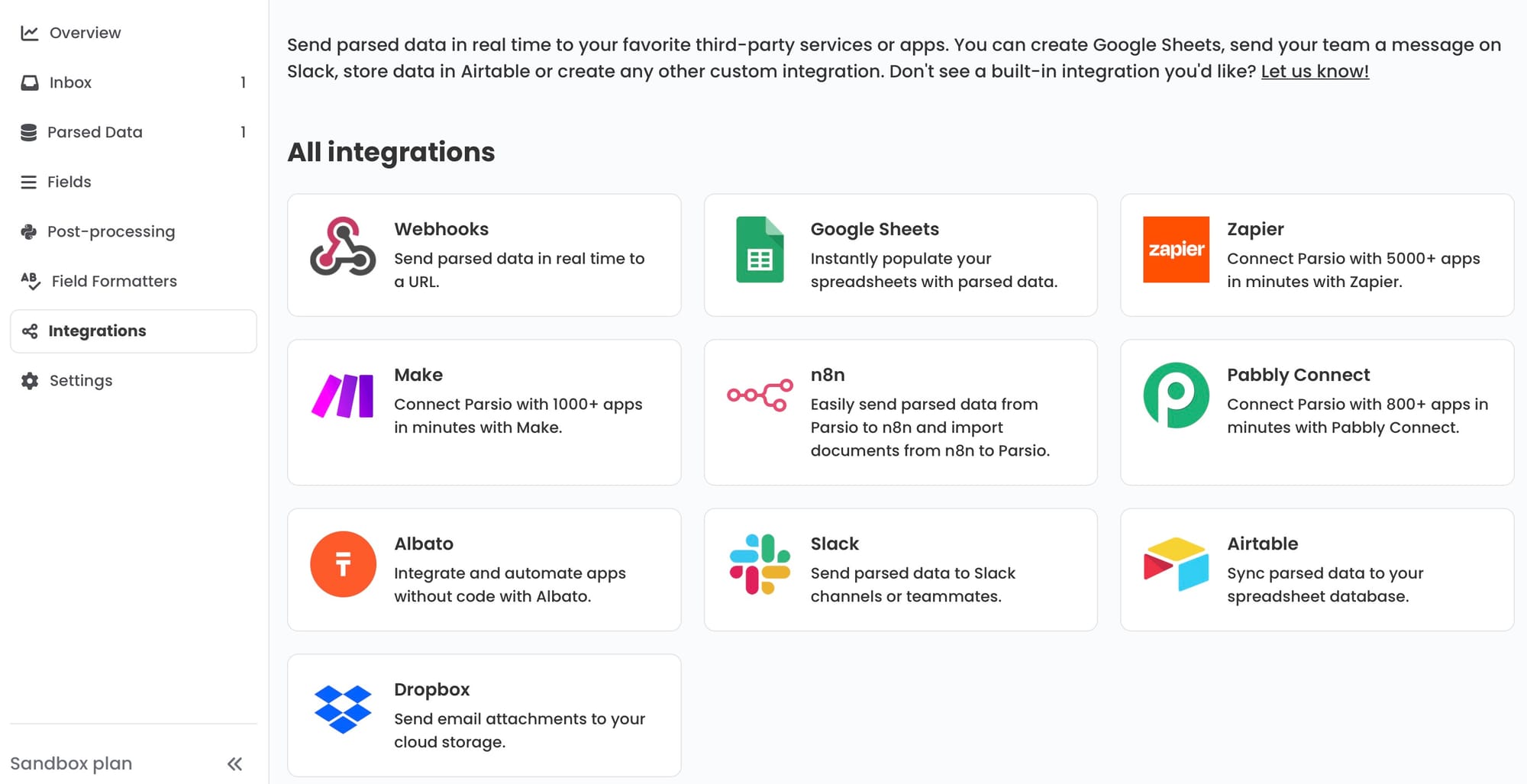
Connect Parsio to wherever the extracted data needs to go:
- Google Sheets — each new form submission appends a row to your sheet automatically. Simple to set up, easy to share with the team, and easy to filter or process further with formulas.
- Webhook — send the extracted JSON to any internal system or database. Useful when you want to trigger a downstream action — creating a record in your HR system, updating a CRM, or notifying a team channel.
- Zapier or Make — connect extracted form data to hundreds of business tools without writing code. Route new employee form data to a HR system, or customer registration data to a CRM, automatically.
- CSV or Excel download — export in bulk at the end of a period if you prefer batch processing over real-time sync.
Common Failure Modes and How to Handle Them
Handwritten fields. If a form is filled by hand rather than typed, OCR accuracy depends heavily on scan quality and handwriting legibility. Clear, well-scanned handwriting extracts reliably. Dense cursive or very light pencil marks will reduce accuracy. For high-stakes handwritten fields, build a human review step into the workflow for low-confidence values rather than assuming the output is always correct.
Checkboxes and radio buttons. These require the parser to identify which option was selected, not just read text. When defining GPT parser fields for checkbox questions, phrase them as questions: "Is the applicant a permanent employee? (Yes/No)" — this gives the model enough context to return the right value rather than the label text.
Multi-page forms. Long forms spread across multiple pages work with the GPT parser but benefit from well-structured field descriptions. If a field only appears on page three, naming it clearly helps the parser find it without ambiguity. For very long forms (ten or more pages), break extraction into logical sections if possible.
Scanned forms with poor image quality. Shadows, skewed alignment, low resolution, and faded ink all reduce OCR quality. Where possible, establish a minimum scan quality standard — 200 DPI or higher — for documents that need to be processed automatically. This is easier to enforce for internal form processes than for forms submitted by external parties.
Forms with varying versions. If a form template has changed over time and you have a backlog of older submissions alongside newer ones, the GPT parser handles this better than templates. When layout differences are predictable and bounded, you can describe them in the field definitions: "The date field may appear as 'Date' or 'Submission Date'."
Who Benefits Most from This Workflow
PDF form extraction automation adds the most value in situations where:
- Volume is recurring. Onboarding one employee a year does not need automation. Onboarding fifteen a month — or processing hundreds of customer registrations — does.
- The same data is re-entered elsewhere. If someone reads a PDF form and types the values into a spreadsheet or system, that step can be eliminated.
- Forms come from external parties. External submitters cannot be asked to use a different format, so the extraction has to adapt to what arrives.
- Errors in data entry have real consequences. Manual re-entry of policy numbers, ID numbers, or financial figures introduces transcription risk. Automated extraction with a review step is more reliable than purely manual handling.
👉 To understand how different parsing approaches compare technically, see PDF Parsing Methods Compared: Rule-Based, Zonal OCR, AI, and LLM Approaches.
👉 If your forms contain structured tables, see How to Extract Tables from PDFs Automatically.
👉 For a broader overview of AI-based document extraction, see the Guide to Document Data Extraction Using AI in 2026.
FAQ
What is the difference between a fillable PDF and a scanned PDF form?
A fillable PDF has interactive form fields embedded in the file — text boxes, checkboxes, and dropdowns where data is stored as structured objects. A scanned PDF is an image of a completed paper form with no accessible field data underneath. Extracting data from each requires a different approach: interactive field extraction for fillable PDFs, and OCR plus a parser for scanned forms.
Can Parsio extract data from handwritten forms?
Parsio can process handwritten fields using OCR, but accuracy depends on handwriting clarity and scan quality. Clearly printed handwriting on a well-scanned document extracts reliably. Dense cursive or poor scan quality will reduce accuracy and may need a human review step for critical fields.
Do I need to build a template for every form layout?
Not necessarily. The GPT-powered parser in Parsio extracts fields based on natural-language descriptions rather than visual templates. This means it can handle different form layouts without requiring a separate template per version. Template-based parsing is still useful when a form is completely stable and processed at high volume.
What happens if a form field is left blank?
Parsio will return an empty or null value for that field. You can handle blank fields downstream — flagging incomplete submissions in your spreadsheet, triggering a follow-up notification via webhook, or filtering them out before they reach your destination system.
How long does it take to set up PDF form extraction?
For a basic GPT-powered setup — inbox, field definitions, and Google Sheets export — most teams are up and running in under an hour. More complex workflows involving multi-step routing, validation rules, or CRM integrations will take longer to configure and test, but the core extraction step itself is fast to get started.