How to Extract Data from Purchase Orders Automatically
Purchase orders arrive from dozens of suppliers in completely different formats. Here is how to extract the fields you need automatically and feed them into your ERP, spreadsheet, or AP workflow.

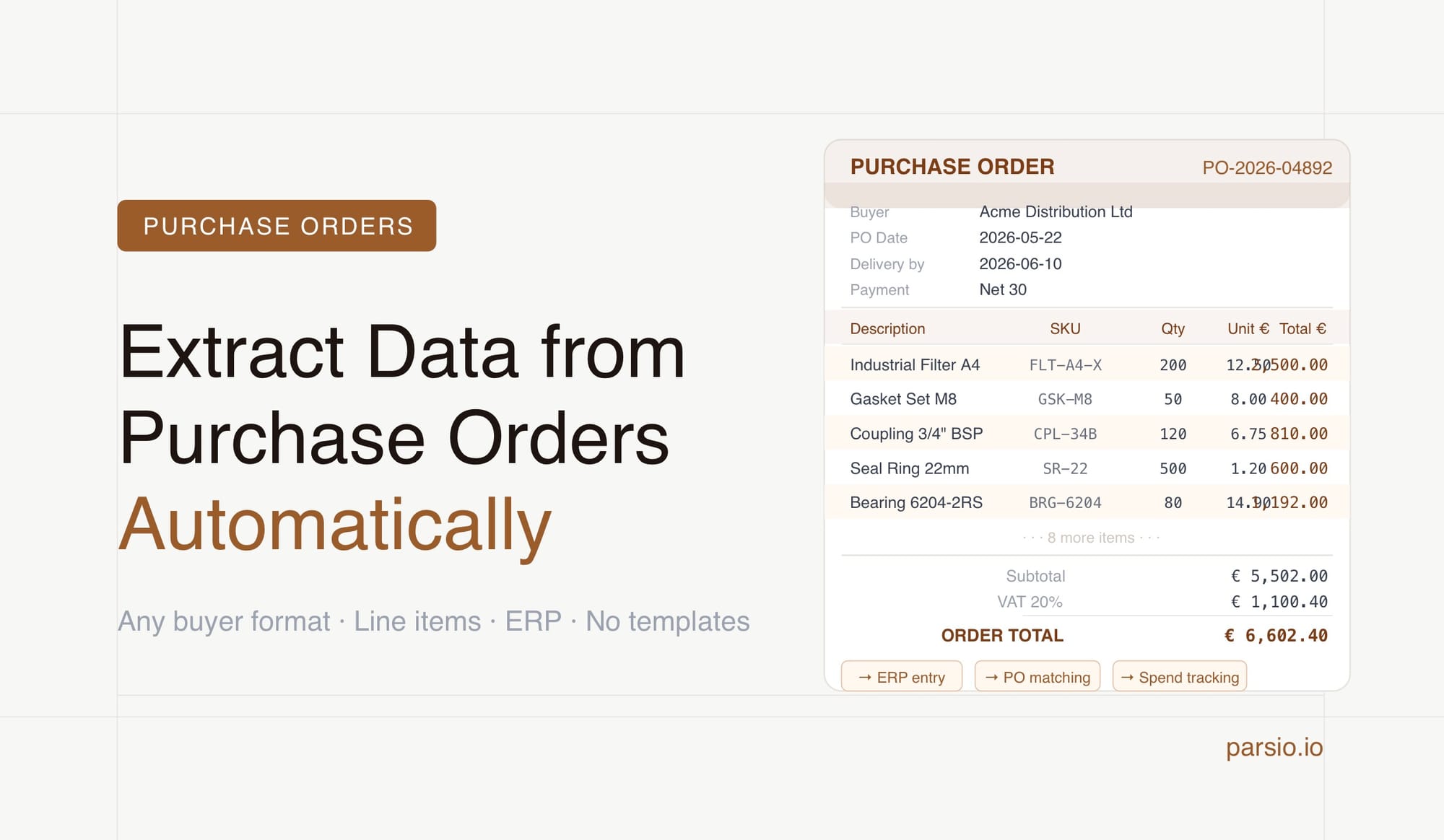
Extracting data from purchase orders automatically means setting up a parser that reads each incoming PO — whether it arrives as a PDF attachment, a forwarded email, or a document uploaded from a shared folder — pulls out the fields you need, and routes the structured data to your ERP, spreadsheet, or AP system without anyone manually keying anything in. With Parsio's GPT-powered parser, you can handle POs from multiple suppliers in different formats without building a separate template for each one.
This guide covers what to extract, why POs are harder to process than invoices, and how to set up the full workflow step by step.
What Data to Extract from a Purchase Order
Purchase orders contain two layers of information: header-level fields that describe the overall order, and line-item fields that repeat once per product being ordered. Both are needed for any downstream system to do something useful with the data.
Header fields:
- PO number
- PO date and required delivery date
- Buyer name and contact details
- Buyer company and billing address
- Supplier name and supplier code (if applicable)
- Delivery address
- Payment terms
- Currency
- Total order value
Line-item fields (repeated per product):
- Line number
- Product description or name
- SKU, part number, or item code
- Quantity ordered
- Unit of measure
- Unit price
- Line total
- Requested delivery date per line (if specified separately per item)
For procurement teams, the line items are the primary target — they need to know exactly what was ordered at what price before they can receive goods or match the PO against a supplier invoice. For finance, the header-level total, payment terms, and supplier details are what drive AP processing.
Why Purchase Orders Are Harder to Process Than They Look
Purchase orders are structurally similar to invoices — both have a header section and a line-item table — but they are significantly harder to process automatically for one main reason: they come from buyers, not sellers.
When you issue invoices, you control the format. When you receive purchase orders, every customer sends their PO in their own system's format. A retailer using SAP sends a PO that looks completely different from a distributor using Oracle, which looks different again from the small manufacturer using a custom Word template. There is no standard layout, no standard field labelling, and no way to predict what the next PO from a new customer will look like.
This creates specific challenges for automated extraction:
Layout varies completely between customers. Column order, field positions, date formats, and how line items are structured differ across every buyer's system. A template built for one customer's PO format will not work for the next customer.
Line items can be complex. Large POs may have dozens or hundreds of line items, sometimes spanning multiple pages. Each line may include product codes, descriptions, and delivery dates that are specific to the buyer's internal catalogue rather than the supplier's.
POs often arrive as email attachments. Rather than through a supplier portal, many POs land as PDF attachments to an email — sometimes with the PO number in the subject line, sometimes not. Extraction needs to handle the attachment, not the email body.
Some POs are still paper-based. Particularly in manufacturing and industrial supply, some buyers fax or scan their POs. These arrive as images and require OCR before any extraction can happen.
Who Needs Purchase Order Extraction
Three types of teams deal with this most often:
Order management and fulfilment teams at businesses that receive purchase orders from customers — wholesalers, manufacturers, distributors, and B2B suppliers. Each PO needs to be entered into the order management or ERP system before fulfilment can begin. Manually re-keying every incoming PO is where errors and delays accumulate.
Procurement and accounts payable teams at larger organisations that issue and track their own POs internally and need to reconcile them against supplier invoices. Extracting PO data into a structured format makes three-way matching — PO against goods receipt against invoice — faster and more reliable.
Finance teams doing spend analysis. Aggregating committed spend from open POs across suppliers, categories, and periods is difficult when POs live as individual PDFs. Extracting them into a structured dataset makes spend visibility and budget tracking possible without a full ERP implementation.
Step by Step: How to Automate Purchase Order Extraction with Parsio
Step 1: Create a purchase order inbox
In Parsio, create a new inbox for incoming purchase orders. Give it a dedicated email address — this is the address you will forward PO emails to, or that your customers can send POs directly to. If you receive POs in significantly different formats from different customer segments (for example, a set of key accounts with stable PO formats versus a long tail of smaller customers with varied formats), consider creating separate inboxes for each group with different parser configurations.
Step 2: Choose the right parser
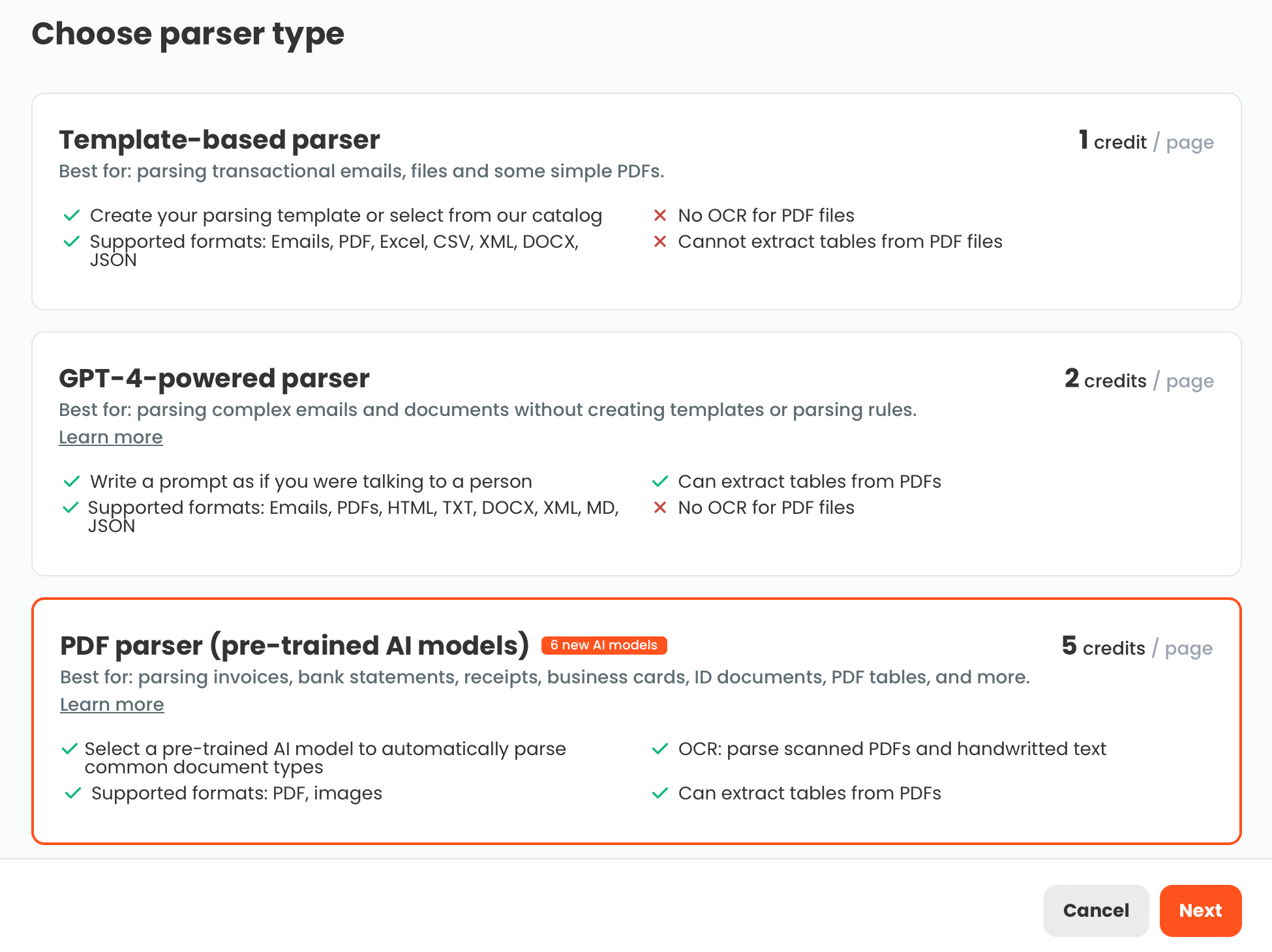
Because purchase orders arrive from many different buyers in many different formats, the GPT-powered parser is the right starting point for most businesses. Rather than building a visual template for each customer's layout, you describe the fields you want to extract in plain language. The parser reads each PO, locates the relevant information regardless of where it appears on the page, and returns the values as structured data.
If you receive the majority of your POs from one or two key customers whose PO format never changes, the template-based parser is faster and more predictable for those specific formats. Use it alongside the GPT parser if you need both.
For scanned or faxed POs, enable OCR processing first. OCR converts the image to readable text before the parser extracts fields from it.
Step 3: Define your extraction fields
For the GPT-powered parser, write out the fields you need clearly. A standard set for an order management team might be:
- PO number
- PO date
- Required delivery date
- Buyer company name
- Buyer contact name and email
- Delivery address
- Payment terms
- Line items (as a repeating group containing: line number, product description, item code or SKU, quantity, unit of measure, unit price, line total)
- Order total
- Currency
Define line items as a repeating group — not a flat list — so that each product line in the PO becomes a separate record in the output rather than all items collapsed into a single field.
The more specific your field descriptions, the better the results. For item codes, for example: "the buyer's internal product code or SKU, which may be labelled as item code, part number, product number, or customer part number."
Step 4: Send purchase orders to the inbox
Incoming POs can reach the Parsio inbox in several ways:
- Email forwarding — set a forwarding rule so that any email containing a PO attachment sent to your orders inbox is automatically forwarded to the Parsio inbox address. Parsio detects and extracts PDF attachments automatically.
- Direct submission — share the Parsio inbox email address with customers as your PO submission address. Customers email POs directly to it.
- Manual upload — upload PDF batches directly through the Parsio interface for backlog processing or bulk jobs.
- Zapier or Make — build an automation that monitors a shared mailbox or cloud storage folder and routes new PO files to Parsio as they arrive.
- API — for ERP or procurement platform integrations, submit PO files programmatically via the Parsio API.
Step 5: Review and tune
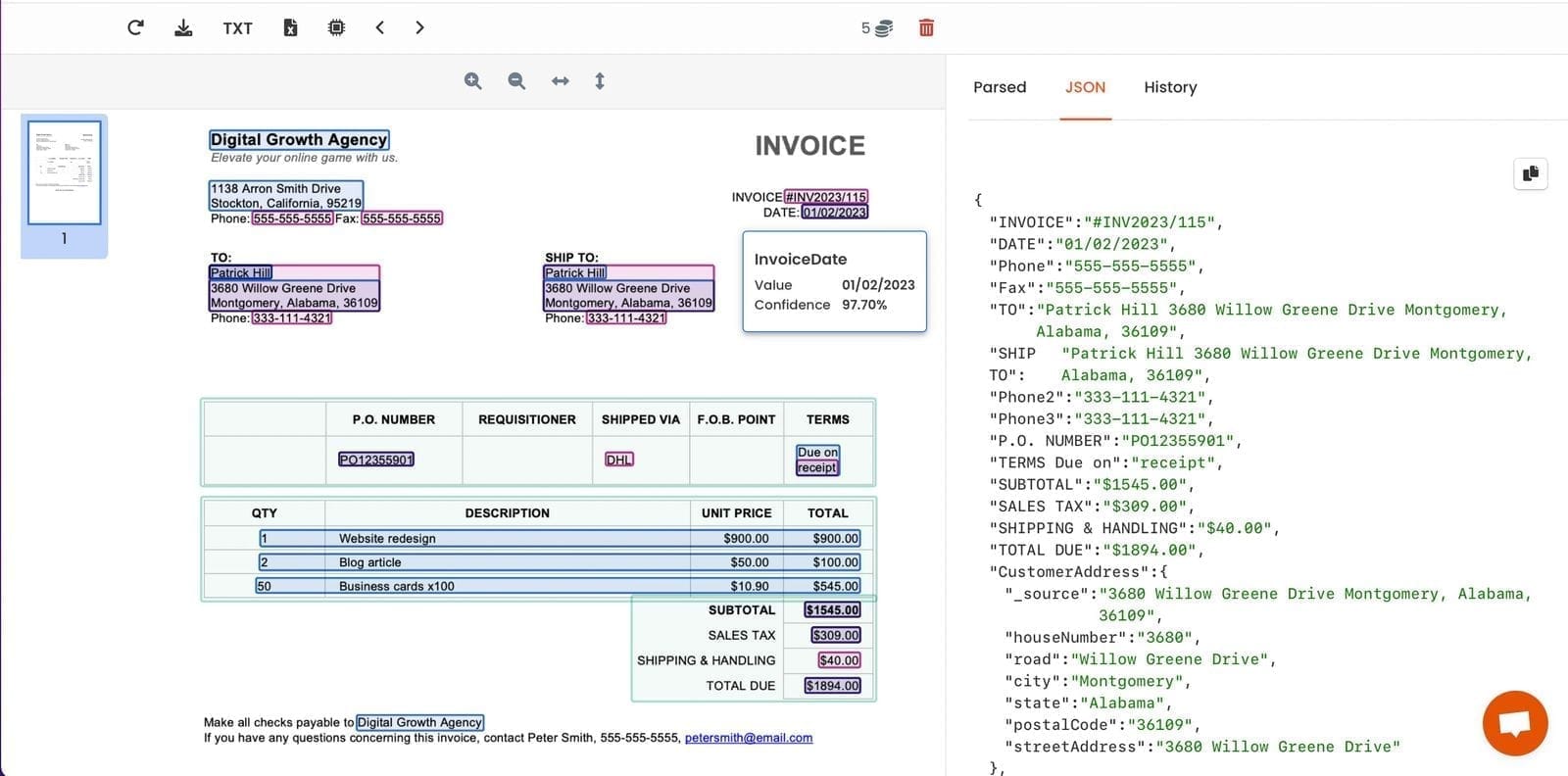
After the first batch of POs has been processed, review the output carefully. Check that:
- Line items are expanding into separate records, not merged into one field
- Item codes are being captured correctly and not confused with quantity or price values
- Dates are returned in a consistent format across POs from different customers
- The delivery address is correctly distinguished from the billing address when both appear
- The order total is the grand total, not a line subtotal
For any field that is consistently returning the wrong value, adjust the field description to be more specific about what to look for and how to distinguish it from similar fields.
Step 6: Route data to your downstream system
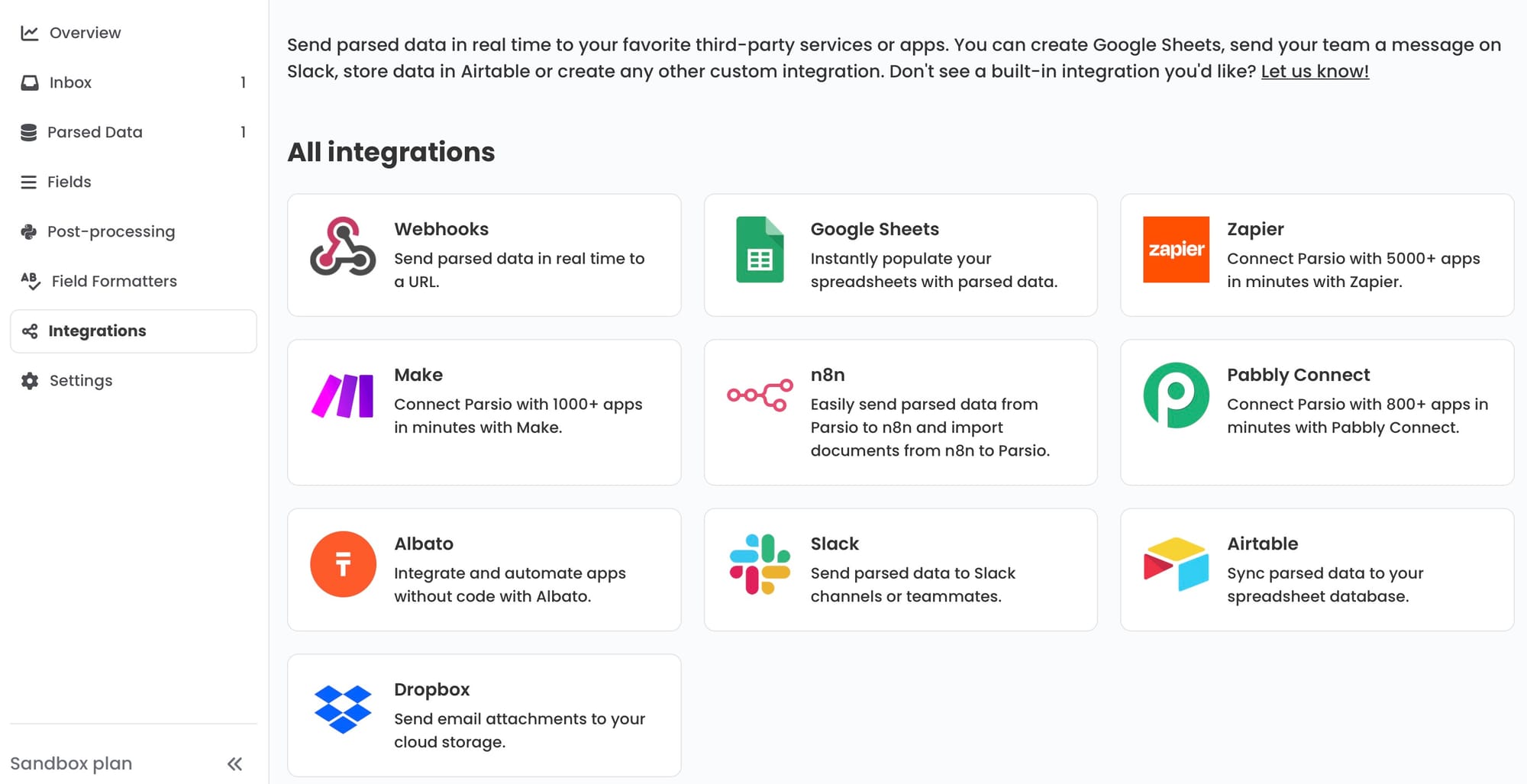
Where extracted PO data goes depends on your systems:
- ERP or order management system — send the extracted JSON via webhook to create a new order record automatically. This is the highest-value integration: the PO goes from inbox to ERP without anyone touching it.
- Google Sheets — append each PO as a set of rows (one per line item) to a shared order log. Useful for teams that do not have an ERP and manage orders from a spreadsheet, or for visibility across the business without ERP access.
- Zapier or Make — build multi-step automation around the extracted PO data. Create a delivery task, notify the warehouse team in Slack, update a deal in the CRM, or trigger a stock availability check — all triggered automatically when a new PO is parsed.
- CSV export — download all POs processed in a period as a single batch file for import into an accounting or ERP system at the end of each day or week.
Common Failure Modes
Buyer item codes versus supplier item codes. POs typically list the buyer's internal item codes, not the supplier's. If your ERP uses supplier-side SKUs, you may need a mapping table to translate buyer codes to your own catalogue. Flag the buyer item code as a distinct field and handle the translation downstream.
Multi-page POs with repeated headers. Large POs spread across multiple pages often repeat the column headers (Description, Qty, Price, Total) at the top of each page. Parsers sometimes treat these repeated headers as data rows. If this happens, add a note to the line items field description: "exclude rows that are column headers or subtotal rows — extract only rows representing individual products."
POs with amendments. Buyers sometimes send revised POs that update quantities, prices, or delivery dates on an earlier order. If the amended PO does not clearly state it is a revision, it may be processed as a new order. Add an explicit field — "PO revision number or amendment indicator, if present" — so your downstream system can handle revisions correctly.
Mixed currency POs. International buyers may issue POs in their local currency rather than yours. Always extract the currency code as a distinct field — do not assume a default. This matters especially when feeding data into an ERP that handles multi-currency transactions.
Delivery address versus ship-to address. Some PO formats specify a billing address, a delivery address, and a ship-to address as three separate entries, each with different labelling. If your workflow needs the correct delivery location, be explicit in the field description: "the address where goods should be physically delivered, which may be labelled delivery address, ship-to address, or consignee address."
What to Do with Extracted Purchase Order Data
Once extraction is running reliably, the structured PO data enables workflows that are not possible with raw PDFs:
- Automated order entry: create order records in your ERP or order management system the moment a PO arrives, without manual data entry
- PO-to-invoice matching: match extracted PO line items against supplier invoices automatically to validate that quantities and prices align before approving payment
- Committed spend visibility: aggregate open PO values by supplier, category, or period to see committed spend before invoices arrive
- Delivery date tracking: pull required delivery dates from all open POs into a single view so the fulfilment team can prioritise
- Customer price compliance: check ordered unit prices against contracted price lists to flag discrepancies before goods are shipped
👉 For a parallel workflow covering supplier invoices, see How to Extract Data from Invoices Automatically.
👉 For background on how PO extraction works conceptually, see Automating Purchase Orders Data Extraction: A Comprehensive Guide.
👉 To connect Parsio with Zapier, Make, or n8n for multi-step PO workflows, see Best Ways to Automate Document Parsing in Zapier, Make and n8n.
FAQ
Can Parsio handle purchase orders from multiple customers in different formats?
Yes — this is exactly the use case the GPT-powered parser is designed for. Rather than requiring a separate template per customer layout, you define the fields you want once in plain language. The parser reads each PO and locates the relevant fields regardless of where they appear on the page or how the document is formatted. For a small number of key customers with stable, predictable PO formats, you can also use the template-based parser for those specific customers while using the GPT parser for everyone else.
How does Parsio handle line items in purchase orders?
Line items are defined as a repeating field group. Each product line in the PO — with its own description, item code, quantity, unit price, and line total — becomes a separate record in the extracted output. When exported to Google Sheets, each line item becomes a row. When sent to an ERP or CRM via webhook, line items are included as an array in the JSON payload. This structure allows the full contents of a multi-product PO to be captured accurately rather than collapsed into a single text field.
What if purchase orders arrive as email attachments?
Parsio processes email attachments automatically. When a PO email is forwarded to the Parsio inbox address, Parsio detects any PDF attachments and routes them through the configured parser. You do not need to download and re-upload the attachment manually. For customers who always send POs by email, this means the full workflow — email arrives, attachment is extracted, data flows to your ERP or spreadsheet — happens automatically without any human step.
Do I need OCR for purchase order PDFs?
Only if the PO is a scanned image rather than a machine-readable PDF. POs generated by ERP or procurement systems are typically machine-readable and do not require OCR. POs that have been printed, signed, and scanned — or received by fax — are image-based and need OCR before field extraction can run. Enable OCR in Parsio for inboxes that regularly receive scanned documents.
How long does it take to set up purchase order extraction?
For a GPT-powered setup with Google Sheets export, most teams are processing their first live POs within a couple of hours. The main time investment is testing the field definitions against a representative sample of POs from different customers — ideally five to ten examples covering the main layout variations you receive. Tuning field descriptions to handle those variations is faster than building individual templates and significantly more robust when new customers arrive with unfamiliar formats.