How to Automate Data Extraction from Bank Statements
Manually copying transactions from bank statements into spreadsheets is slow and error-prone. Here is how to automate the full extraction workflow and get the data into the tools that need it.

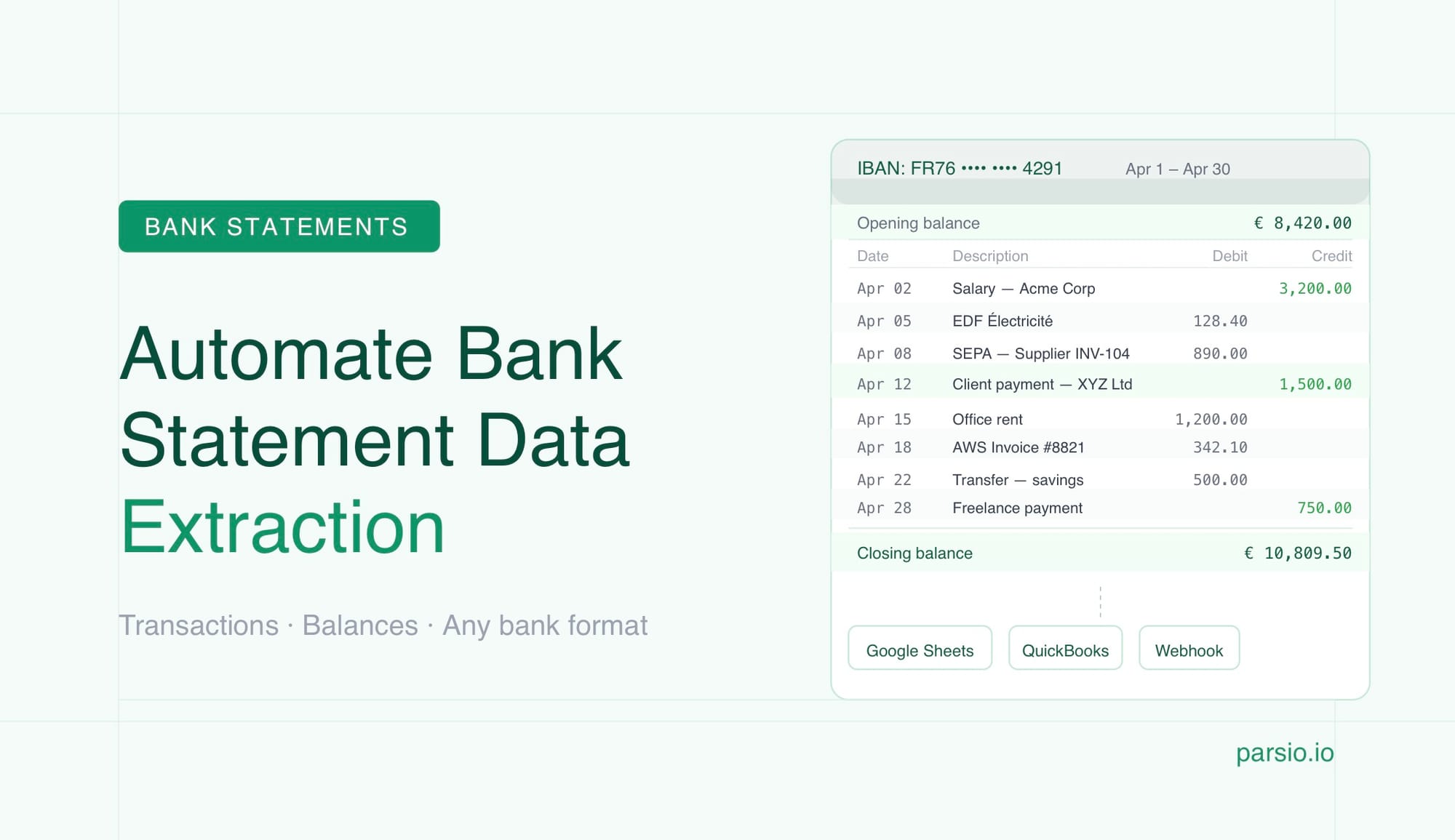
Automating bank statement data extraction means configuring a parser to read each statement PDF, pull out transaction rows, dates, amounts, and balances, and send that structured data directly to your spreadsheet or accounting system — without anyone manually copying anything. With Parsio's dedicated bank statement model, you can have this running in under an hour for most standard formats.
The rest of this guide covers what data is worth extracting, why bank statements are harder to parse than they look, who benefits most from automation, and a step-by-step walkthrough of setting up the full workflow.
What Data Lives in a Bank Statement
Bank statements contain two broad categories of information: account-level metadata and transaction-level data. Both are useful for different purposes.
Account-level fields:
- Bank name and account holder name
- Account number (full or masked)
- IBAN or routing and sort codes
- Statement period (start date and end date)
- Opening balance and closing balance
- Currency
Transaction-level fields (one set per row):
- Transaction date
- Value date (in some formats)
- Description or reference — the narrative that identifies the counterparty or purpose
- Debit amount
- Credit amount
- Running balance after each transaction
For accounting and bookkeeping, the transaction rows are the primary target. For reconciliation, you also need the opening and closing balances to verify the maths checks out. For lending or credit underwriting, the full picture — income credits, recurring debits, balance trend — is what matters.
Why Bank Statements Are Harder to Parse Than They Look
A bank statement might look straightforward — a table of dates, descriptions, and amounts — but several things make automated extraction reliably tricky:
No standard format across banks. Every bank lays out their statements differently. Column order, date formats, how credits and debits are presented (separate columns vs. a single signed amount), and how multi-line descriptions wrap across rows all vary. A parser built for one bank's format will break the moment you add statements from a second bank.
Multi-page transaction tables. Statements for busy accounts often run across many pages, with headers repeating on each page. Parsers need to handle page breaks cleanly — stitching together a continuous transaction list rather than treating each page as a separate document.
Wrapped and multi-line descriptions. Long transaction references often wrap across two or three lines within a single row. Parsers that read line by line will split one transaction into multiple fragments unless they understand the table structure well enough to reassemble them.
Scanned and photographed PDFs. Statements downloaded from online banking portals are usually machine-readable PDFs. But older statements, statements from smaller banks, or documents submitted by customers as photos or scans require OCR before any structured extraction can happen. OCR quality varies with scan quality.
Currency symbols and number formatting. European statements use comma as a decimal separator. Some statements include currency symbols in the amount column. Some show negative balances in parentheses rather than with a minus sign. These variations need to be handled correctly or numeric values will be unusable.
Who Needs Bank Statement Automation
Four types of teams run into this problem frequently enough that manual extraction becomes a meaningful operational cost:
Bookkeepers and accountants processing statements from multiple clients, each banking with a different institution. Manually copying transactions from PDF to spreadsheet for each client is slow, and the error rate from manual entry compounds across high volume.
Finance teams doing cash flow and reconciliation work. Reconciling bank transactions against the general ledger requires getting transactions into a format that can be matched against other records. Automation removes the data entry step and leaves only the matching logic.
Lending and credit underwriting teams who need to assess applicant financial health from bank statements submitted as part of a loan application. Extracting transaction data at volume — from many different banks and formats — and running analysis against it is effectively impossible without automation.
Operations teams at fintech, accounting, and financial management platforms that ingest bank statements from end users as part of onboarding or ongoing reporting. The volume and format diversity make any manual approach unworkable at scale.
Step by Step: How to Automate Bank Statement Extraction with Parsio
Step 1: Create a dedicated inbox
In Parsio, create a new inbox for bank statement documents. If you process statements from multiple banks or for multiple clients, consider whether to use a single inbox or separate inboxes per bank or client — separate inboxes make it easier to apply different export destinations or parser settings per category.
Step 2: Select the bank statement model
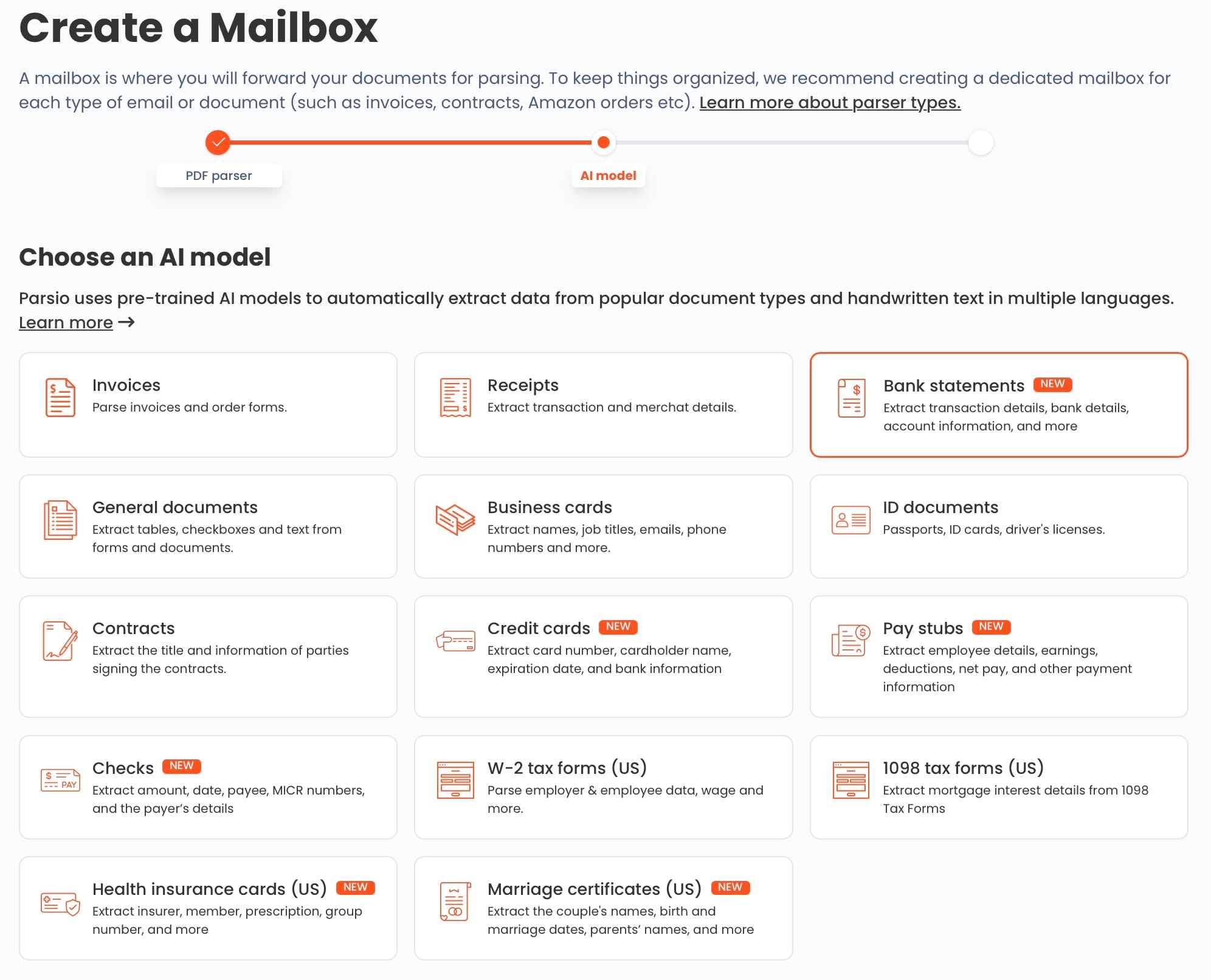
Parsio includes a dedicated pre-trained model for bank statements. Choose the AI-powered PDF parser and select the bank statement document type. This model has been trained on real bank statement formats and understands the structure of transaction tables, balance rows, and account header sections — without any template configuration on your part.
For statements that arrive as scanned images or photographed PDFs rather than digital downloads, enable OCR processing first. OCR converts the image to readable text before the AI model extracts structured fields from it.
Step 3: Send statements to the inbox
Bank statements can reach the Parsio inbox several ways:
- Email forwarding — if statements arrive by email (either as attachments or forwarded from an online banking notification), forward the email directly to your Parsio inbox address. Parsio extracts any PDF attachments automatically.
- Manual upload — upload individual PDFs or batches through the interface. Useful for processing a backlog or handling statements that arrive by other means.
- Zapier, Make, or n8n — set up an automation that monitors a shared email folder, Google Drive folder, or cloud storage bucket and sends new statement PDFs to Parsio as they arrive.
- API — for platforms ingesting statements programmatically from an applicant portal or document management system, the Parsio API accepts statement files directly.
Step 4: Review extracted fields
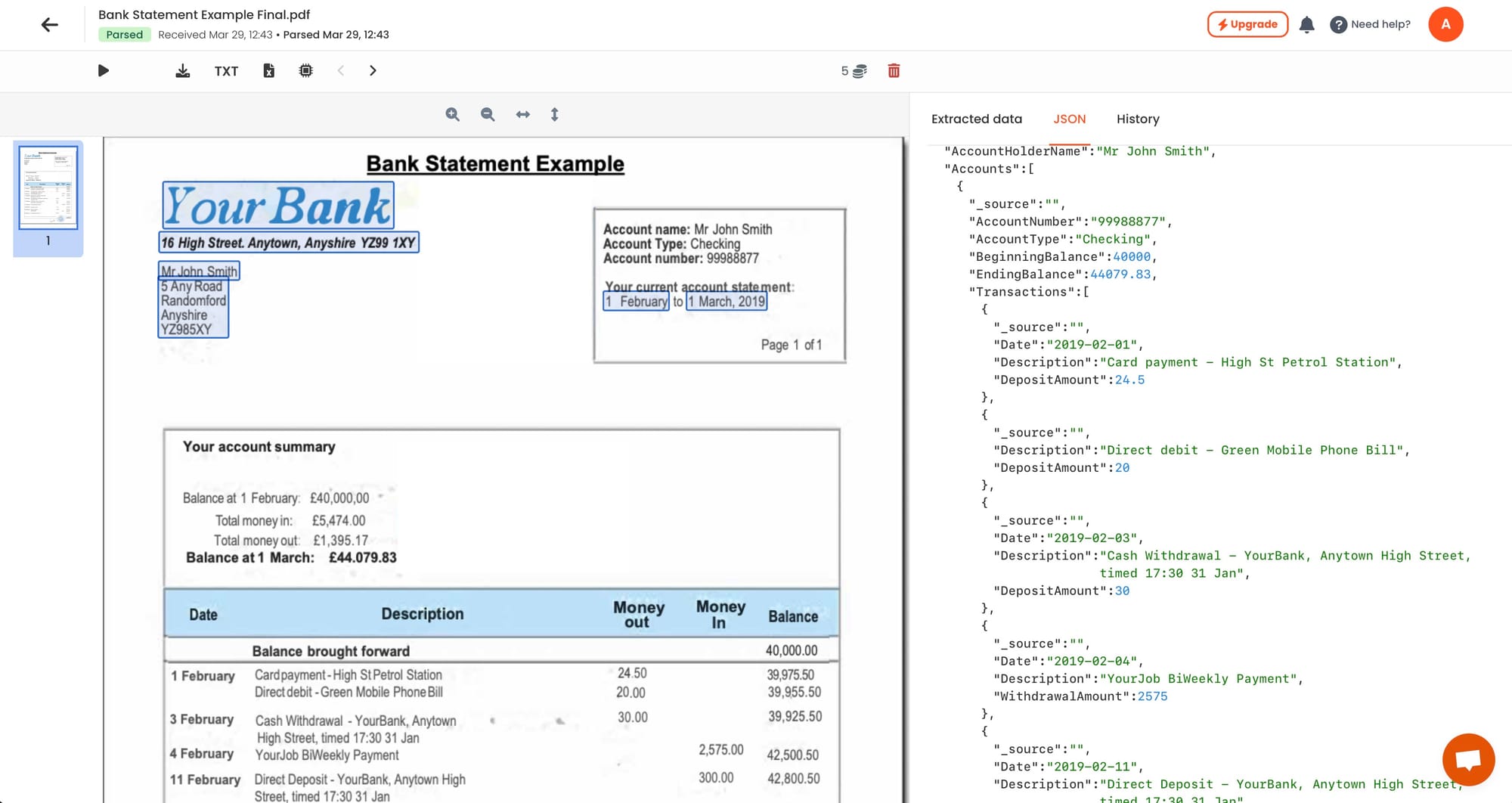
Once the first batch of statements has been processed, review the extracted output. For the pre-trained bank statement model, check that:
- Transaction rows are being captured as individual records, not merged or fragmented
- Dates are extracted in a consistent format
- Debit and credit amounts are correctly separated (not collapsed into a single signed field)
- The running balance is captured per row if that is needed for your downstream workflow
- Multi-line transaction descriptions are being reassembled as single values
For statements from unusual banks or with non-standard layouts that the pre-trained model does not handle cleanly, the GPT-powered parser is an alternative — define the fields you want in plain language and the parser will locate them regardless of where they appear on the page.
Step 5: Connect to your downstream tools
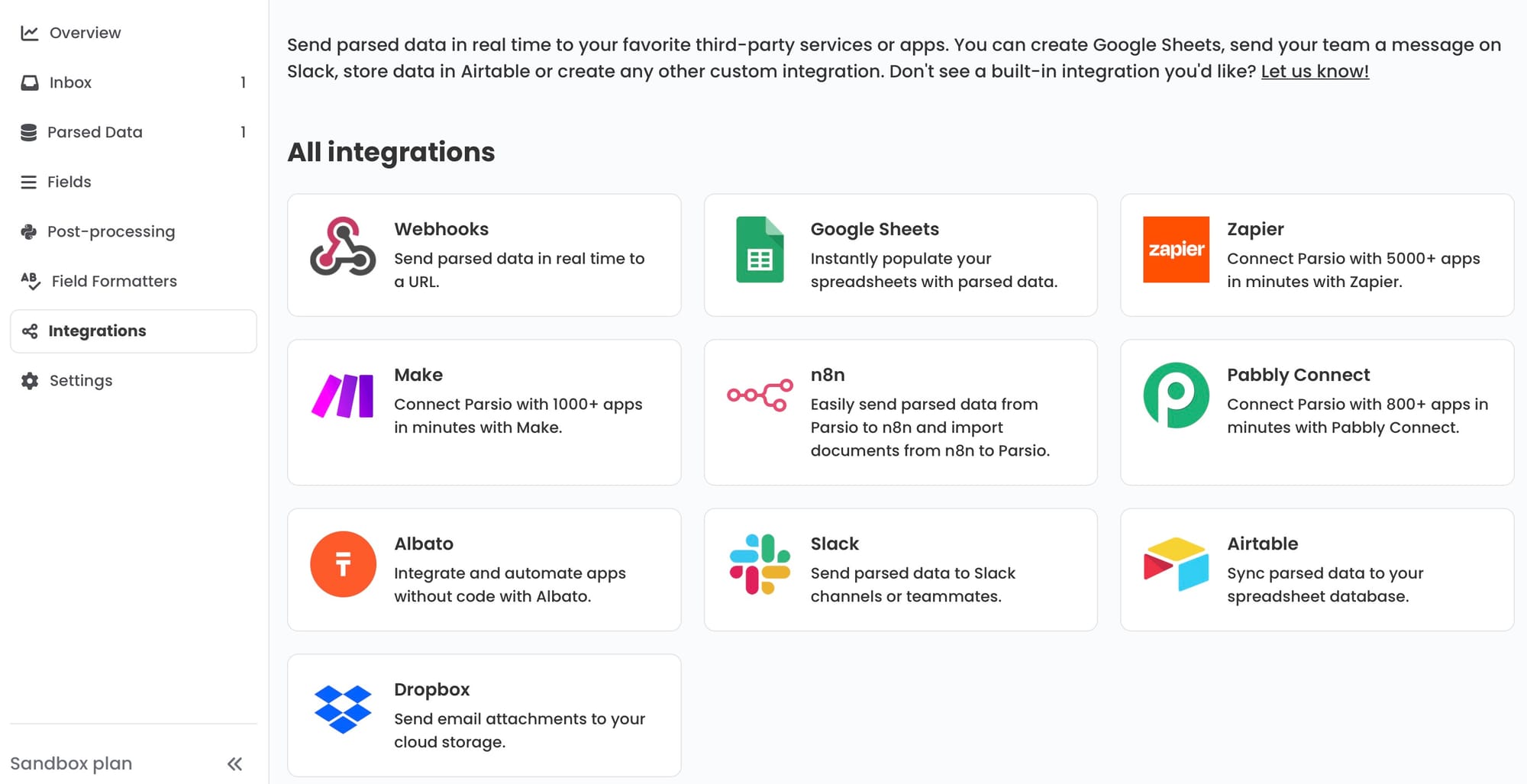
Where extracted data goes depends on what the workflow requires:
- Google Sheets — the simplest integration for bookkeepers and accountants. Each transaction from each statement appends a row to a shared sheet. From there, pivot tables, VLOOKUP, or formulas handle categorisation, monthly summaries, or client-level reporting. Multiple team members can access a live view without needing to download anything.
- Webhook to accounting software — send extracted transaction data as JSON to QuickBooks, Xero, or a custom accounting system to create draft transactions automatically. Removes the import step entirely.
- CSV or Excel export — for accountants who prefer to import data manually into their accounting platform at the end of each period. Download all processed statements as a single batch export.
- Zapier or Make — build multi-step workflows around extracted statement data. Route high-value transactions to a review queue, send balance summaries to a Slack channel, or trigger a reconciliation task in a project management tool.
Common Issues and How to Handle Them
Transactions split across rows. If a description wraps to the next line in the source PDF, some parsers treat it as a separate transaction. Check whether the extracted transaction count matches the statement total. If rows are being split, adjust field descriptions to indicate that descriptions may span multiple lines and should be joined.
Inconsistent date formats. UK statements typically use DD/MM/YYYY. US statements typically use MM/DD/YYYY. European statements may use DD.MM.YYYY. If statements from multiple banks are processed in the same inbox, ensure that the date field output is normalised to a consistent format before it reaches a spreadsheet or database — otherwise sorting and filtering will break.
Statements with multiple accounts. Some banks issue a single statement PDF covering multiple accounts or sub-accounts (for example, a current account and savings account together). If this is a common format in your workflow, treat each account section as a separate extraction group and include the account number as a field on every transaction row.
Credit card statements vs. bank statements. Credit card statements look similar but have a different structure — they typically include a statement balance, minimum payment, and purchases grouped by category rather than a running balance per transaction. The bank statement model is not ideal for credit card statements. For credit card data, use the GPT-powered parser with field descriptions tailored to the credit card statement structure.
Password-protected PDFs. Some banks issue password-protected statement PDFs as a security measure. Parsio cannot extract from locked PDFs. The file needs to be unlocked before submission — either by the user during download, or through a pre-processing step in your automation.
What to Do with Extracted Bank Statement Data
Once extraction is running reliably, the structured transaction data unlocks workflows that are impractical with raw PDFs:
- Cash flow analysis: chart net cash movement week by week or month by month, broken down by income credits and expense debits
- Automated categorisation: use transaction descriptions and amount patterns to classify transactions by category — payroll, rent, subscriptions, supplier payments — before the data reaches accounting software
- Reconciliation: match extracted transactions against invoices, purchase orders, or ledger entries to find unmatched items automatically rather than line by line
- Income verification for lending: aggregate regular income credits from extracted transactions to produce a structured income summary from raw statement data, across multiple months and multiple banks
- Audit trail for compliance: link each extracted transaction back to the original source statement, creating a verifiable chain from PDF to ledger entry
👉 For a deep-dive on format-specific extraction challenges, see How to Extract Data from PDF Bank Statements.
👉 To compare the leading tools for this workflow, see 5 Best Bank Statement Extraction Software in 2026.
👉 To connect Parsio with Zapier, Make, or n8n for multi-step bank statement workflows, see Best Ways to Automate Document Parsing in Zapier, Make and n8n.
FAQ
Can Parsio handle bank statements from different banks?
Yes. The pre-trained bank statement model is designed to handle the structure of bank statements across different banks without requiring a separate template per institution. Layout variation between banks is handled by the model rather than by configuration. For very unusual or non-standard formats, the GPT-powered parser can be used instead, with field descriptions written to match the specific structure of that bank's statement.
What is the difference between the AI model and the GPT-powered parser for bank statements?
The pre-trained AI model for bank statements has been trained specifically on bank statement documents and extracts standard fields — transactions, dates, amounts, balances — reliably and quickly. The GPT-powered parser is more flexible and can handle unusual layouts or custom field definitions, but requires you to describe what you want to extract in plain language. For standard bank statements, the pre-trained model is the better starting point. Use the GPT parser for edge cases the model does not handle well.
Do I need to enable OCR for digital PDF bank statements?
No — OCR is only needed for scanned images or photographed PDFs where the text is not machine-readable. Bank statements downloaded directly from an online banking portal are usually machine-readable PDFs, and the AI model can extract from them without OCR. If you receive statements as photos or low-quality scans, enable OCR before running extraction.
Can Parsio extract transaction line items as a table?
Yes. The bank statement model extracts transactions as repeating structured records — each transaction becomes a separate row with consistent fields (date, description, debit, credit, balance). This structure exports cleanly to Google Sheets, CSV, or JSON, where each row in the output corresponds to one transaction from the original statement.
How long does it take to set up bank statement extraction?
For a basic setup — inbox, AI model selection, and Google Sheets export — most teams are processing their first statements within an hour. More complex configurations involving multiple banks, multi-step automation in Zapier or Make, or webhook integrations with accounting software take longer to configure but the core extraction step is quick to get working. Testing against a sample set of statements from each bank in your workflow before going live is the most important step for ensuring consistent output.