How to Automate Supplier Statement Reconciliation
Supplier statement reconciliation is one of the most time-consuming tasks in accounts payable. Learn how to automate data extraction from supplier statements and catch discrepancies faster.

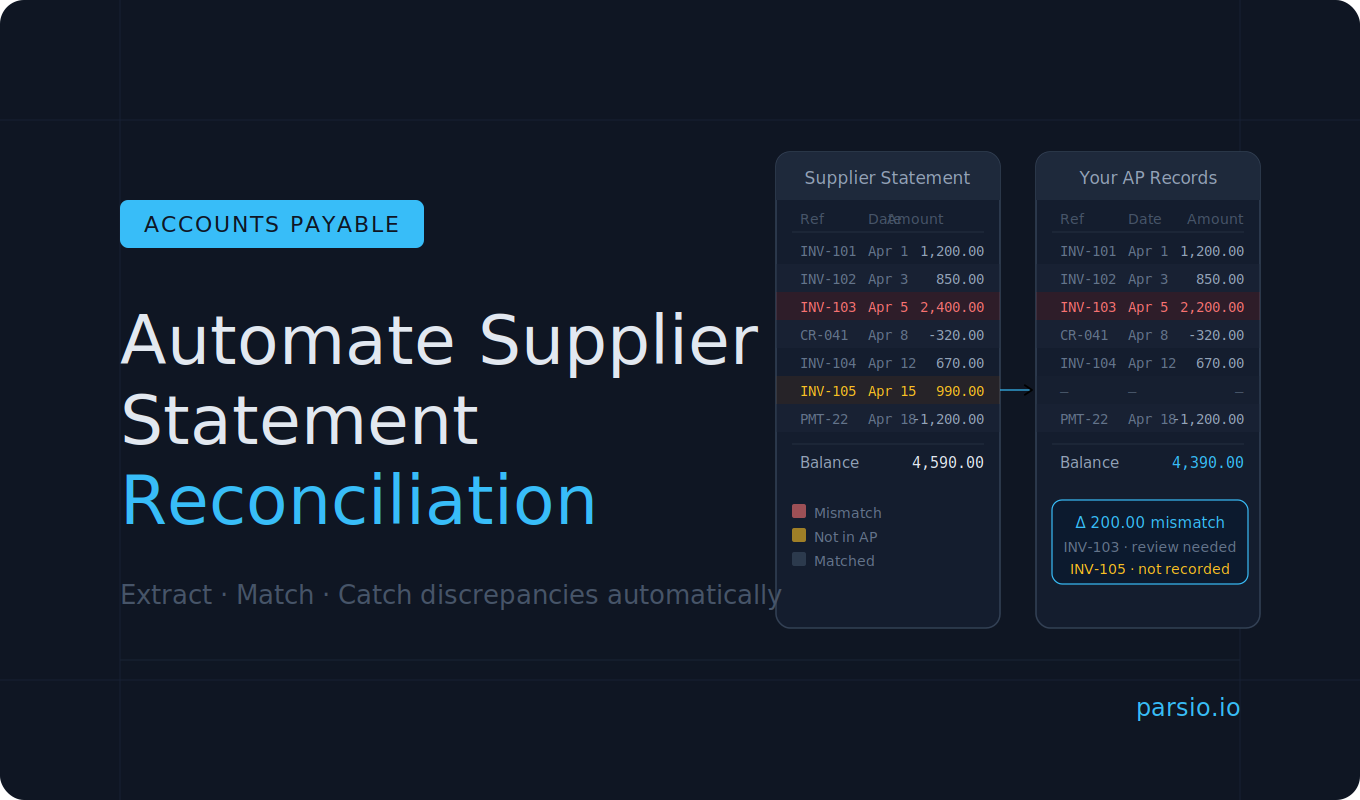
Every accounts payable team knows the end-of-month drill: supplier statements arrive by email or post, and someone has to sit down and check every line against your internal records. Invoice by invoice. Payment by payment. Credit note by credit note.
It is slow, it is error-prone, and it rarely gets the attention it deserves — until a duplicate payment or a missed credit becomes a real problem.
This guide explains what supplier statement reconciliation involves, why manual processing breaks down at scale, and how to automate the data extraction step so your team can spend time on discrepancies rather than data entry.
What Is Supplier Statement Reconciliation?
Supplier statement reconciliation is the process of comparing a supplier's statement of account against your own accounts payable records to confirm they match.
A supplier statement typically shows:
- the opening balance for the period
- all invoices issued during that period, with dates and reference numbers
- any credit notes or adjustments
- payments received from you
- the closing balance
Your job is to verify that each of those lines matches what you have recorded internally — and to find and investigate anything that does not.
Common discrepancies include:
- invoices on the supplier's statement that you never received or recorded
- payments you made that the supplier has not yet applied
- duplicate invoices billed twice
- credit notes you are owed but never claimed
- amount differences caused by currency rounding or disputed charges
Done properly, this process protects your business from overpayments, protects supplier relationships, and gives you an accurate view of what you actually owe.
Why Manual Reconciliation Breaks Down
Reconciling one supplier statement manually is manageable. Reconciling thirty at month end — each formatted differently — is where things fall apart.
The core problems are:
Format inconsistency. Every supplier sends their statement in a different layout. Some email a PDF. Some send an Excel file. Some still mail paper. The data is always roughly the same, but the structure is never identical. There is no standard.
Volume. A business with fifty active suppliers will receive fifty statements, each potentially covering dozens of transactions. Even at five minutes per statement, that is several hours of focused manual work every month.
Copy-paste risk. Manually transferring numbers from a PDF into a spreadsheet introduces transcription errors. A single transposed digit can turn a match into a discrepancy — and finding it again takes time.
Timing mismatches. Supplier statements are typically cut at a specific date. Payments you made close to that date may not appear on the statement yet. This creates apparent discrepancies that are actually just timing differences — but someone still has to identify them as such.
The result is a process that takes longer than it should, creates stress at month end, and still misses things.
What Data You Need to Extract
Before you can match a supplier statement to your records, you need to get the data out of it in a structured form.
The key fields are:
- supplier name and account number
- statement date and period covered
- individual transaction reference numbers (invoice numbers, credit note numbers)
- transaction dates
- transaction amounts
- transaction type (invoice, credit note, payment received)
- running or closing balance
Once those fields are extracted and structured, reconciliation becomes a matching exercise — something a spreadsheet or a simple script can help with. The bottleneck is getting there.
Choosing the Right Parser for Supplier Statements
Supplier statements vary more than invoices do. Invoices follow relatively predictable conventions. Supplier statements can differ dramatically depending on the supplier's accounting system, the industry, and how long the relationship has existed.
Parsio offers four parser types, and the right choice depends on your situation.
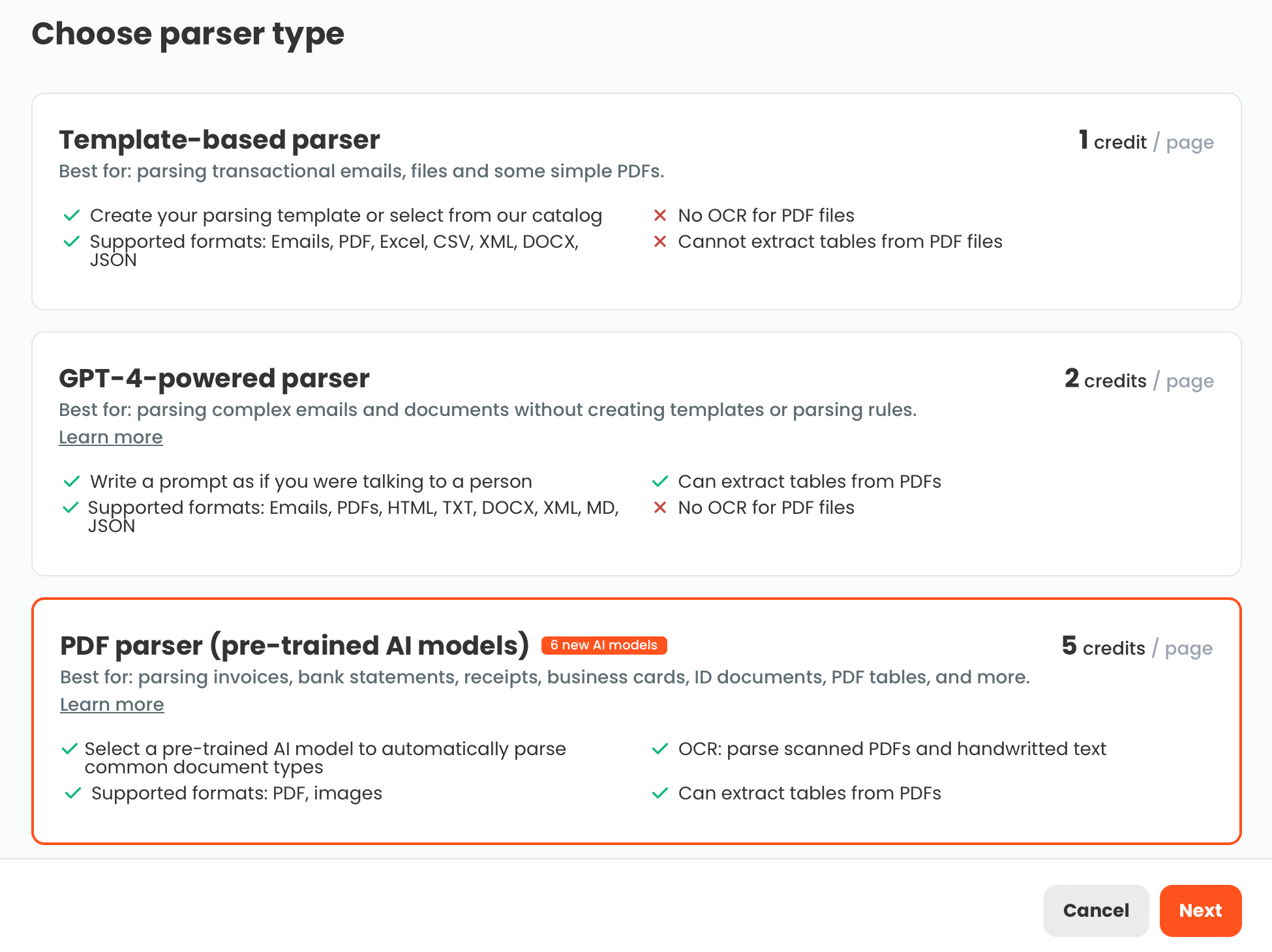
Template-based parser — works well if you receive statements from the same supplier in the same format every month. You build the template once against a sample statement, and Parsio extracts the same fields from every future statement automatically. This is fast and accurate when the format is stable.
GPT-powered parser — the better option when you deal with multiple suppliers whose statement formats vary. Rather than building a template per supplier, you define the fields you want in plain language and the GPT parser extracts them from whatever layout it encounters. This is more flexible, though it works best on shorter, structured documents rather than very long multi-page files.
AI-powered PDF parser — Parsio's pre-trained models are trained on specific document types including invoices, receipts, and bank statements. If your supplier statements closely resemble bank statements in structure (a dated transaction table with running balances), this model may produce clean output without any setup.
OCR converter — useful only if the statement is a scanned image and you need to convert it to readable text first. On its own, OCR does not extract structured fields — you would pair it with one of the parsers above.
For most teams dealing with multiple suppliers, a combination works well: template-based for high-volume consistent suppliers, GPT-powered for the rest.
How to Set Up Automated Extraction in Parsio
Here is a straightforward workflow for extracting data from supplier statements automatically.
Step 1: Create an inbox
In Parsio, an inbox is where your documents arrive. You can set it up to accept:
- email forwards (ask your team to forward supplier statement emails to the inbox address)
- manual uploads
- API submissions if you want to connect a mailbox directly
- Zapier or Make triggers if statements are arriving in cloud storage
Create a separate inbox for supplier statements if you want to keep them organised away from invoices or other document types.
Step 2: Select your parser and configure the fields
Choose the parser type that fits your situation as described above. For a GPT-powered setup, you define the fields you want extracted — transaction reference, date, amount, type, and balance — in plain language. No template drawing required.
For a template-based setup, upload one sample statement from the supplier and highlight the fields you want to capture. Parsio builds the template from that example.
Step 3: Upload or forward statements
Once the inbox is ready, documents can arrive automatically. Forward the supplier statement email to the inbox address, or upload PDFs directly. Parsio processes each document as it arrives.
Step 4: Review the extracted data
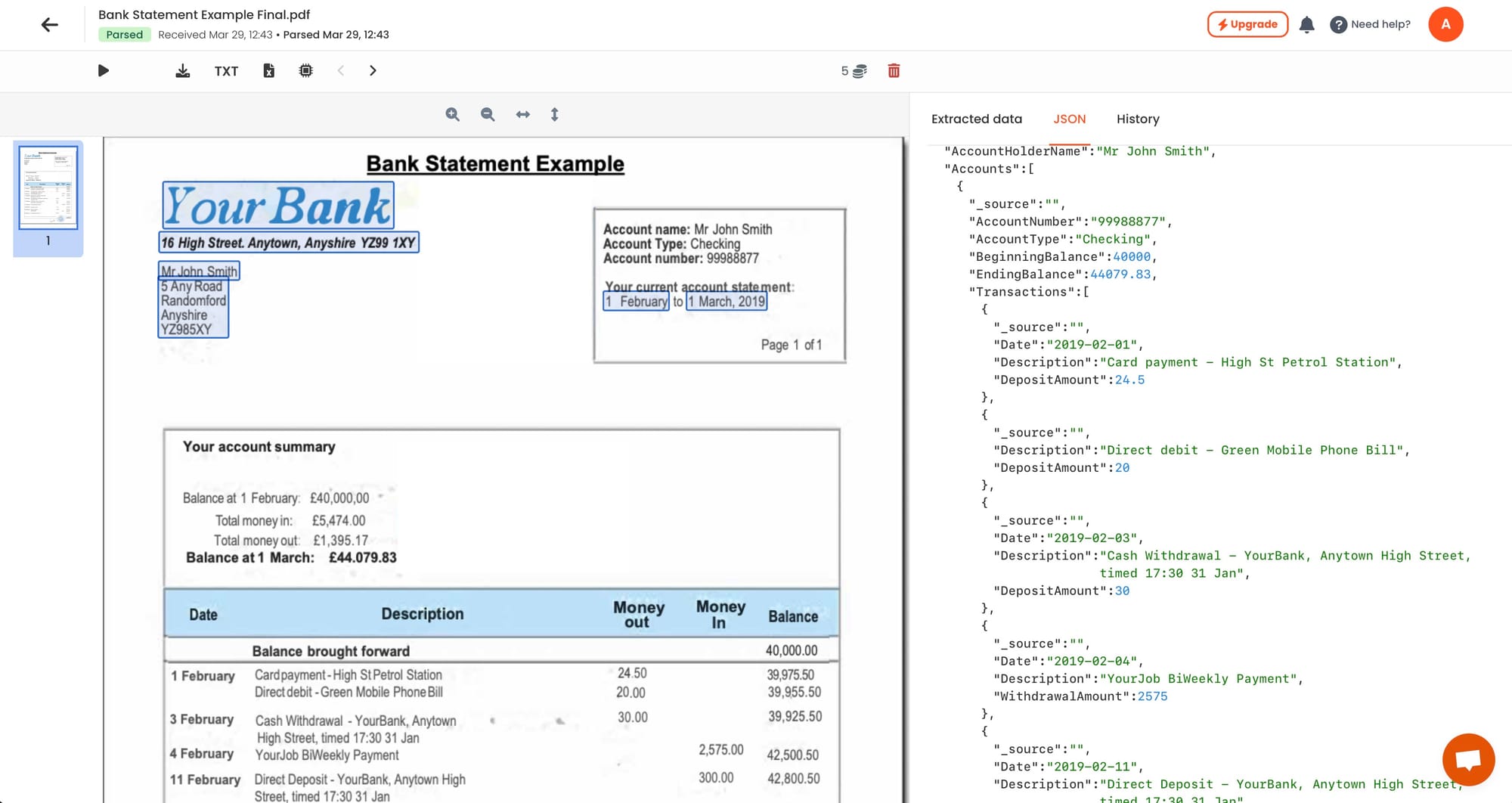
Parsio shows you the extracted fields alongside the original document. For supplier statements, you should see each transaction row pulled into a structured table — reference numbers, dates, amounts, and types in separate columns.
Check the first few statements carefully. If you are using the GPT parser on varied formats, some suppliers may need a small prompt adjustment to get the right output consistently.
Step 5: Export to your reconciliation tool
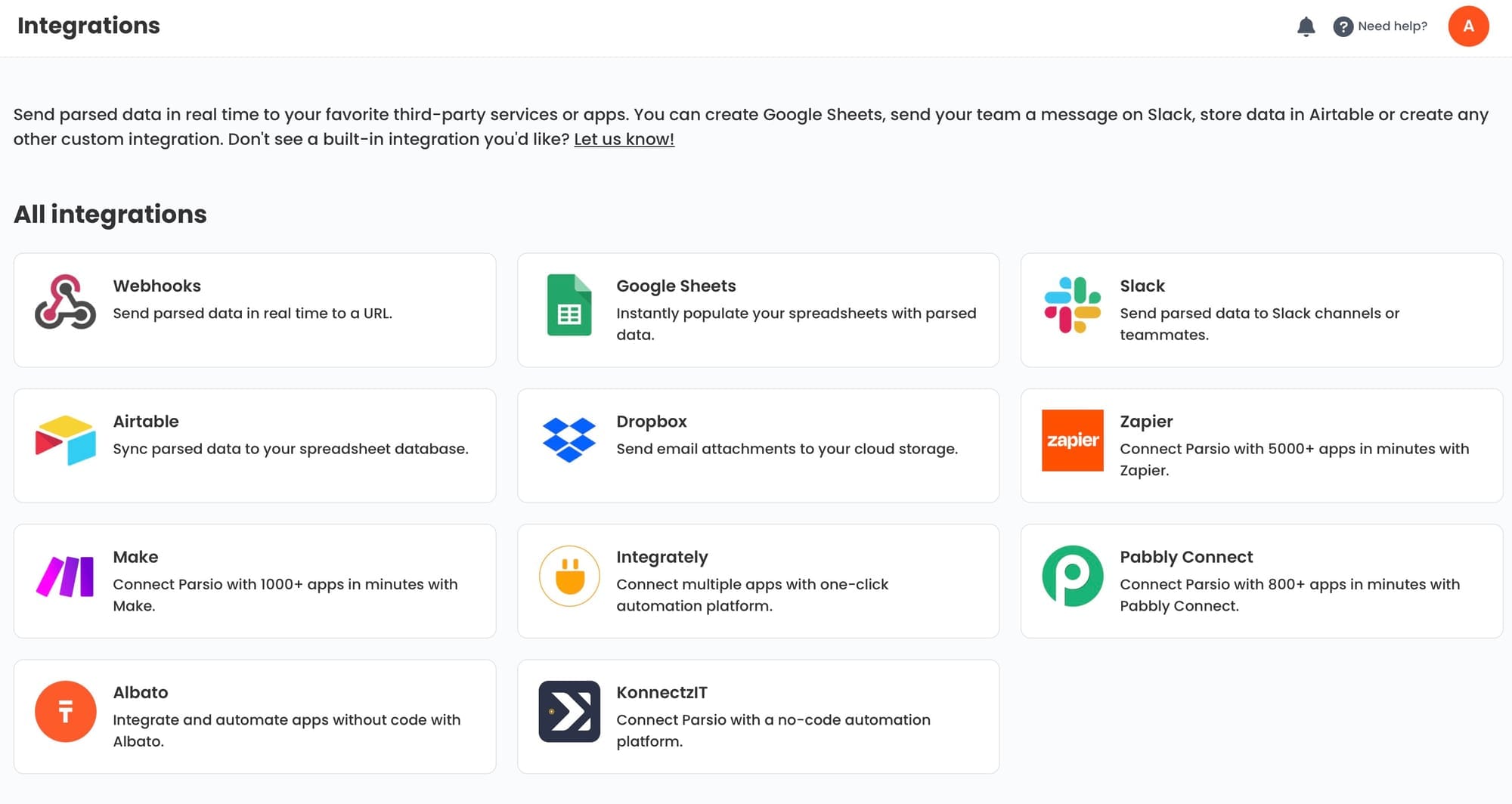
Once extraction is working, connect Parsio to wherever you do the actual reconciliation work. Common options:
- Google Sheets — Parsio's built-in Sheets integration sends each extracted transaction row directly to a spreadsheet. You can then use VLOOKUP or MATCH formulas to compare supplier lines against your own transaction data.
- Webhooks — if you have an internal system or a tool like Airtable, send the extracted data there automatically via webhook on every new document.
- CSV or Excel download — if you prefer batch processing, export the extracted data at the end of each statement cycle and import it manually into your AP system.
- Zapier or Make — connect extracted data to accounting tools like QuickBooks, Xero, or FreshBooks if you want to update your ledger directly.
For most small and mid-size teams, the Google Sheets route is the fastest to set up and gives you the most flexibility for the matching step.
Matching Extracted Data to Your Internal Records
Extraction gives you structured supplier data. Reconciliation is then a comparison problem.
A simple Google Sheets setup works like this:
- Column A–D: your internal AP records (invoice number, date, amount, status)
- Column F–I: extracted supplier statement data (their reference, date, amount, type)
- Column J: a MATCH or VLOOKUP formula that checks whether the supplier's invoice number appears in your records
- Column K: an amount comparison to flag rows where numbers differ
Any row where the match fails or the amounts differ is a discrepancy that needs investigation. Everything else is confirmed and can be cleared.
If you process statements from many suppliers, you can build a single sheet per supplier and aggregate status into a master reconciliation dashboard. Parsio's webhook or Sheets integration can append new transactions automatically as statements arrive, keeping the sheet current without manual imports.
Common Issues and How to Handle Them
Supplier uses different invoice reference formats. Some suppliers add prefixes or suffixes to invoice numbers on their statements. If your internal references are just numbers but the supplier writes them as INV-001234, a direct match will fail. Fix this with a formula that strips non-numeric characters before comparing, or normalise both sides before the match step.
Timing differences. A payment you sent on the 29th may not appear on a statement cut on the 30th. These are not true discrepancies — they are in-transit items. Flag them separately as pending rather than unmatched.
Credit notes and deductions. Make sure your extraction captures the transaction type, not just the amount. A credit note of £500 and an invoice of £500 are very different things. Structure your extracted fields to include type (invoice, credit, payment) so the matching logic can handle them correctly.
Scanned or low-quality PDFs. Some suppliers send statements that are scanned images rather than digital PDFs. Enable OCR in Parsio before parsing to convert the image to readable text first.
Multi-page statements. For longer statements, test the GPT parser output carefully on longer documents. If a statement runs to many pages, the template-based approach on a per-supplier basis tends to be more reliable.
Why This Matters Beyond Month End
Automating the extraction step does not just save time — it changes what is possible.
When statement data arrives in structured form automatically, you can:
- run reconciliations more frequently, not just at month end
- catch discrepancies while they are still easy to resolve
- build a running ledger view of outstanding supplier balances
- identify suppliers with recurring billing errors and address them proactively
- reduce the end-of-month crunch that comes from doing everything manually at once
The reconciliation itself still requires human judgement — but that judgement should be applied to real discrepancies, not to typing numbers from a PDF into a spreadsheet.
👉 If you also need to extract individual invoices as they arrive, see How to Extract Data from Invoices Automatically for a step-by-step guide.
👉 For a broader look at AP and AR automation, see How to Streamline Accounts Payable and Accounts Receivable Automation.
👉 To connect Parsio to Zapier, Make, or n8n for more complex workflows, see Best Ways to Automate Document Parsing in Zapier, Make and n8n.
FAQ
What is supplier statement reconciliation?
Supplier statement reconciliation is the process of comparing a supplier's account statement against your internal accounts payable records to verify that both sides agree. It helps identify missed invoices, duplicate payments, unclaimed credits, and timing differences.
How often should you reconcile supplier statements?
Most businesses reconcile monthly, aligning with the supplier's statement cycle. High-volume or high-value supplier relationships benefit from more frequent reconciliation — weekly or even on every statement received.
What causes discrepancies in supplier reconciliations?
Common causes include payments that have not yet been applied by the supplier, invoices you never received, duplicate invoices, credit notes not yet claimed, and amount differences caused by rounding or disputed charges.
Can Parsio extract data from any supplier statement format?
Parsio works best on structured and semi-structured business documents. For consistent supplier statement formats, the template-based parser works reliably. For varied formats across multiple suppliers, the GPT-powered parser is more flexible. Very long, unstructured, or image-only documents may need additional handling such as OCR pre-processing.
Do I need technical skills to set this up?
No. Parsio's inbox setup, parser configuration, and Google Sheets integration are all no-code. You can have a basic extraction workflow running in under an hour without writing any code.