How to Extract Data from Any PDF Without Building a Template
Template parsers break when layouts change. Parsio's GPT parser extracts structured data from any PDF — it auto-generates the extraction prompt from your sample document. No templates, no prompt writing, no code.

TL;DR
- Template-based parsers require you to map fields by hand and break when a document's layout changes — GPT-powered parsing removes both problems.
- Parsio's GPT parser reads each PDF individually using a language model, so varied layouts, changing vendor formats, and one-off document types all extract the same way.
- Parsio auto-generates the extraction prompt from a sample document you upload — you do not need to write a prompt manually.
- Best for: customs forms, internal approval documents, non-standard vendor invoices, certificates, packing lists, purchase agreements, and any PDF that arrives in more than one layout.
- Extracted data routes to Google Sheets, webhooks, Zapier, Make, n8n, or any downstream tool your team already uses.
You can extract structured data from any PDF without building a template by using Parsio's GPT-powered parser. Unlike a template-based approach that requires you to map fields to a specific document layout, the GPT parser reads each document individually and extracts the fields you specify — even if every document looks different. Parsio also auto-generates the extraction prompt from a sample document you upload, so there is no prompt engineering required.
Template parsers are excellent for machine-generated documents that always arrive in the same format — order confirmation emails, shipping alerts, and fixed-layout invoices from a single supplier. But many businesses receive PDFs from dozens of different vendors, each with its own layout. Others deal with internal forms, customs documents, or compliance certificates that have no standardized structure. For these, a GPT-powered approach is the practical alternative to maintaining an ever-growing library of fragile templates.
This guide explains when to choose GPT parsing over templates, how to configure Parsio's GPT parser using its automatic prompt generation, which document types it handles best, and how to route the extracted data into the tools your team already uses.
When to Use GPT Parsing Instead of a Template
Template-based parsing works by mapping specific locations or patterns inside a document to named fields. A template for a UPS shipping confirmation, for example, identifies exactly where the tracking number and delivery date appear in that email. Because the layout never changes, the template runs reliably without any ongoing maintenance.
The model breaks down in three situations. First, when you receive the same type of document from many different sources — invoices from 40 different suppliers each formatted differently, for instance. Building and maintaining 40 templates is not practical. Second, when a document type has no fixed structure — customs declarations, vendor-specific order forms, certificates of compliance, or internal PDFs created by different departments. Third, when an existing template breaks because a sender updated their layout and you do not have the bandwidth to rebuild the mapping each time.
GPT parsing handles all three situations because the extraction logic lives in the prompt, not in a positional template. The model reads the document text and identifies the requested fields based on meaning, not location. A customs declaration from a German importer and one from a Brazilian exporter can both be processed by the same GPT parser configuration, even though their layouts are completely different.
The practical decision rule: use a template parser when the document format is stable and machine-generated; use GPT parsing for everything else. Parsio's guide to rule-based parsing covers the five situations where templates outperform AI approaches — it is worth reading before choosing your parser type for a new document workflow.
Which PDFs Work Best with GPT Parsing
GPT parsing performs best on semi-structured documents — PDFs that have a consistent set of fields but no guaranteed layout. The document contains the information you need, but its visual structure varies by sender, date, department, or version.
Strong candidates for GPT parsing include:
- Vendor-specific or non-standard invoices. Small suppliers often use their own invoice templates. The invoice number, date, amounts, and line items are always present, but their position on the page varies from vendor to vendor.
- Customs declarations and import documents. Commercial invoices for customs, packing declarations, and certificates of origin come from many different countries and exporters. No two look exactly the same, but they all contain the same core fields — HS codes, country of origin, declared value, shipper details.
- Internal forms and approval documents. Expense approval requests, purchase requisitions, and change-order forms often exist as unbranded PDFs created in Word, Google Docs, or a legacy system. Layout varies by department or template version.
- Compliance certificates and quality documents. Certificates of analysis, ISO compliance certificates, material safety data sheets, and inspection reports are created by labs, suppliers, and certifying bodies with no uniform layout standard.
- Packing lists and shipping manifests. These frequently change format depending on the supplier's logistics software.
- Service contracts and master agreements. Key dates, renewal terms, and party names can be extracted from contracts even without a fixed structure, though best results come from shorter documents.
- Non-standard purchase orders. Enterprise buyers often use their own PO formats that your supplier's system must process regardless of layout.
GPT parsing is less suited to scanned images with poor OCR quality, documents that are mostly tables of numeric data with little surrounding text context, and documents longer than approximately ten pages. For very long documents, it is more reliable to extract only the first few pages where header fields typically appear, rather than submitting the full file. A broader comparison of PDF parsing methods — rule-based, zonal OCR, AI, and LLM approaches — provides additional context for matching the right method to each document type.
If your document type is one of Parsio's supported pre-trained categories — invoices, receipts, bank statements, ID documents, business cards, or pay stubs — the AI-powered PDF parser is usually a better starting point because it uses a purpose-built model rather than a general-purpose language model, which gives more consistent field-level accuracy for those specific document types.
How to Set Up Parsio's GPT Parser in 5 Steps
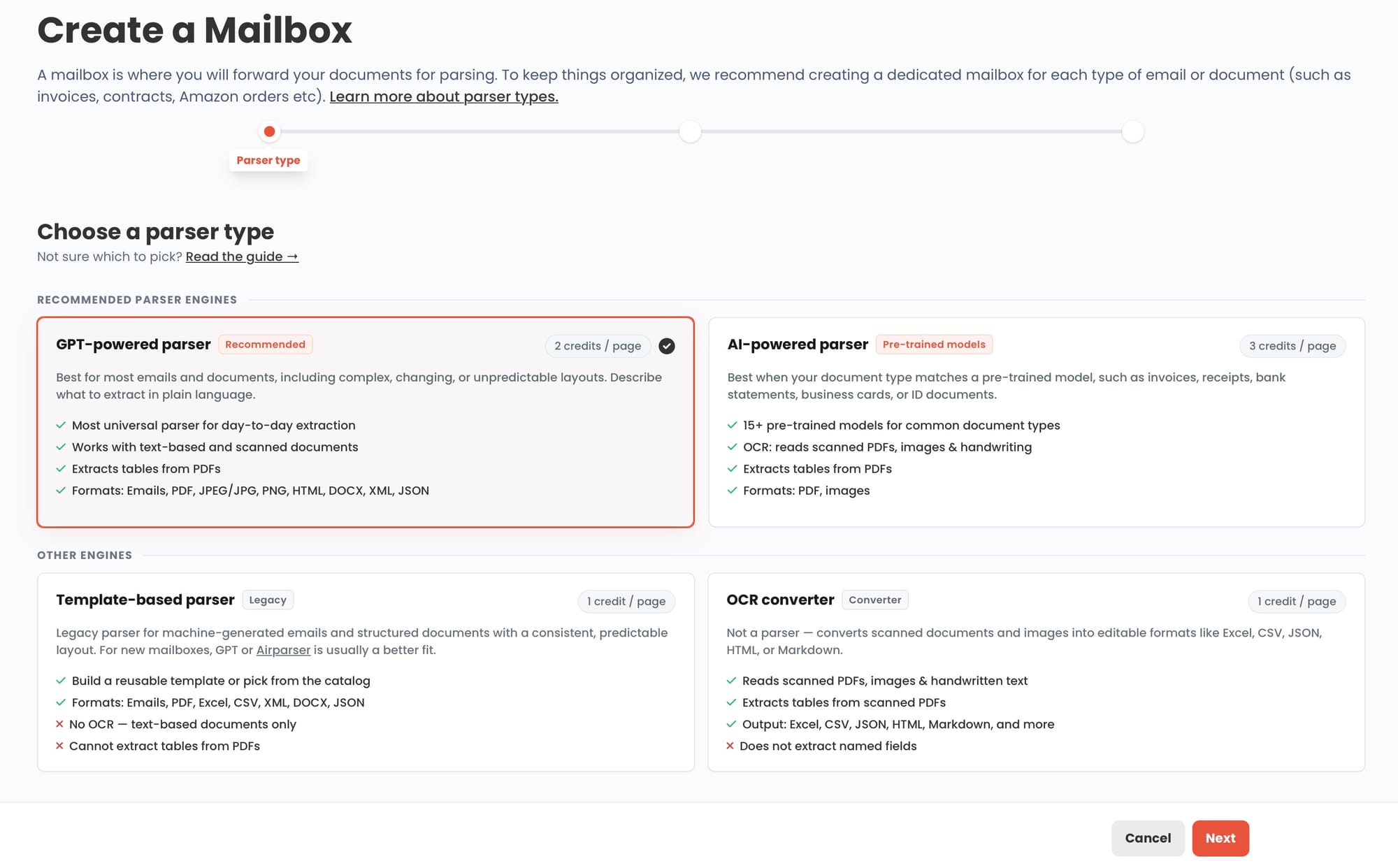
Setting up GPT parsing in Parsio does not require any technical configuration. The setup takes less than ten minutes for a first document type and is entirely browser-based.
- Create a new inbox in Parsio. An inbox is a processing channel tied to a specific document type. Name it clearly — "Vendor Customs Invoices" or "Internal Purchase Requisitions" — so the purpose is unambiguous as you add more inboxes over time.
- Choose "GPT-powered parser" as your parser type. Parsio's inbox setup wizard presents four options: template-based, AI-powered PDF parser, GPT-powered parser, and OCR converter. Select GPT-powered parser.
- Upload a sample document. Upload one representative PDF. This becomes the basis for the automatic prompt generation step. Choose a document that contains all the fields you want to extract, and ideally one that represents the most complex layout variation you expect to see.
- Review the auto-generated extraction prompt. Parsio reads the sample document and generates a prompt that describes the fields it detected and how they should be extracted. This happens automatically — no prompt writing required. Review the suggested fields, rename or remove any that do not fit your needs, and add any fields the auto-generator missed.
- Test with additional documents. Upload two or three more documents from different sources or with slightly different layouts. Confirm that the same fields extract correctly. If a field is inconsistent, adjust its description in the prompt — usually a small change in wording resolves the issue.
Once set up, the inbox processes new documents automatically. Email forwarding, manual upload, Zapier triggers, Make scenarios, and the Parsio API all feed documents into the same inbox and apply the same extraction configuration.
How Parsio Auto-Generates the Extraction Prompt for You
Most GPT-based extraction tools require the user to write the extraction prompt manually. This creates a barrier: users unfamiliar with prompt design often write prompts that either miss fields, extract them inconsistently, or include ambiguous instructions that cause different results on different documents.
Parsio eliminates this step by reading the sample document and generating the prompt automatically. When you upload a document, Parsio's system identifies the text, detects repeating structures such as line-item tables, recognizes common field types — dates, amounts, addresses, identification numbers — and produces a prompt that names and describes each field in clear language.
The generated prompt is editable. If Parsio detected a field labelled "Supplier Name" but your team calls it "Vendor", you rename it. If the document contains a field the auto-generator missed — a less common identifier or a field buried in a footer — you add it with a brief description. In most cases, the auto-generated prompt needs only minor adjustments before it is ready to process real documents at volume.
This auto-generation capability is what makes Parsio's GPT parser accessible to operations teams and finance staff who are not technical. There is no requirement to understand how language models work or how to write prompts. Upload a sample, review the output, adjust where needed, and the parser is ready.
What Fields Can You Extract from Any PDF
GPT parsing can extract any field that appears as text in the document and can be described in plain language. There are no restrictions tied to field position, document type, or industry. Common extraction categories include:
- Header fields: document number, date, reference codes, PO number, contract ID, declaration number
- Party fields: vendor name, buyer name, issuing company, contact person, address, tax or registration numbers
- Financial fields: amounts, subtotals, taxes, currency, payment terms, line-item prices
- Logistics fields: HS codes, country of origin, weight, quantity, unit of measure, port of entry
- Date fields: issue date, due date, delivery date, validity period, renewal date
- Descriptive fields: product description, service description, notes, conditions, certifications
- Repeated rows: line items in tables — multiple products, services, or shipment entries per document
For documents with line-item tables, Parsio's GPT parser extracts each row as a separate structured record. A customs invoice with fifteen HS code entries, for example, produces fifteen rows in your Google Sheet — one per product, each with its own description, quantity, unit value, and HS code.
How to Export Your Parsed Data
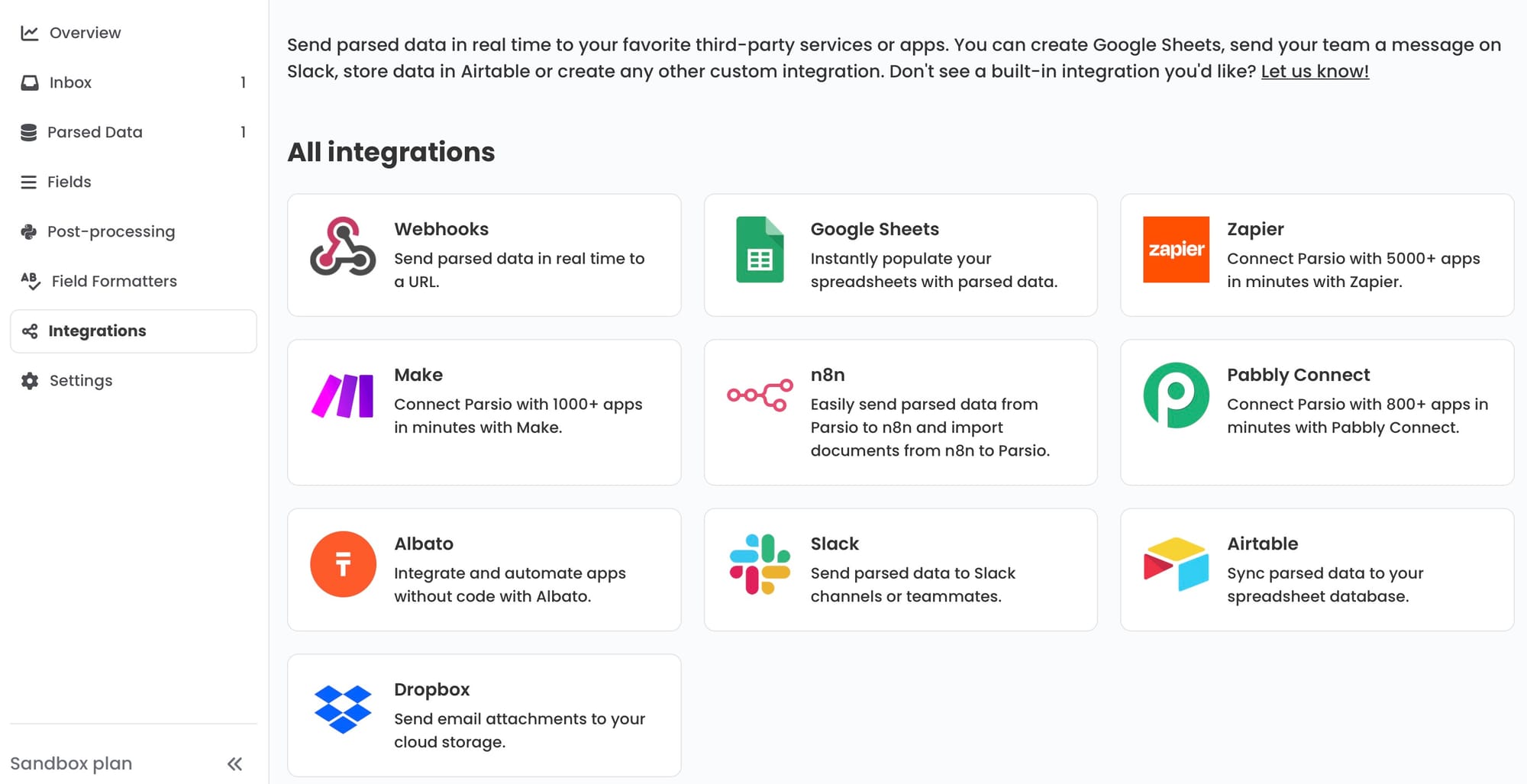
Once Parsio extracts data from a document, the structured output needs to go somewhere useful. Parsio supports several export paths, and the right one depends on where your team manages that type of data.
Google Sheets. The built-in Google Sheets integration appends each new parsed document as a new row. No Zapier or Make account is required. This is the fastest option for teams that want a simple, readable log of extracted data — finance teams tracking vendor payments, logistics coordinators monitoring customs document status, or procurement teams reviewing purchase requisitions.
Webhooks. Every Parsio inbox exposes a webhook that fires when a document is parsed. Webhook payloads contain the full extracted JSON, including line items as nested arrays. This is the preferred option for teams with a developer who can receive and process the payload — routing to a database, triggering an approval step in a workflow tool, or writing to an ERP system.
Zapier and Make. Both automation platforms have native Parsio integrations. A parsed document event in Parsio can trigger any downstream action in Zapier or Make: creating a record in Airtable, updating a CRM deal in HubSpot, posting a Slack notification, appending to a spreadsheet, or sending the data to Monday.com. A detailed guide to automating document parsing with Zapier, Make, and n8n covers real templates for each platform.
n8n. For teams using self-hosted automation, n8n connects to Parsio via its HTTP request node or the dedicated Parsio node when available. The extracted JSON from each document passes through the workflow and can be mapped to any output system.
CSV, JSON, or Excel downloads. For one-off processing or batch exports, Parsio lets you download extracted results directly from the inbox as a structured file. This is useful for importing parsed data into accounting software or legacy systems that accept flat-file imports.
Real-World Use Cases for No-Template PDF Parsing
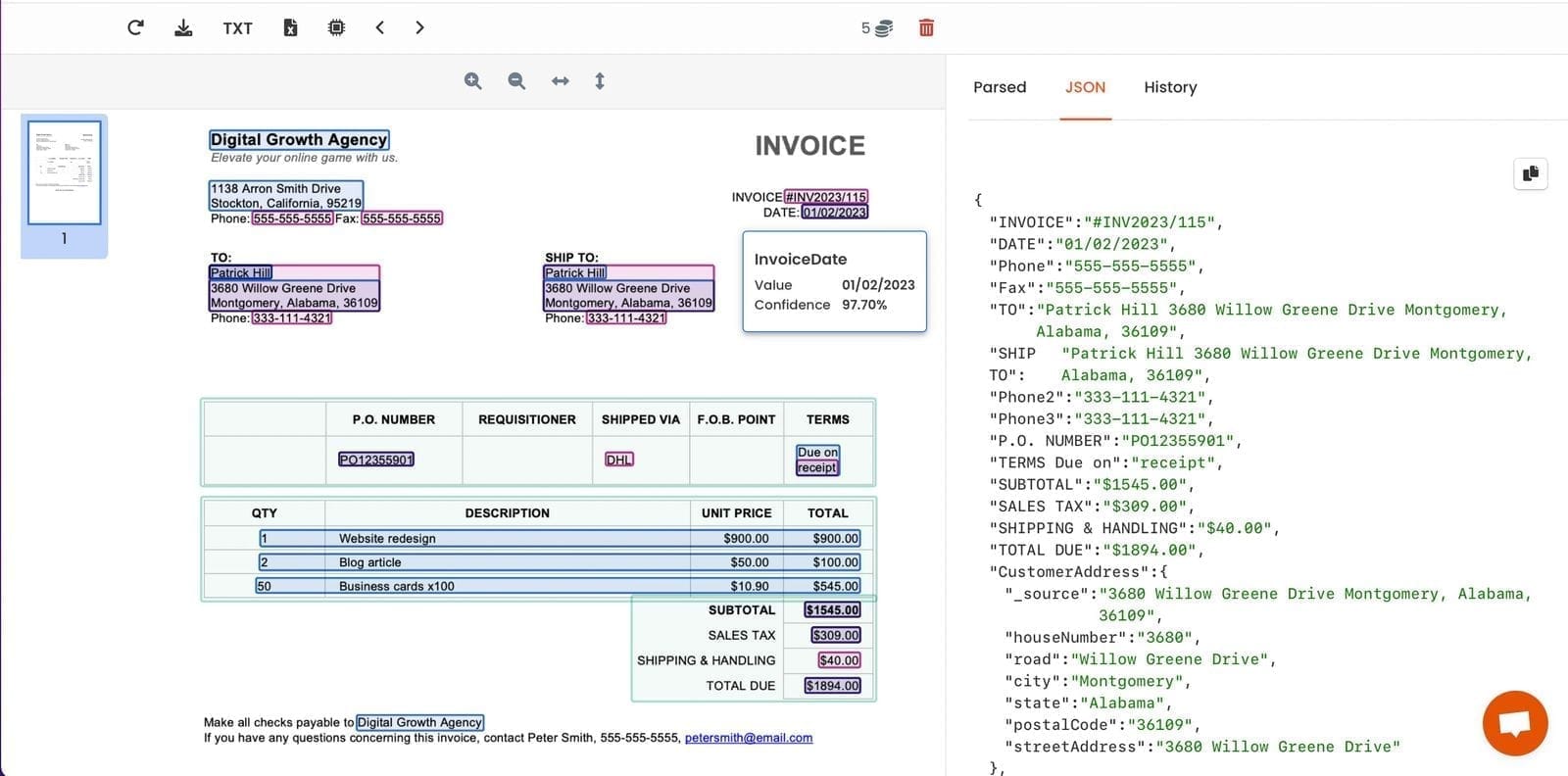
The following examples illustrate how operations teams apply GPT parsing to real document workflows that would be impractical to handle with templates.
Import and customs compliance teams. Companies importing goods from multiple countries receive commercial invoices from dozens of different exporters, each formatted according to their local conventions. A customs compliance team that previously spent hours manually extracting HS codes, declared values, and shipper details can set up a single GPT parser inbox that handles all incoming customs invoices regardless of origin. The extracted data feeds a spreadsheet or customs management tool automatically.
Finance teams processing invoices from many vendors. Large procurement departments often receive invoices from hundreds of vendors. Building a template for each would require a dedicated administrator. A GPT parser processes all of them in a single inbox, extracting invoice number, vendor, date, amounts, and line items consistently. The output routes to the accounts payable system via webhook or spreadsheet. For vendors that do use consistent invoice layouts, Parsio's AI-powered invoice parser offers even higher accuracy — the two approaches can coexist in separate inboxes.
Procurement teams handling non-standard purchase orders. Large enterprise customers frequently send purchase orders in their own formats — PDF exports from SAP, Oracle, or their internal procurement portal. Suppliers receiving these orders need to extract line items, delivery dates, and terms before passing them into their own order management system. GPT parsing handles each buyer's format without a separate template per customer.
Operations teams reviewing internal approval forms. Purchase requisition forms, capital expenditure requests, and vendor onboarding documents are often created in Word or PDF and emailed for approval. Extracting the requestor, department, amount, and justification into a tracking spreadsheet eliminates manual logging and gives operations managers a real-time view of pending approvals.
Logistics teams processing shipping manifests. Freight forwarders and third-party logistics providers receive manifests from multiple carriers and shippers in different formats. Extracting shipment IDs, piece counts, weights, and destinations from every incoming manifest — regardless of whether it came from a freight software system or a hand-formatted PDF — becomes a single automated step.
Tips for Getting the Most Accurate Results
GPT parsing is more accurate when the extraction prompt is specific and when the documents submitted are within the scope the parser was configured for. These practices improve consistency:
- Use a good sample document. The auto-generated prompt is only as good as the sample you provide. Choose a document that contains all the fields you want to extract and represents a typical layout for that document type. A stripped-down or incomplete sample produces a prompt that misses fields.
- Be specific in field descriptions. When reviewing the auto-generated prompt, replace vague field names like "Date" with specific ones like "Invoice Date (the date the invoice was issued)" or "Delivery Date (the expected or actual delivery date)". Specificity reduces ambiguity on documents where multiple dates appear.
- Keep documents under ten pages. The GPT parser works best on shorter documents. For multi-page documents where the key fields appear in the first two or three pages, you can restrict extraction to those pages. Submitting a 40-page contract to extract five header fields produces slower and less consistent results than submitting only the first page.
- Test with the most different examples you have. After the initial setup, upload the three or four most visually different versions of that document type you expect to receive. If a field fails to extract on one variant, adjust its description in the prompt before processing production volume.
- Use separate inboxes for document types that are genuinely different. A customs invoice and an internal expense form should have separate inboxes with separate prompts, even if they both use GPT parsing. Combining different document types into a single inbox with a single prompt increases the chance of missing fields.
- Complement with the pre-trained AI parser where available. If a document type has a dedicated pre-trained model in Parsio — invoices, receipts, bank statements, ID documents — use that model. Pre-trained parsers are more deterministic for their supported types. Reserve GPT parsing for document types that fall outside those categories.
Frequently Asked Questions
How is Parsio's GPT parser different from using ChatGPT directly to extract data from PDFs?
Using ChatGPT or another general-purpose AI chat interface to extract PDF data requires manual effort for every document: you paste the text or upload the file, write the extraction instruction, and copy the result. This works for one or two documents but does not scale to dozens or hundreds of documents per week. Parsio's GPT parser is a configured extraction pipeline, not a one-off chat interaction. You set it up once — by uploading a sample document and reviewing the auto-generated prompt — and the parser then processes every new document automatically when it arrives by email, upload, or API. Extracted results go directly into Google Sheets, a webhook, or any downstream tool, without anyone touching each individual document. There is also no need to write the prompt yourself; Parsio generates it from your sample. The result is a repeatable, automated workflow rather than a manual per-document task.
What happens when the GPT parser cannot find a field in a document?
When the GPT parser processes a document and a specific field is not present — or the language model is not confident in the match — that field is returned as blank or null in the extraction result. Parsio does not fail the entire document or block the export just because one field is empty. You can review documents where fields were unexpectedly blank in the Parsio inbox dashboard and investigate whether the prompt needs adjustment. The most common cause is an ambiguous field description in the prompt: if the prompt says "extract the amount" but the document contains five different amounts (subtotal, tax, shipping, discount, total), the model may not know which one to pick. Renaming the field to "Invoice Total (the final payable amount after all taxes and deductions)" resolves the ambiguity. For critical fields where a blank value should trigger a review step, Parsio's webhook output can be checked downstream before the data is written to its final destination.
Can Parsio's GPT parser extract line items from tables inside PDFs?
Yes. Parsio's GPT parser supports repeating data structures such as line-item tables. When a PDF contains a table with multiple rows — a customs invoice listing fifteen products with individual HS codes and values, a purchase order with ten line items, or a packing list with multiple shipment entries — the GPT parser extracts each row as a separate structured record rather than flattening the table into a single string. In Google Sheets, each line item becomes its own row. Via webhook, the line items appear as an array of objects in the JSON payload, which can be iterated in Zapier, Make, or n8n to create one record per line item in the downstream system. When setting up GPT parsing for a document with tables, include at least one document with a multi-row table in your test set to confirm that the repeating extraction is working correctly before processing production volume.
Is GPT parsing accurate enough to use in a real business workflow?
GPT parsing is accurate enough for most business workflows involving semi-structured documents, with the caveat that accuracy depends heavily on document quality and prompt specificity. For well-structured PDFs with clear text — vendor invoices, customs forms, compliance certificates — field-level accuracy is consistently high when the prompt is specific and the document is under ten pages. For scanned documents with OCR artifacts, handwritten sections, or unusual formatting, accuracy decreases and human review is advisable for high-value fields. In practice, many operations teams use GPT parsing as the first extraction step and flag low-confidence results for manual verification. Parsio's inbox dashboard shows each parsed document alongside its extracted values, which makes spot-checking straightforward. For document types where Parsio offers a dedicated pre-trained AI model — invoices, receipts, bank statements, ID documents — that model typically outperforms GPT parsing because it was trained specifically on that document category. Use GPT parsing for everything else.
How does GPT parsing handle documents in languages other than English?
Parsio's GPT parser supports multilingual documents because the underlying language model it uses handles many languages without requiring separate configurations. A German customs declaration, a French supplier invoice, a Japanese purchase order, and a Spanish contract can all be processed by the same GPT parser inbox as long as the extraction prompt describes the fields in a way the model can match. You can write the extraction prompt in English even when processing documents in other languages. For example, a prompt that says "extract the invoice total (the final payable amount)" will correctly extract the relevant field from a French invoice labeled "Montant total" or a Spanish invoice labeled "Total a pagar". Languages with non-Latin scripts — Arabic, Chinese, Japanese, Korean — are also supported, though accuracy may vary depending on the document's OCR quality if it is scanned. Multilingual support makes GPT parsing particularly useful for companies working with international suppliers and receiving documents in multiple languages without needing separate parser configurations per language.
How many documents can I process per month with the GPT parser?
Parsio's pricing applies at the account level and covers all document processing across all inboxes, regardless of parser type. The GPT parser does consume more processing resources per document than a template parser or the AI-powered PDF parser because it passes the document through a language model for each extraction. As a result, GPT-parsed documents may count toward a higher tier of your usage depending on your Parsio plan. For teams processing a small or moderate volume of non-standard documents alongside a larger volume of template-parsed or AI-parsed documents, this is not usually a concern. For teams processing thousands of GPT-parsed documents per month, it is worth reviewing Parsio's pricing page or contacting Parsio to discuss a volume plan that fits the workload. You can also reduce GPT parsing volume by routing document types with consistent layouts to the template parser or AI parser, reserving GPT parsing only for genuinely variable document types.
Try Parsio for free
Set up your first GPT parser inbox in minutes and start extracting structured data from any PDF — no templates, no prompt writing, no code required. Upload a sample document and Parsio auto-generates the extraction configuration for you.
Parsed data routes automatically to Google Sheets, Airtable, Slack, your CRM, or any webhook endpoint. One account handles multiple document types, each with its own inbox and parser configuration.