How to Parse Order Emails and Route Data to Google Sheets or Your CRM
Every order confirmation email contains structured data your team needs — but it's locked inside an inbox. Here is how to extract it automatically and route it to Google Sheets or your CRM without writing code.

Parsing order emails and routing the data to Google Sheets or a CRM is a straightforward automation: set up a Parsio inbox, forward your order confirmation emails to it, define the fields you want to extract — order number, customer name, items, total, shipping address — and connect the output to Sheets or your CRM via a built-in integration or Zapier. Each new order email that arrives gets processed automatically, and the data appears in your destination tool without anyone manually copying anything.
This guide covers which fields to extract, how to set up the parser for different types of order emails, and how to route the output to the tools your team actually uses.
Why Order Emails Are Worth Parsing Automatically
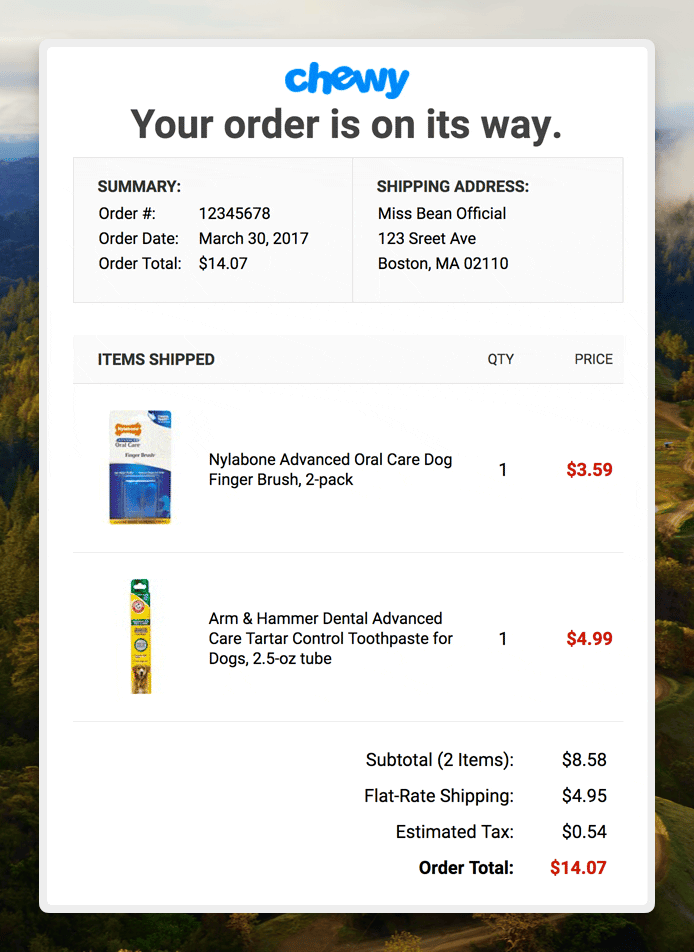
Order confirmation emails are among the most structured emails a business receives. Every system that sends them — an e-commerce platform, a wholesale portal, an internal order management system, or a customer placing an order by email — sends roughly the same set of fields every time. The layout may differ between systems, but the information is consistent: order number, customer, items, quantities, prices, totals, shipping address, delivery date.
Despite this consistency, most businesses handle order email data manually. Someone reads the email, copies the order number into a spreadsheet, types the customer name into a CRM, checks the line items against inventory. At low volume, this is manageable. At scale — dozens or hundreds of orders per day — it becomes a meaningful operational bottleneck.
Automated email parsing solves this by treating the inbox as a data source rather than a reading queue. The moment an order email arrives, it is parsed, the relevant fields are extracted, and the structured data flows directly into wherever it needs to go. No human in the loop for the data entry step.
What Fields to Extract from Order Emails
The fields worth extracting depend on what the downstream system needs, but a complete order email typically contains:
- Order metadata: order number, order date, order source or channel
- Customer details: customer name, email address, phone number, customer ID or account number
- Shipping details: delivery address (street, city, postcode, country), shipping method, estimated delivery date, tracking number (if included at this stage)
- Line items: product name or SKU, quantity, unit price, line total — usually one set of these fields per item in the order
- Order totals: subtotal, shipping cost, discount or voucher code, tax amount, total amount
- Payment information: payment method, payment status
For Google Sheets, you typically want a flat structure: one row per line item, with the order-level fields (order number, customer, total) repeated on each row. For a CRM, you may want the order header as one record and the line items as associated objects. The data is the same — the shape of the export changes to match the destination.
Which Parser to Use for Order Emails
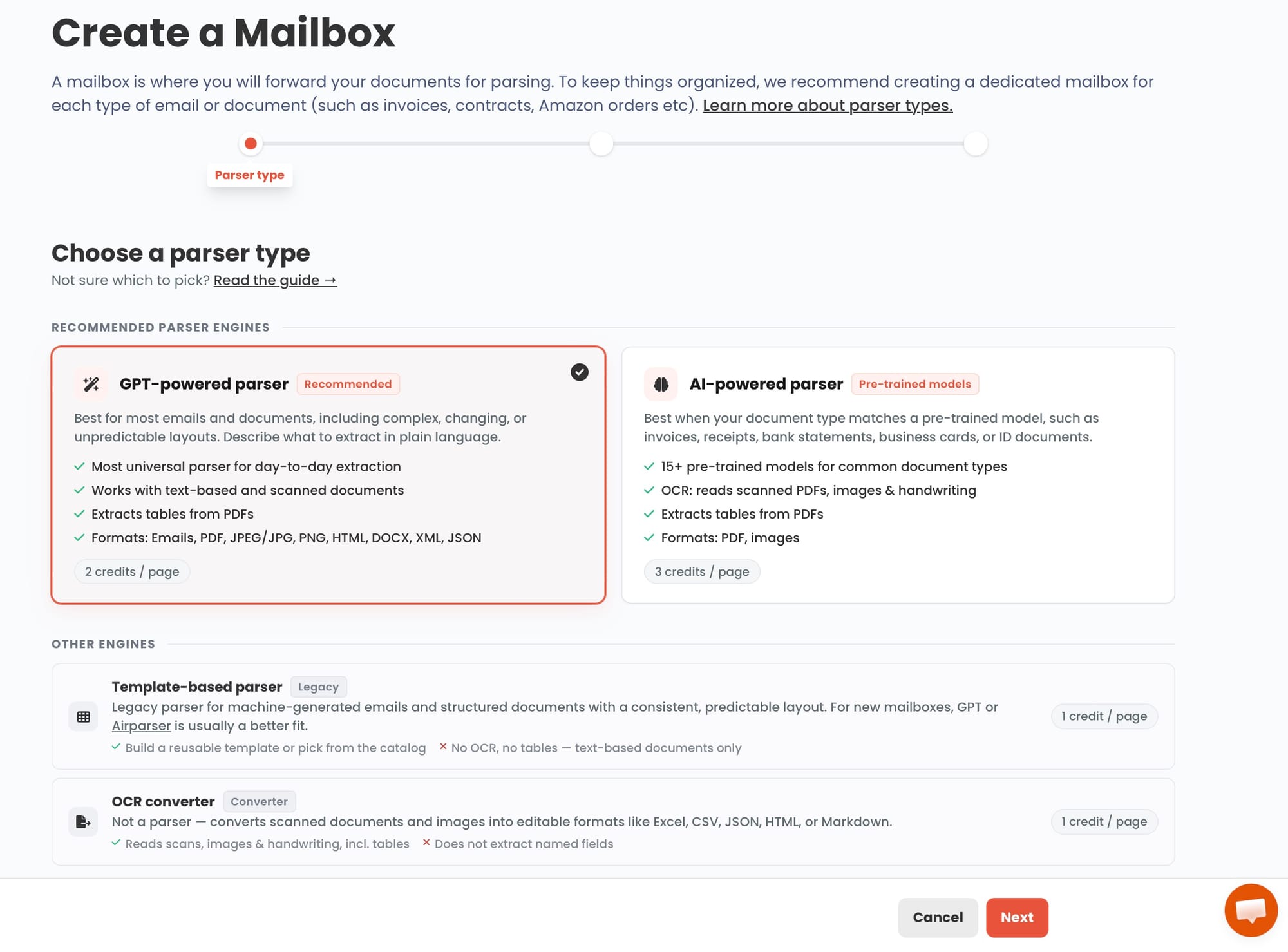
The right parser type depends on where your order emails come from:
Template-based parser — the best choice when all your order emails come from one system in a consistent format. If every order email from your e-commerce platform looks the same, you build the template once and it works for every future email. Fast, accurate, and low-maintenance as long as the format does not change. Typical use case: a WooCommerce store, a wholesale portal, or an internal system that generates order confirmations in a fixed HTML layout.
GPT-powered parser — the right choice when order emails come from multiple sources with different layouts — different customers, different platforms, or different order types (phone orders, web orders, EDI emails) that arrive in the same inbox. Instead of building a separate template for each layout, you describe the fields you want in plain language and the GPT parser reads each email and extracts them regardless of where they appear. More flexible, but with more variability in output consistency than a template.
If your order emails are mostly from one stable system, start with the template-based approach. If you receive orders from many different customers or channels, each sending their order confirmations in their own format, the GPT-powered approach is the practical starting point.
Step by Step: How to Set Up Order Email Parsing in Parsio
Step 1: Create a dedicated order inbox
In Parsio, create a new inbox specifically for order emails. Give it a name that makes its purpose clear — for example, "Customer Orders" or "Wholesale Order Confirmations." Each inbox gets its own email address; you will forward order emails to this address to trigger parsing.
If you process orders from significantly different sources — for example, retail orders and wholesale orders that need different export destinations — create separate inboxes for each category. This keeps parser configurations and routing rules isolated.
Step 2: Build the parser
For a template-based parser: forward one real order email to the inbox, open it in Parsio, and highlight the fields you want to extract. Name each field and save. The template is built from that single example and will apply to every future email that matches the same layout.
For a GPT-powered parser: describe the fields you want to extract in plain language. A clear field list for order emails might be:
- Order number
- Order date
- Customer name
- Customer email
- Delivery address
- Items ordered (as a list, with product name, quantity, and price per item)
- Order total
- Shipping cost
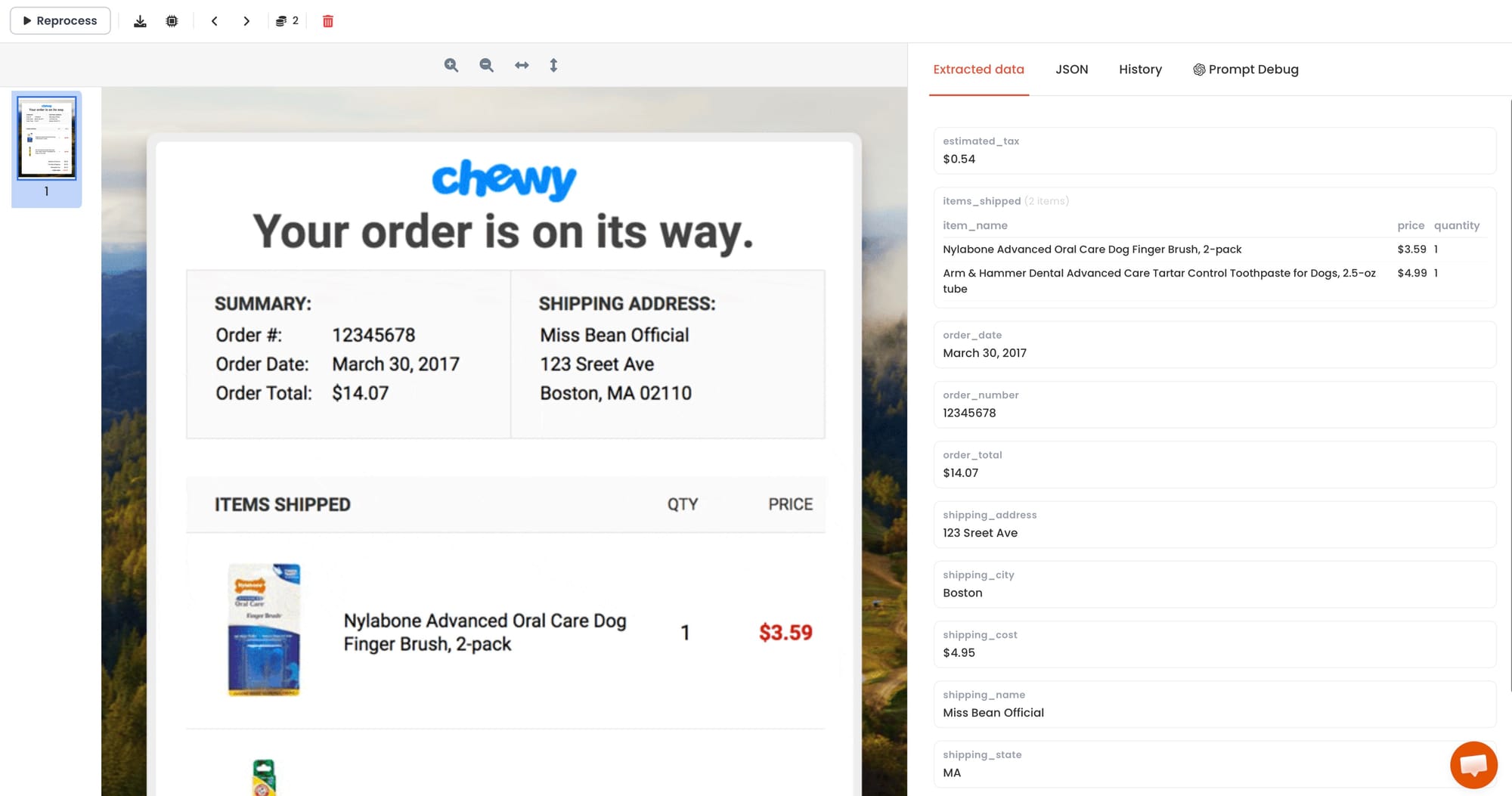
The more specific your descriptions, the more consistently the parser will return the right values. For line items — which repeat per product in the order — define them as a repeating group so the output captures every item in the order, not just the first one.
Step 3: Set up forwarding
Route incoming order emails to your Parsio inbox address. Options include:
- Email forwarding rules — set up an automatic forward in your email client or email server so that any email matching a subject pattern (for example, emails containing "order confirmation" or "new order") is forwarded to the Parsio inbox address.
- Manual forwarding — for low volume or testing, forward emails manually to confirm the parser is working before automating the routing.
- Zapier or Make — connect your email provider to Parsio via an automation that triggers when a new email arrives in a specific folder or matching specific criteria, and sends it to the Parsio inbox.
Step 4: Connect to Google Sheets
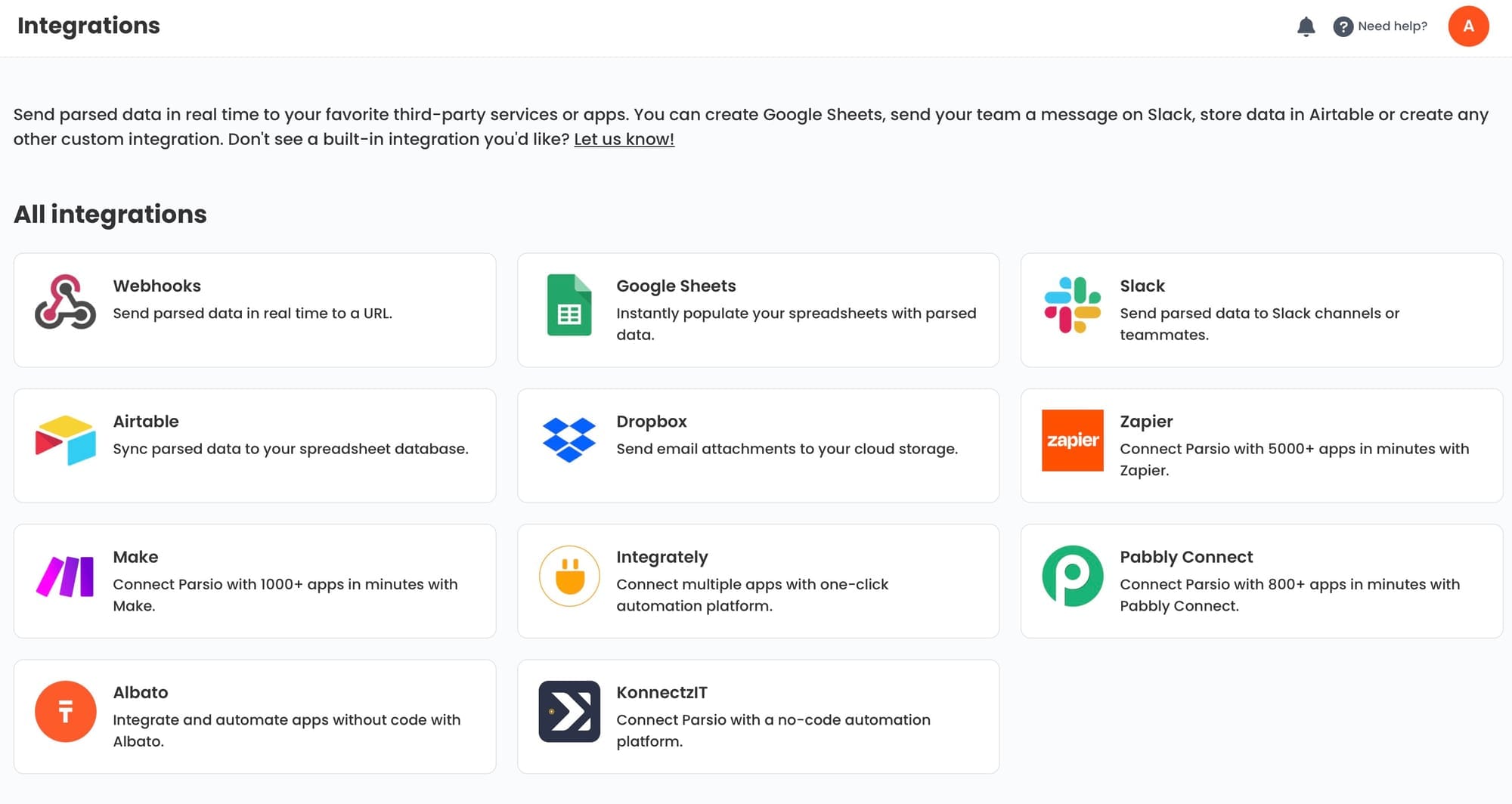
Parsio has a built-in Google Sheets integration. Connect it by authorising your Google account inside Parsio, selecting the target spreadsheet and sheet tab, and mapping each extracted field to a column.
Once connected, every new order email that is parsed automatically appends a row to the sheet. For orders with multiple line items — where each item should be a separate row — configure the line items field as a repeating group that expands into individual rows rather than a single cell containing all items.
The resulting sheet gives your team a live, always-current order log. Finance can filter by date and total. Fulfilment can sort by status. Customer service can search by order number or customer name. All from a shared Google Sheet that updates in real time as new orders arrive.
Step 5: Connect to your CRM
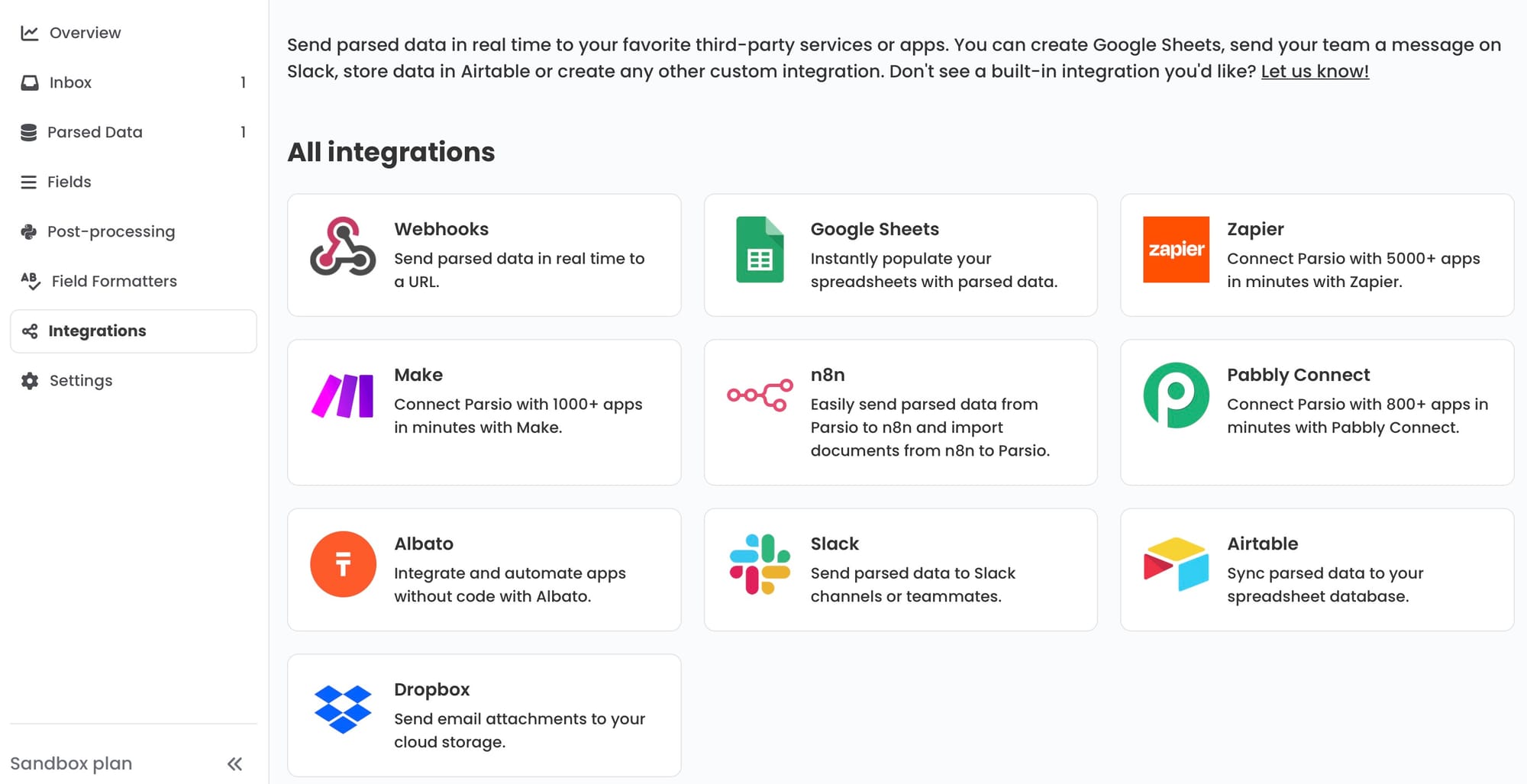
For CRM routing, there are two approaches depending on your CRM and how much configuration you want to do:
Webhook — Parsio sends extracted order data as a JSON payload to a webhook URL. Most modern CRMs (HubSpot, Salesforce, Pipedrive, Zoho, and others) can receive webhook data either natively or through a connected API. Use this when you want minimal latency — the CRM record is created or updated immediately when the order email arrives.
Zapier or Make — connect Parsio to your CRM through an automation platform. Parsio triggers when a document is parsed; Zapier or Make maps the extracted fields to the right CRM fields and creates or updates the record. This approach requires no code and works with any CRM that has a Zapier or Make integration — which covers the vast majority of mainstream options.
A typical CRM routing workflow for order emails creates or updates a deal or opportunity record with the order details, associates it with the customer contact, and triggers a follow-up task or notification for the sales or account management team.
Common Failure Modes
Order emails from multiple senders with different layouts. If your inbox receives order confirmations from ten different customers, each formatting their email differently, a single template will not cover all of them. Use the GPT-powered parser instead, or create separate inboxes — one per major sender — each with its own template.
Line items not expanding into separate rows. Order emails with multiple products need the line items field defined as a repeating group in Parsio. If this is not configured correctly, all items may be collapsed into a single field value. Review the output for a multi-item order during testing to confirm items are expanding as expected.
HTML emails that change layout between devices or over time. Some e-commerce platforms send different HTML depending on the recipient email client, or update their order email templates when they rebrand or add features. If a template-based parser stops working correctly after previously extracting cleanly, check whether the source email layout has changed and rebuild the template from a current example.
Orders with attachments rather than HTML content. Some order systems send a plain-text or minimal HTML email body with the full order details as a PDF attachment. If this is the case, the email body alone will not contain the fields you need — configure Parsio to parse the PDF attachment instead of (or in addition to) the email body.
Who This Workflow Is Built For
This automation adds the most value for teams where:
- Order volume is too high for manual data entry. If someone on the team spends time copying order data from emails into a spreadsheet or CRM each day, that is the clearest signal that automation is overdue.
- Orders come from multiple channels or senders. Businesses that receive orders from a mix of direct sales, wholesale accounts, marketplace channels, and email-based customers often have no unified view of orders. Parsing emails from all channels into a single sheet solves this without a custom integration.
- The CRM is currently missing order history. Sales teams often know who their customers are but have no visibility into what those customers actually ordered. Routing order email data into the CRM fills this gap automatically.
- Finance needs a live order log for revenue recognition or forecasting. Automated order data in Google Sheets gives finance a real-time view without relying on ERP exports or end-of-day reports.
👉 For a broader guide to email data extraction across document types, see How to Automate Data Extraction from Emails in 2026.
👉 If your orders come from Amazon, eBay, or Shopify specifically, see Extracting Data from E-commerce Marketplaces: Amazon, eBay, and Shopify Order Emails.
👉 To connect this workflow to Zapier, Make, or n8n, see Best Ways to Automate Document Parsing in Zapier, Make and n8n.
FAQ
Can Parsio parse order emails from any e-commerce platform?
The template-based parser works with any e-commerce platform that sends order confirmation emails in a consistent HTML format — WooCommerce, Shopify, Magento, BigCommerce, or a custom system. You build the template from one real example email, and Parsio extracts the same fields from every future email in that format. If emails come from multiple platforms with different layouts, use the GPT-powered parser or create separate inboxes per platform.
How does Parsio handle orders with multiple line items?
Line items are defined as a repeating field group in Parsio. Each product in the order — name, SKU, quantity, unit price — becomes one record in the repeating group. When exported to Google Sheets, this expands into one row per line item. When sent to a CRM or webhook, it is included as an array in the JSON payload. This allows the full order contents to be captured structurally rather than as a block of text.
Can I route different order types to different sheets or CRM pipelines?
Yes. Create separate Parsio inboxes for different order types — for example, one for retail orders and one for wholesale accounts. Each inbox can have its own export destination: a different Google Sheets tab, a different CRM pipeline, or a different Zapier workflow. Routing logic can also be built inside Zapier or Make if you prefer to handle it downstream with filters or conditional steps.
What if my order emails contain a PDF attachment with the order details?
Parsio can process PDF attachments as well as email body content. If the order details are in an attached PDF rather than the email body, configure the inbox to parse the attachment. Parsio will extract the PDF, run the relevant parser against it, and return the structured order fields. The same export destinations — Google Sheets, webhook, CRM — apply regardless of whether the data came from the email body or an attachment.
How long does it take to set up this workflow?
For a template-based order email parser connected to Google Sheets, most teams are up and running within an hour. The template is built from a single example email, the Sheets connection requires only a Google account authorisation, and forwarding rules can usually be configured in a few minutes. More complex setups — GPT parser with multi-channel order emails, CRM integration via webhook, or multi-step Zapier workflows — take longer to configure and test, but the core parsing and Sheets connection step is fast to get working.