How to Send Parsed Email and Document Data to HubSpot Automatically
Connect Parsio to HubSpot via Zapier, Make, or webhook to automatically create Contacts, Deals, and properties from inbound emails and PDF documents. No code required.

TL;DR
- Parsio extracts structured data from inbound emails and PDF attachments, then pushes it to HubSpot automatically.
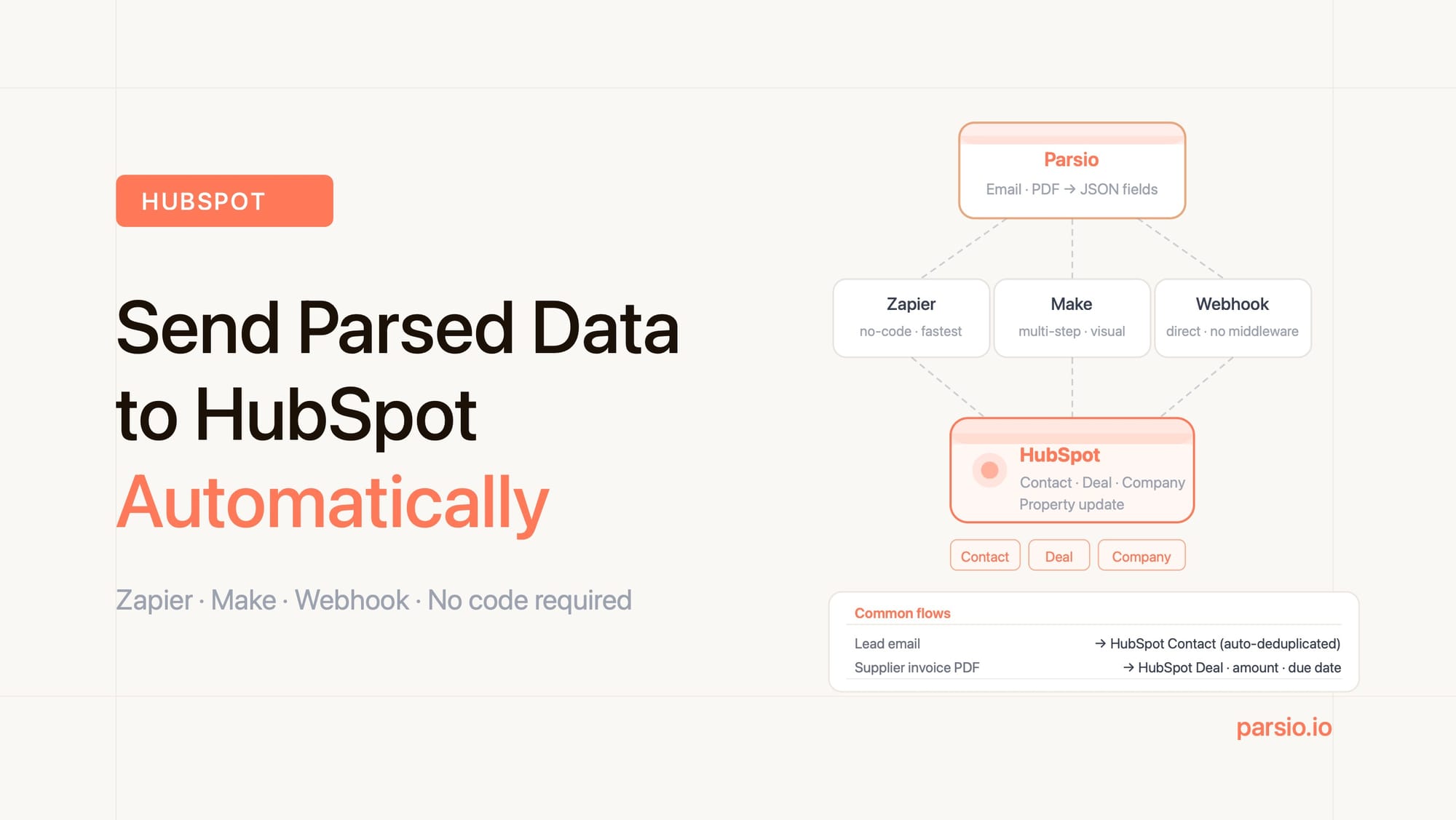
- Three integration paths: Zapier (no-code, fastest setup), Make (visual automation, great for multi-step flows), or Parsio webhooks (direct HTTP, best for custom pipelines).
- Typical use cases: route inbound lead emails to HubSpot Contacts, log invoice data to Deals, or sync form submission fields to HubSpot properties.
- No code required for the Zapier and Make paths — both are point-and-click once your Parsio inbox is configured.
- The workflow follows a simple pattern: email or PDF arrives → Parsio extracts fields → automation layer maps and sends fields → HubSpot record is created or updated.
You can connect Parsio to HubSpot in about 15 minutes using Zapier, Make, or a direct webhook — no code required for the first two options. Once connected, every email or document Parsio parses can automatically create or update Contacts, Deals, Companies, or custom properties in HubSpot. This eliminates manual copy-paste between your inbox and your CRM, and it works reliably whether you receive ten documents a day or several hundred.
The typical pattern is straightforward: an email arrives at your Parsio inbox (or a PDF is uploaded), Parsio extracts the named fields you care about — sender name, company, amount, product, reference number — and then a Zapier Zap, Make scenario, or webhook HTTP call carries those fields into HubSpot. The result is a populated CRM record created from the document, not from manual data entry.
This guide covers all three connection methods, explains which HubSpot object types to target for different document types, and includes the most common use cases so you can pick the setup that fits your workflow.
Why teams connect email and document parsing to HubSpot
HubSpot is primarily a contact and deal management platform, but much of the data that belongs in HubSpot arrives as unstructured email. A new supplier sends a quotation by email. A customer forwards an invoice. A potential partner submits a PDF proposal through a contact form. Each of these documents contains data — company name, contact details, financial figures, dates — that teams are manually re-entering into HubSpot records.
Document parsing solves this by intercepting those incoming documents and turning them into structured fields before they reach anyone's to-do list. Parsio uses template-based parsing for stable, repeating email formats and AI-powered PDF parsing for business documents like invoices, receipts, and forms. Once fields are extracted, the data can flow directly into HubSpot instead of sitting in an inbox waiting for someone to act on it.
The three most common reasons operations and sales teams build this connection:
- Lead intake from inbound emails. Enquiry emails, contact form submissions, and referral emails all contain contact data. Parsing them lets you create HubSpot Contacts automatically without a manual review step.
- Invoice and deal tracking. Finance teams receiving supplier invoices can log key fields — vendor, amount, due date, PO reference — directly to a HubSpot Deal or custom object so nothing falls through the gaps between inbox and CRM.
- Document-driven property updates. Any time a structured document updates a fact about a contact or company — a new address on a statement, a renewal date on a contract — parsing that document and pushing the field to HubSpot keeps records accurate without a manual update.
How Parsio extracts data before sending it to HubSpot
Parsio sits upstream of HubSpot in your workflow. It receives the raw document — an email, a PDF attachment, or a scanned file — and extracts the specific fields you define. What HubSpot receives is clean, named data, not a raw email body or unreadable PDF.
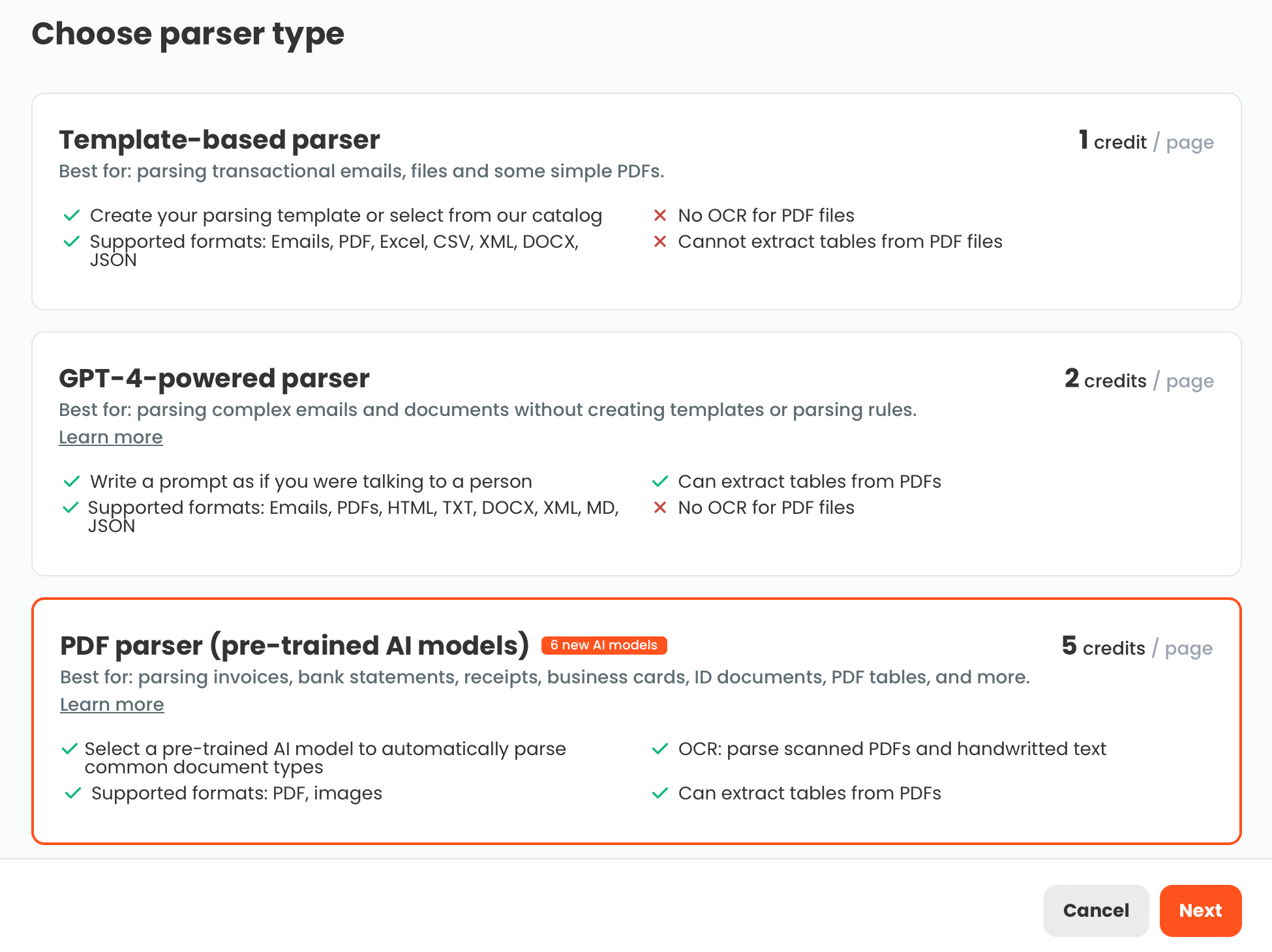
Parsio has four parser types, and the one you choose depends on your document type:
- Template-based parser — best for machine-generated emails with a stable format, like order confirmations, shipping notifications, or recurring supplier emails. You map fields once; Parsio reuses the template for every matching email automatically.
- AI-powered PDF parser — best for supported business documents: invoices, receipts, bank statements, ID documents, and business cards. No template setup needed — Parsio's pre-trained models extract the standard fields automatically.
- GPT-powered parser — best for emails or documents with variable or semi-structured layouts where a fixed template would be too brittle. You define what you want extracted in plain language.
- OCR converter — useful for converting scanned files to text, but not the right choice when you need structured field extraction for HubSpot.
To start, you set up a Parsio inbox and choose the right parser for your document type. Parsio assigns that inbox a unique email address. You forward incoming documents there — or connect your actual inbox via forwarding rules — and Parsio begins extracting fields on every document that arrives.
Method 1: Connect Parsio to HubSpot using Zapier
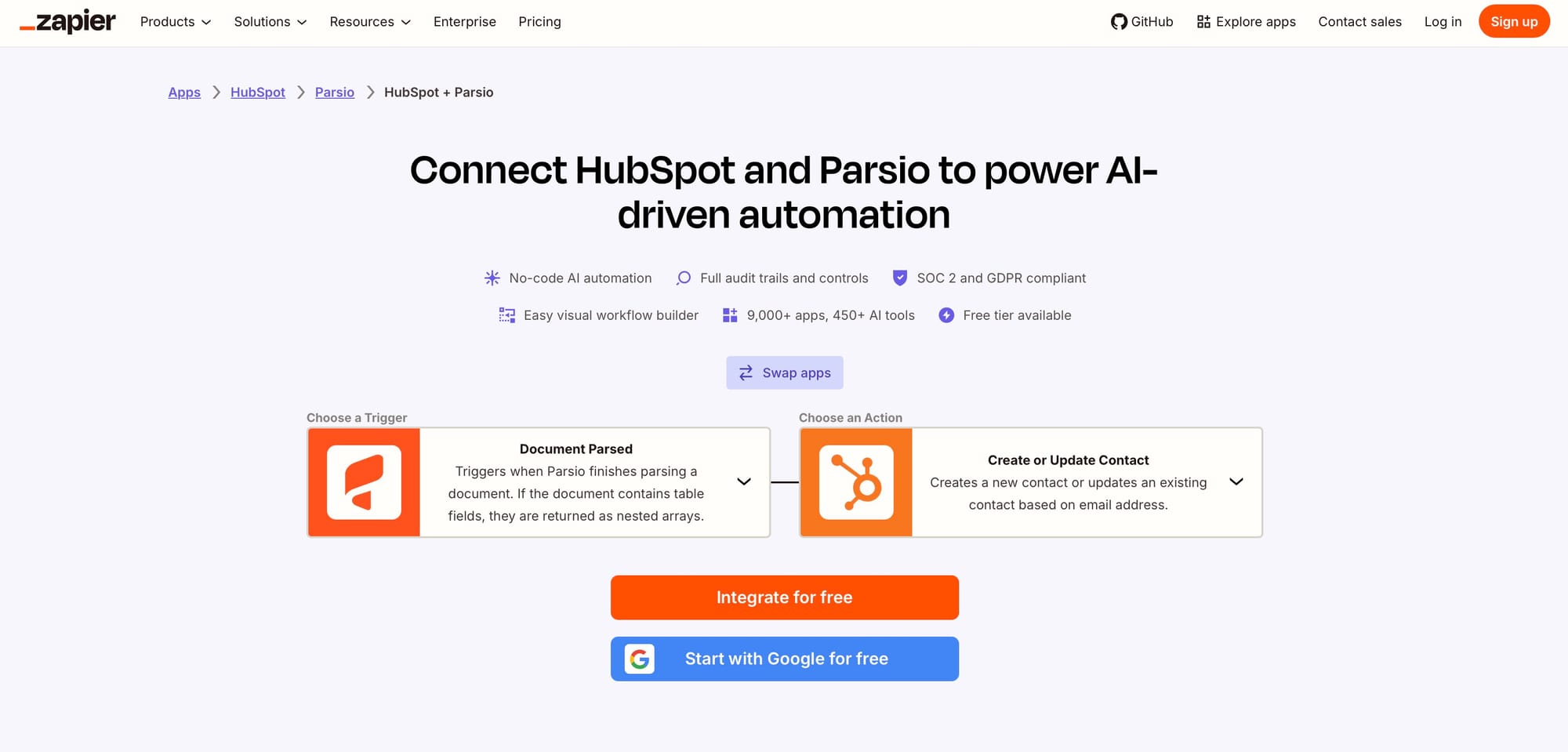
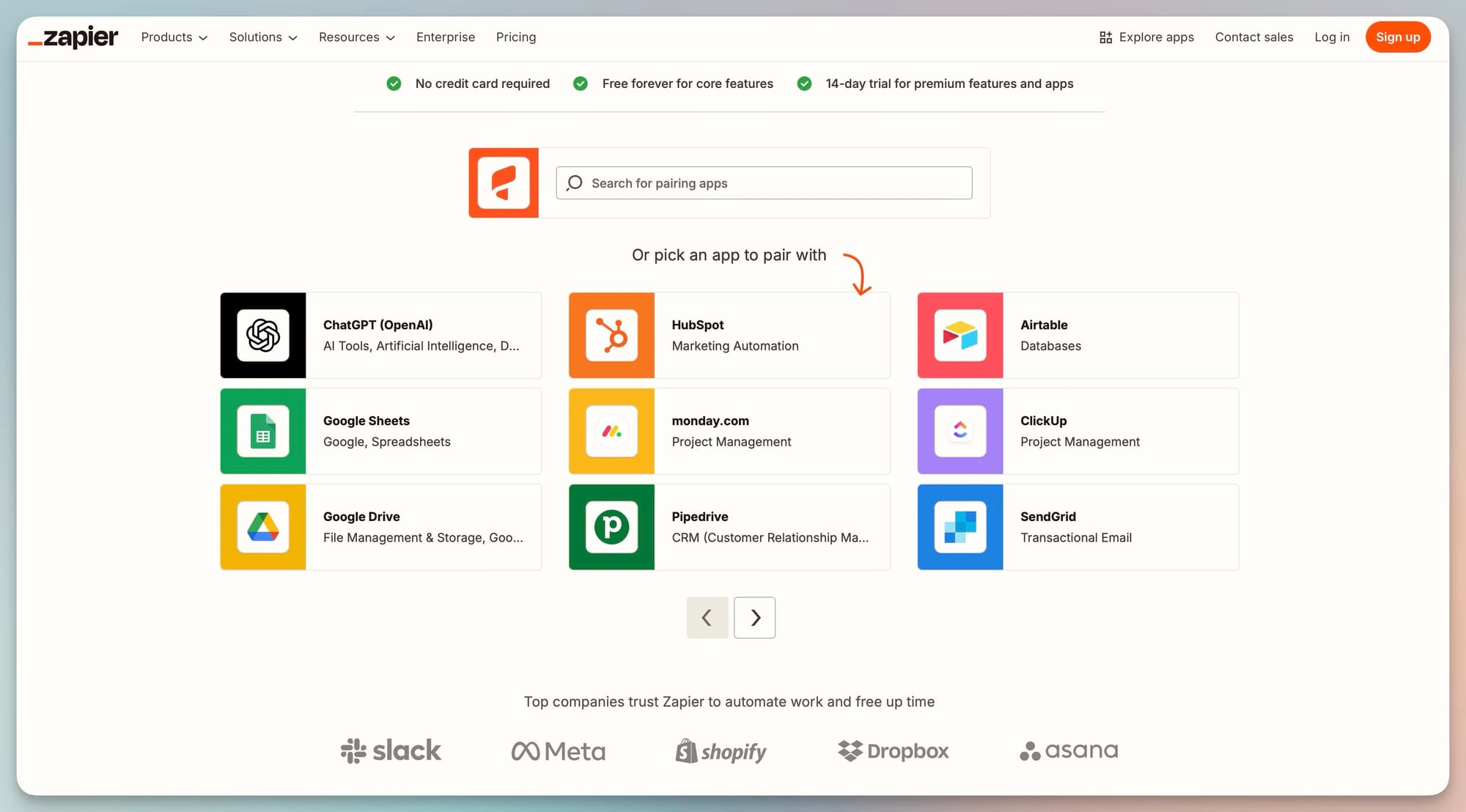
Zapier is the fastest way to link Parsio and HubSpot without writing any code. The Zapier trigger is "New Parsed Document" in Parsio — every time a document is successfully parsed, Zapier receives the extracted field values and can map them to a HubSpot action.
To build the Zap:
- In Zapier, create a new Zap and set the trigger app to Parsio. Choose the trigger event "New Parsed Document."
- Connect your Parsio account and select the specific inbox you want to monitor. Test the trigger to pull in a sample parsed document with real field values.
- Add a HubSpot action step. The most common actions are:
- Create Contact — map the parsed email, name, and company fields to HubSpot Contact properties.
- Create or Update Contact — safer for recurring documents, since it prevents duplicate records.
- Create Deal — map amount, description, and stage fields to a new Deal.
- Update Company — useful when a document contains updated information for an existing company record.
- Map each Parsio field to the corresponding HubSpot property. Zapier displays the extracted field names from your test document on the left, and the available HubSpot properties on the right.
- Turn on the Zap. From this point, every document parsed by that Parsio inbox will trigger HubSpot record creation or update automatically.
One practical note: for lead intake workflows, use "Create or Update Contact" rather than "Create Contact" to avoid duplicate HubSpot records when the same contact sends multiple emails. Use the email address as the deduplication key.
Method 2: Connect Parsio to HubSpot using Make
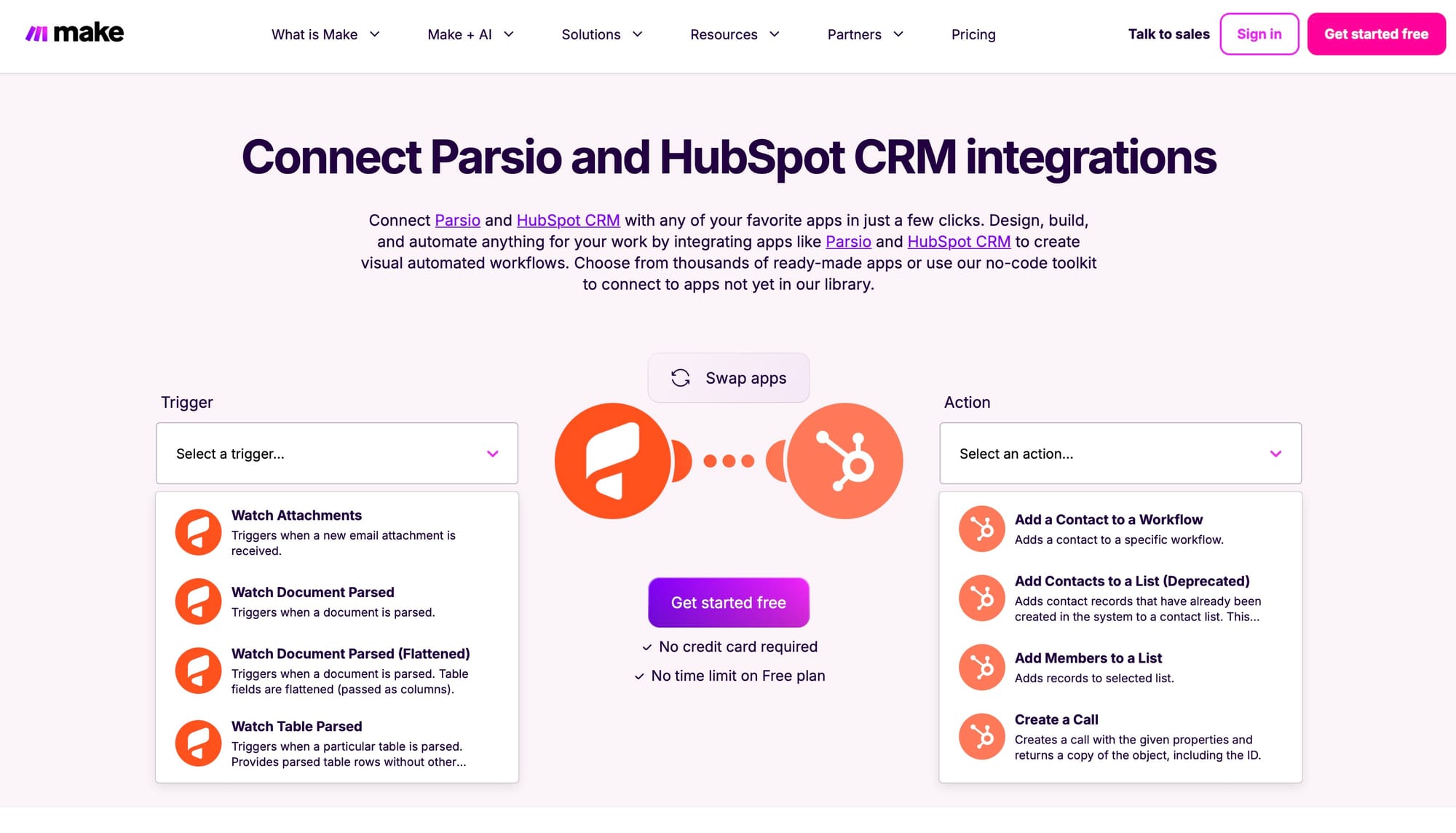
Make (formerly Integromat) works well when your workflow has multiple steps after the parse — for example, creating a HubSpot Contact, then adding them to a list, then sending a Slack notification. Make's visual canvas makes multi-step sequences easier to read and maintain than Zapier's linear interface.
To build the scenario:
- In Make, create a new scenario and search for the Parsio module. Select the "Watch New Documents" trigger and connect your Parsio account.
- Choose the inbox you want to watch and set the polling interval (Make checks for new parsed documents at your chosen frequency).
- Add a HubSpot module as the next step. Common modules include:
- Create/Update a Contact
- Create a Deal
- Add a Note to a Record — useful for logging the extracted document summary directly to a contact timeline
- Map the extracted fields from the Parsio output bundle to the HubSpot module inputs. Make shows field names and values from your most recent parsed document as example data.
- Add any additional steps — a conditional filter to only create records when a parsed field meets a threshold, a Slack notification, a Google Sheets row — then activate the scenario.
Make is the better choice over Zapier when the logic involves branching (e.g., create a Deal only if the invoice amount exceeds a certain value, otherwise just create a Contact), or when you need to aggregate multiple documents before updating a single HubSpot record.
Method 3: Use Parsio webhooks to push data directly to HubSpot
If you prefer a direct connection without a third-party automation platform, Parsio can send parsed data to any HTTPS endpoint via webhook. HubSpot has a public API that accepts POST requests to create or update records — meaning you can point a Parsio webhook directly at HubSpot's API.
This method requires a small amount of configuration on the HubSpot side, but it has no per-task cost and no dependency on Zapier or Make accounts. It is the right choice for teams with a developer available who want a lean, low-overhead pipeline.
The general steps:
- In HubSpot, generate a private app token with scopes for the objects you want to write (Contacts, Deals, or Companies). Copy the token.
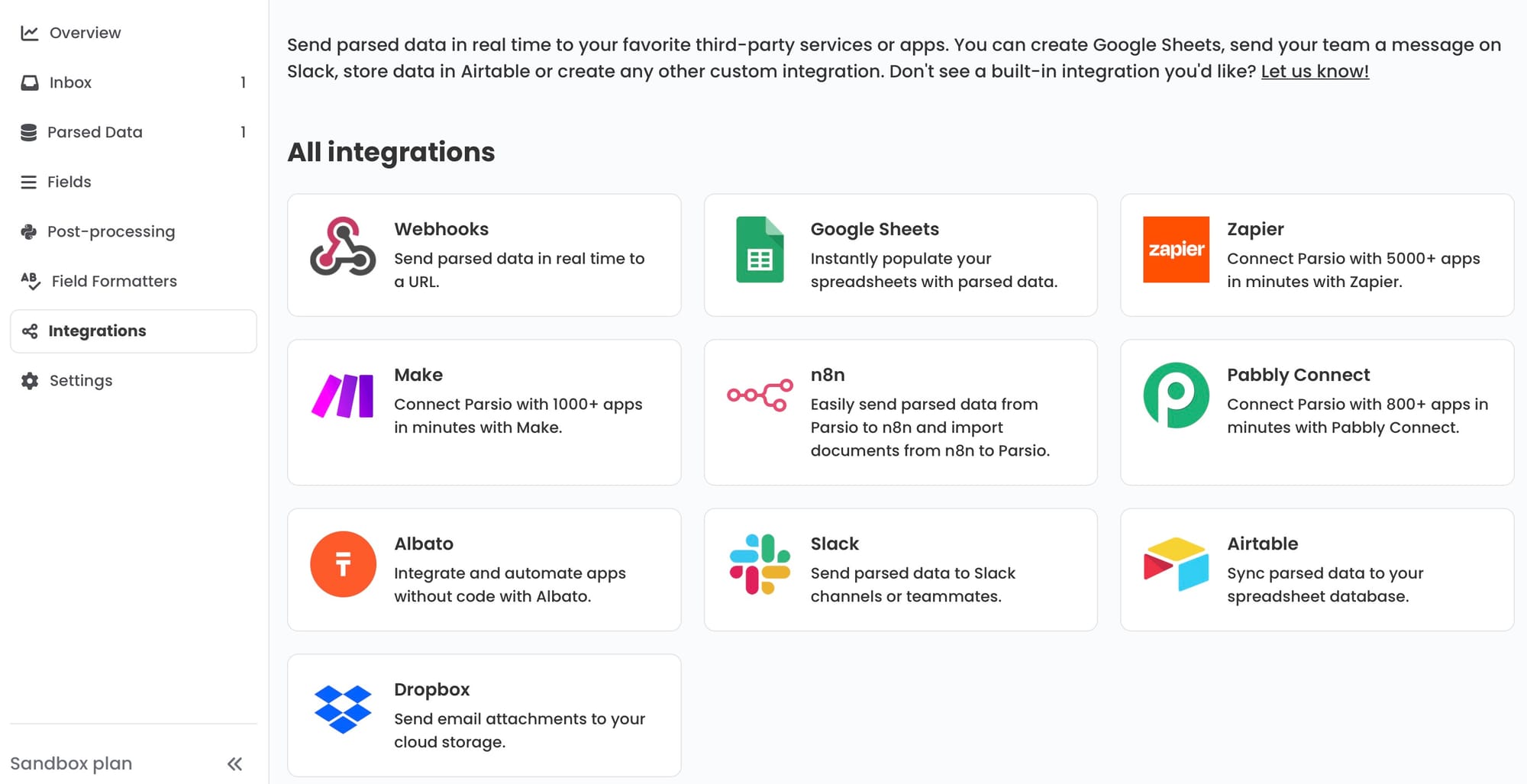
- In Parsio, open the inbox you want to connect and navigate to the Integrations tab. Add a new webhook destination.
- Set the webhook URL to the relevant HubSpot API endpoint. For contacts, this is
https://api.hubapi.com/crm/v3/objects/contacts. - Configure the request headers to include your HubSpot token:
Authorization: Bearer YOUR_TOKENandContent-Type: application/json. - Use Parsio's field mapping to build the JSON body. Map each extracted Parsio field name to the corresponding HubSpot property name (using HubSpot's internal property names, not display names).
- Test by sending a sample document through Parsio and checking whether the HubSpot record is created correctly.
One important limitation: the webhook method creates records but does not natively handle deduplication. If a contact already exists and you want to update rather than create, you need to add a lookup step — either using HubSpot's "upsert" endpoint or routing through a small middleware script that checks for existing records first. Zapier's "Create or Update" action handles this automatically, which is one reason many teams prefer Zapier for contact workflows.
Which HubSpot objects to target for common document types
Not every document belongs in the same HubSpot object. Matching the right object to the right document type keeps your CRM clean and makes records useful rather than cluttered.
| Document type | Parser to use | Target HubSpot object | Key fields to map |
|---|---|---|---|
| Inbound lead enquiry email | Template-based or GPT parser | Contact | First name, last name, email, company, message summary |
| Supplier invoice (PDF) | AI-powered PDF parser | Deal or custom object | Vendor name, invoice number, amount, due date, line items |
| Order confirmation email | Template-based parser | Deal or Contact note | Order ID, product, quantity, total, shipping address |
| Business card (image or PDF) | AI-powered PDF parser | Contact | Name, title, company, email, phone, website |
| Quote or proposal (PDF) | GPT-powered parser | Deal | Company name, value, valid until, line items |
| Contact form submission (email) | Template-based parser | Contact | Name, email, subject, message, source |
A practical rule: if the document represents a new person or company entering your system, target a Contact or Company record. If it represents a transaction or commercial event, target a Deal or a note attached to an existing contact. For recurring financial documents like invoices or statements, consider a custom HubSpot object to keep your Deals pipeline uncluttered.
Practical use case: routing inbound lead emails to HubSpot Contacts
One of the most common reasons SMBs set up Parsio-to-HubSpot is inbound lead intake. When a business runs ads, publishes content, or lists on a directory, enquiry emails arrive in a shared inbox. Someone has to open each one, read the name and email, and manually create a HubSpot Contact. With Parsio, that step disappears.
The setup for this use case:
- Create a Parsio inbox with a GPT-powered or template-based parser. If your lead form has a fixed format (which most contact forms do), a template is faster and more reliable.
- Define the fields to extract:
first_name,last_name,email,company,message. The field names you choose in Parsio become the keys Zapier or Make will see when building the HubSpot mapping. - Set up a forwarding rule in your shared inbox to automatically forward incoming lead emails to your Parsio inbox address. Most email clients (Gmail, Outlook) support conditional forwarding rules based on subject line, sender domain, or label.
- Build the Zapier or Make automation to create a HubSpot Contact from the extracted fields.
- Optionally, add a HubSpot workflow inside HubSpot itself (not in Zapier) to assign the new contact to a sales rep, enroll them in a sequence, or add them to a list.
End result: a lead submits your contact form, the email arrives in your shared inbox, Parsio extracts the contact details, Zapier creates the HubSpot Contact, and HubSpot's internal workflow assigns it to a rep — all within seconds, with no manual step.
Common mistakes and how to avoid them
A few configuration issues come up repeatedly when teams first connect Parsio to HubSpot:
- Mapping display names instead of internal property names. HubSpot uses internal property names (like
firstname,lastname,hs_lead_status) that differ from the display labels shown in the UI. When using the webhook method, always use internal names. Zapier and Make surface display names in their UI but handle this translation automatically. - Not deduplicating contacts. If the same sender emails multiple times, a "Create Contact" action will generate duplicate HubSpot records. Use "Create or Update Contact" with email as the deduplication key in Zapier, or add a HubSpot "Search Contacts" step in Make before creating a new record.
- Parsing emails that vary in layout. Template-based parsing breaks when the email format changes. If your supplier or lead source sends varied email formats, switch to the GPT parser — it handles layout variation gracefully, though it requires a clear extraction prompt.
- Sending all fields instead of only populated ones. If a parsed document is missing a field (for example, a lead email that doesn't include a company name), the empty value can overwrite an existing HubSpot property. In Make, use a filter or condition to skip empty fields before mapping.
How this fits into a broader document automation workflow
The Parsio-to-HubSpot connection is one piece of a broader automation strategy. Many teams that start with email-to-HubSpot eventually extend the same pattern to other destinations: invoice data going to an accounting tool, shipping confirmation data feeding a logistics dashboard, or expense receipts flowing into a finance approval tool.
Because Parsio supports multiple export destinations per inbox — you can have a webhook, a Zapier integration, and a Google Sheets export all running from the same inbox simultaneously — the same parsed document can populate HubSpot and update a Google Sheet at the same time. This is useful for teams that want HubSpot as their source of truth for contacts while maintaining a separate operational spreadsheet for finance tracking.
For teams managing high volumes of inbound documents, combining Parsio with Make or n8n gives more control over routing logic — for example, sending invoices above a certain amount to HubSpot as a priority deal, while routing smaller-value invoices to a spreadsheet for batch review.
If you are also handling Salesforce alongside HubSpot (common in larger teams where sales uses Salesforce and marketing uses HubSpot), the same webhook and Zapier approach works for Salesforce with different API endpoints and field mappings. Parsio is CRM-agnostic on the output side.
FAQ
Does Parsio have a native HubSpot integration?
Parsio does not currently have a one-click built-in HubSpot connector in the same way it has a built-in Google Sheets integration. However, connecting to HubSpot is straightforward via Parsio's native Zapier and Make support, both of which have official HubSpot apps. Parsio also supports outbound webhooks that can point directly to HubSpot's REST API if you prefer a direct integration without a middleware platform. Most teams use Zapier for its simplicity or Make when they need multi-step logic. The setup time for a basic Parsio-to-HubSpot Zap is typically under 20 minutes once your Parsio inbox is configured and returning parsed fields.
Which Parsio parser should I use for lead intake emails?
It depends on the consistency of the email format. If your lead emails always come from the same platform — a contact form tool, a CRM notification, a marketplace listing — and the layout is fixed, a template-based parser is the best choice: it is fast, accurate, and processes every matching email instantly. If your lead emails vary in structure (manually written inquiries, forwarded emails, or different form providers), use the GPT-powered parser instead. With the GPT parser, you write a short natural-language instruction describing what fields to extract, and Parsio's AI handles variable layouts without needing a pre-built template. For most lead intake workflows, start with a template parser and switch to GPT only if you encounter emails that break the template.
Can I update an existing HubSpot Contact instead of creating a new one?
Yes, and this is the recommended approach for recurring documents. In Zapier, use the "Create or Update Contact" action rather than "Create Contact." Set the deduplication key to the email address field — Zapier will search for an existing HubSpot Contact with that email and update it if found, or create a new one if not. In Make, you need to add a "Search Contacts" module before the create/update step: search by email, then use a router to branch between "update existing" and "create new" depending on whether Make found a match. In the webhook approach, use HubSpot's upsert endpoint (POST /crm/v3/objects/contacts/upsert) which handles the deduplication server-side based on the identifier you specify.
How do I handle PDF invoice attachments arriving by email?
Parsio's email inboxes can process both the email body and any attached PDFs simultaneously. When a supplier sends an invoice as a PDF attachment, Parsio can extract the attachment and run it through the AI-powered PDF parser automatically — no need to handle the email body and the attachment as separate steps. Configure your Parsio inbox to parse attachments by enabling the attachment parsing setting during inbox setup. The extracted invoice fields (vendor name, invoice number, total, line items, due date) are then available in Zapier or Make alongside any fields extracted from the email body itself. This makes the invoice-to-HubSpot workflow clean: one email arrives, Parsio extracts everything from the attachment, and the downstream automation creates or updates the HubSpot Deal.
Is there a limit to how many documents Parsio can parse and send to HubSpot?
Parsio's document limits depend on your subscription plan rather than the HubSpot integration itself. The HubSpot API imposes its own rate limits (typically 100 requests per 10 seconds for standard HubSpot accounts), but for most business workflows processing dozens to a few hundred documents per day, this limit is not a constraint. If your workflow processes very high volumes — for example, thousands of order confirmation emails per day — consider batching HubSpot updates using Make's aggregator modules or n8n's bulk create functionality instead of creating one API call per document. Parsio's free tier includes a limited number of parsed documents per month; paid plans increase this and also add features like priority parsing and higher attachment size limits.
What data does Parsio send in the webhook payload?
A Parsio webhook payload includes the inbox ID and name, the document ID, the parsing timestamp, and a fields object containing all extracted field name-value pairs as defined in your parser configuration. For template-based parsing, the field names match exactly what you named them during template setup. For AI and GPT parsers, Parsio returns the standard field names for the document type (for invoices: vendor_name, invoice_number, total_amount, due_date, and others). The payload is a JSON object, making it straightforward to map into HubSpot property names using the webhook header configuration or a light transformation step in Make or n8n. You can inspect the exact payload structure by sending a test document through your inbox and reviewing the webhook delivery log in Parsio's integration settings.
Can I route different document types from the same inbox to different HubSpot objects?
Yes, but the cleanest approach is to use separate Parsio inboxes for each document type rather than a single inbox handling multiple types. Using separate inboxes means each parser is optimized for one document format, and each Zapier or Make automation is focused on one HubSpot object type. If you prefer a single inbox, Make is better suited than Zapier for this: you can add a router step that inspects a field value (like a parsed document type tag or a parser confidence indicator) and branches to different HubSpot actions accordingly. A shared inbox with a router works, but it increases the complexity of the automation and makes debugging harder. For most teams, one Parsio inbox per document type is the simpler and more maintainable approach.
Stop copying email data into HubSpot by hand
Set up a Parsio inbox, connect it to HubSpot via Zapier or Make, and let every inbound email or PDF update your CRM automatically.