How to Extract Data from Packing Lists Automatically
Learn how to automatically extract SKUs, quantities, weights, and line items from packing list PDFs using AI parsing — and route the data to your WMS, spreadsheet, or ERP.

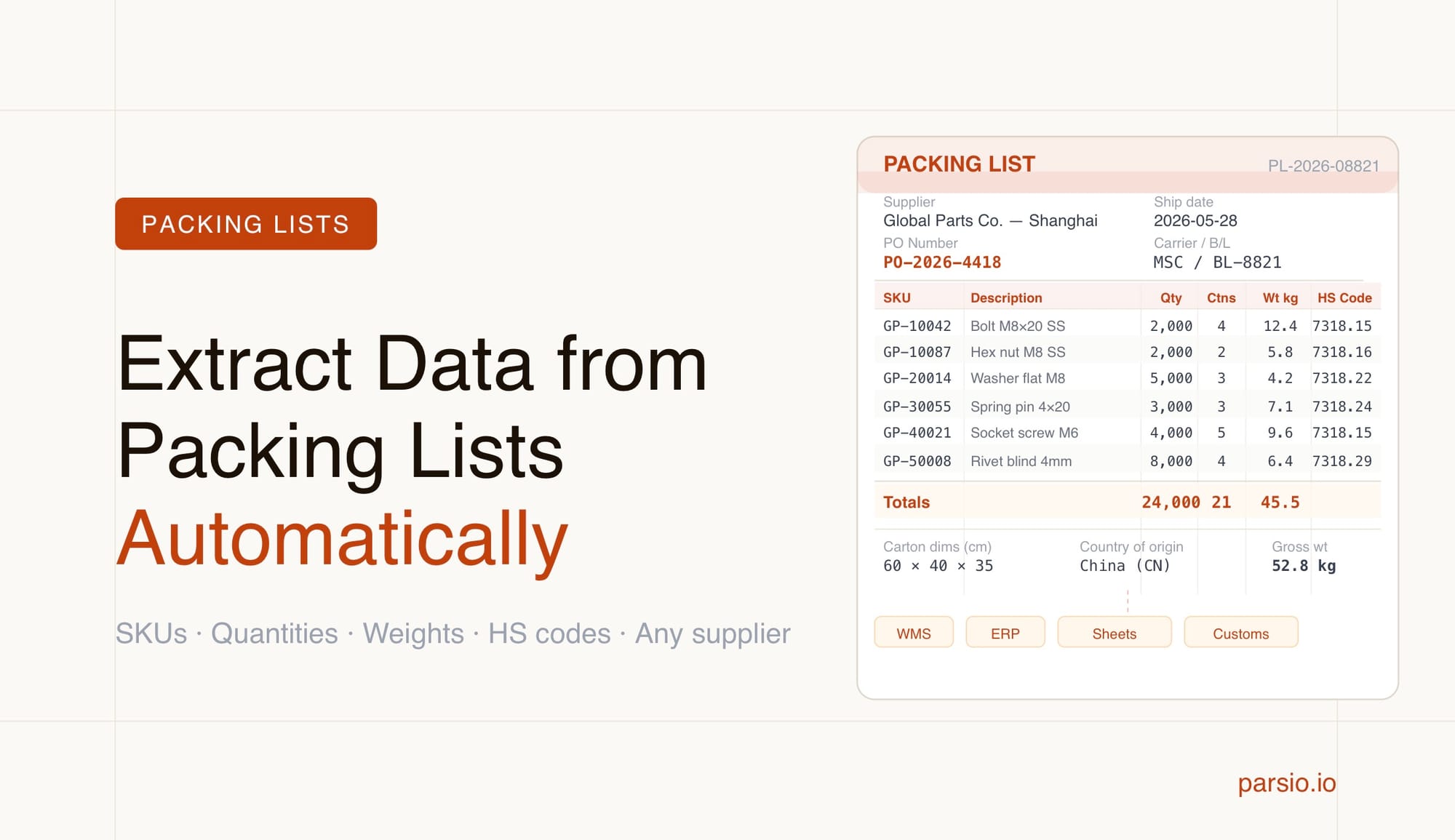
TL;DR
- A packing list contains item descriptions, SKUs, quantities, weights, and carton counts — all fields that can be extracted automatically with an AI document parser.
- The fastest approach for packing list PDFs from multiple suppliers is Parsio's GPT-powered parser — it handles varied layouts without templates, and Parsio can auto-generate the extraction prompt from a sample document you upload.
- Once extracted, the structured data can flow to Google Sheets, a WMS, an ERP, or any downstream tool via webhooks, Zapier, Make, or n8n.
- Manual entry at the receiving dock is one of the biggest sources of warehouse errors — automation eliminates it without any custom code.
You can extract data from packing lists automatically using an AI document parser that reads item descriptions, SKUs, quantities, weights, and carton counts from any PDF layout, then exports the structured output to your spreadsheet, WMS, or ERP. No manual keying is required, and the workflow handles documents from multiple suppliers even when their formats differ.
Packing lists travel with almost every B2B shipment. Warehouses and operations teams receive dozens or hundreds of them per week, and the data inside — item lines, quantities, weights, PO references — has to end up in an inventory or receiving system. For most teams, that still means manual entry, which is slow, error-prone, and scales badly as volume grows.
The good news is that packing lists are structured documents. They follow predictable table layouts, which makes them a good fit for AI-assisted extraction. The challenge is that every supplier formats their packing list differently, so a rigid template breaks the moment you add a new vendor. The right tool handles that variability without requiring you to rebuild extraction rules from scratch each time.
What data needs to be extracted from a packing list?
A standard packing list contains two layers of information: a header block and a line-item table. Both need to be captured for the extracted data to be useful downstream.
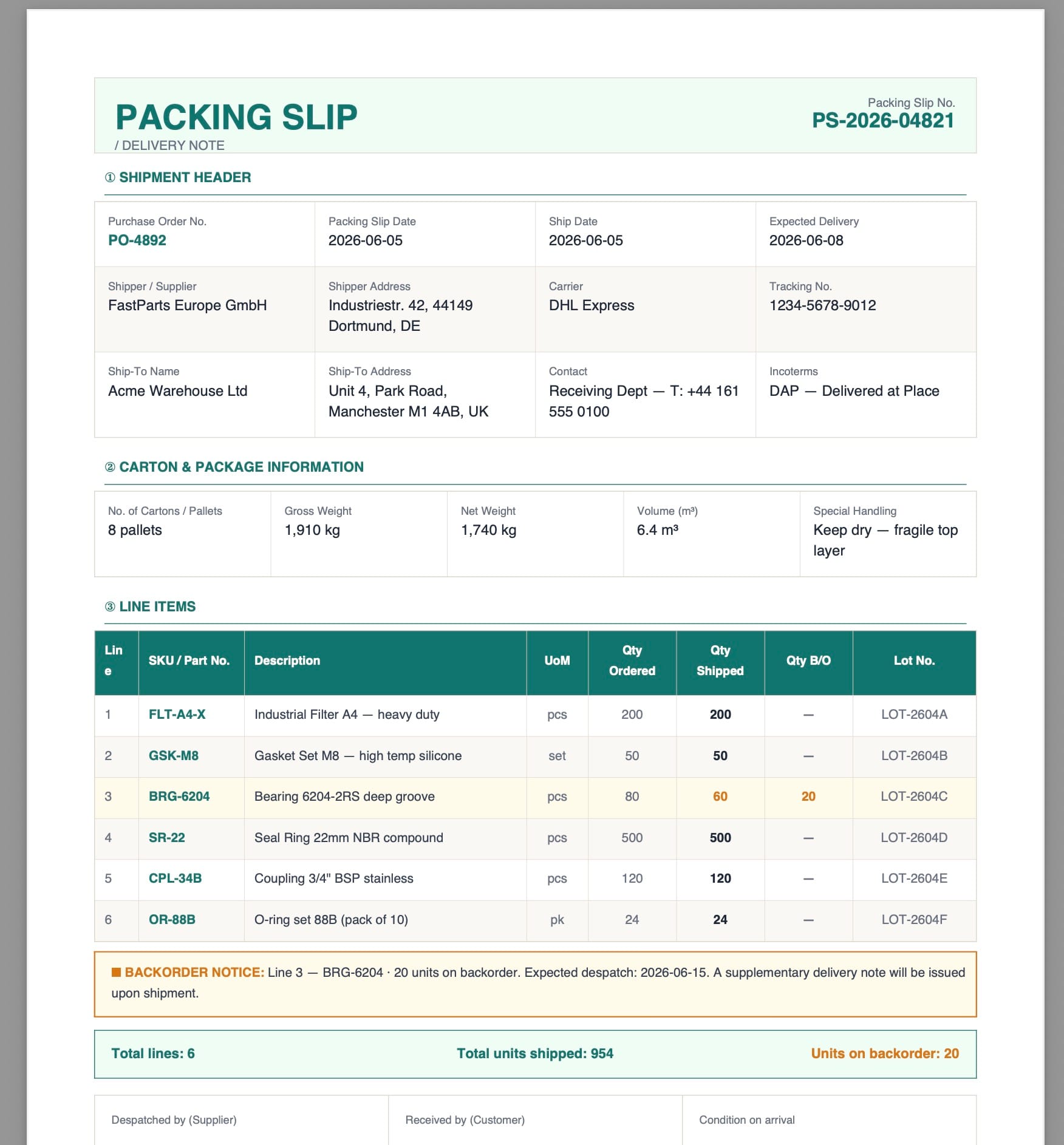
Header fields typically include:
- Supplier name and address
- Buyer name and address
- Shipment date
- Purchase order number
- Invoice number (when included)
- Carrier and tracking or bill of lading reference
- Country of origin
Line-item fields typically include:
- Item description or product name
- SKU or part number
- Quantity per carton and total quantity
- Unit of measure
- Gross weight and net weight per carton
- Number of cartons
- Dimensions (length, width, height)
- HS code for customs purposes
The line-item table is the harder part to automate because the row count varies, column headers use different labels across suppliers, and some packing lists merge or split columns. An extraction tool that handles table parsing reliably — not just top-level header fields — is essential for this document type.
Why manual entry and basic OCR are not enough
Many operations teams still type packing list data by hand at the receiving dock or ask someone to key it into a spreadsheet before updating inventory. This takes time and introduces errors that create downstream problems: wrong stock counts, missed discrepancies against the purchase order, and reconciliation issues when the invoice arrives.
Basic OCR (optical character recognition) converts a scanned PDF into text, but text alone is not structured data. You get a block of characters with no labels attached. Getting from raw OCR text to a usable row of fields — SKU, quantity, weight — requires a second layer of logic that plain OCR tools do not provide.
Template-based parsers work well when a single supplier sends packing lists in exactly the same layout every time, but they break whenever the format changes and require manual maintenance for every new vendor. For teams receiving documents from multiple suppliers, this becomes a significant upkeep burden.
AI-powered document parsers solve both problems: they understand document structure semantically, can handle layout variation without rebuilding rules, and extract both header fields and repeating line-item rows into a clean structured output. For a more complete comparison of parsing methods, see PDF Parsing Methods Compared: Rule-Based, Zonal OCR, AI, and LLM Approaches.
Which parser type to use for packing lists
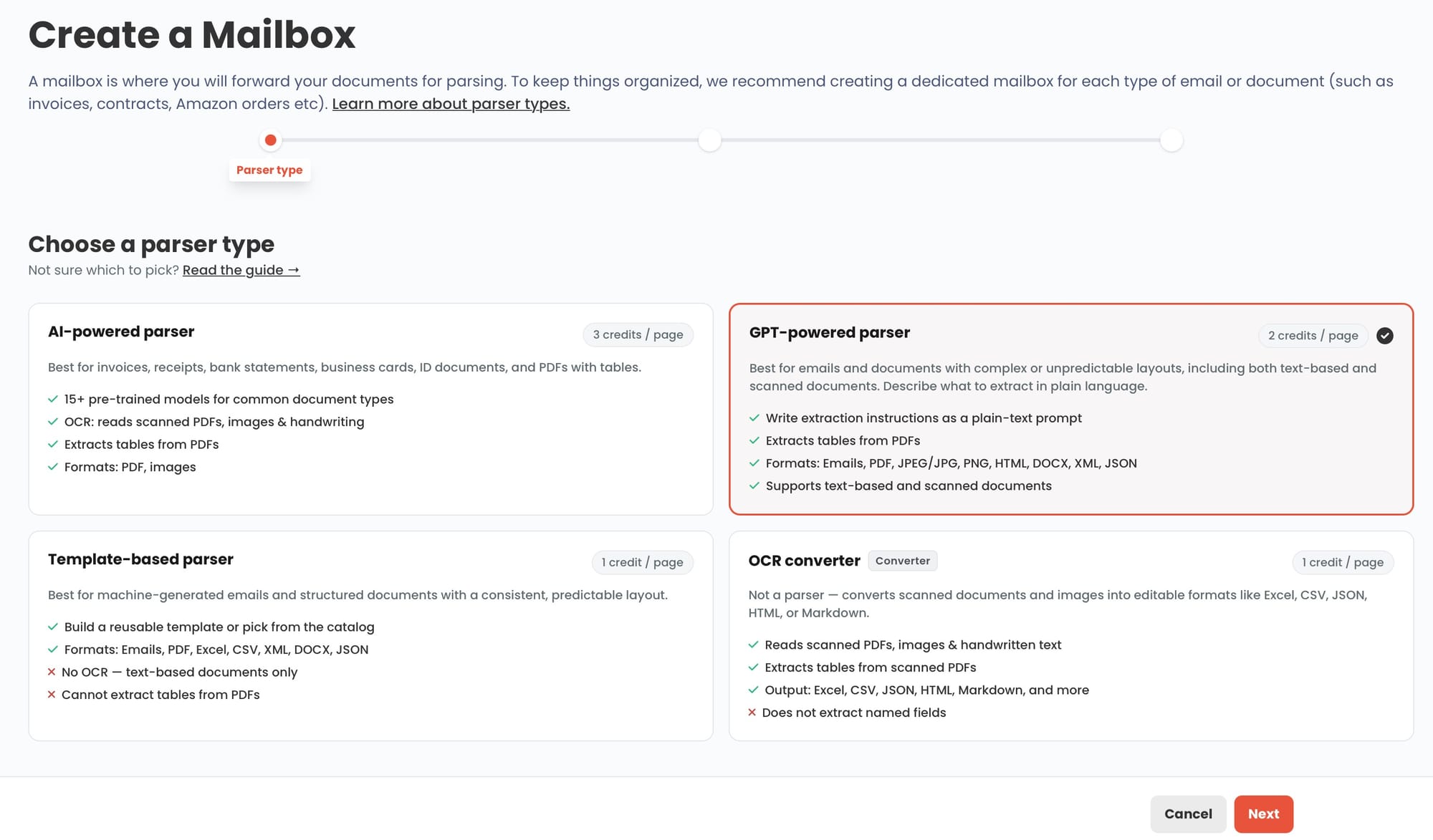
Parsio provides four parser types, and the best choice for packing lists depends on how consistent your source documents are.
GPT-powered parser (recommended) — The right parser for packing list PDFs. Packing lists do not have a dedicated pre-trained AI model, so the GPT parser is the correct choice. It handles table structures and varied supplier layouts without templates. Parsio can auto-generate the extraction prompt from a sample document — you do not need to write the prompt manually. This works well whether your packing lists follow recognizable commercial formats.
GPT-powered parser — Use this when your packing lists come from many different suppliers with widely varying layouts, or when some documents are informal, handwritten, or otherwise irregular. The GPT parser reads the document contextually and extracts the fields you specify, even when the layout is unusual. You define the fields you want and Parsio finds them regardless of where they appear on the page. This parser is flexible and handles the layout variation typical of packing lists from multiple suppliers.
Template-based parser — If you receive packing list notifications or confirmations as structured emails (rather than PDF attachments), the template-based parser is the right choice. It maps consistent HTML email fields into reusable extraction rules and is very accurate when the email format stays stable. This is useful for order confirmation or shipment notification emails from e-commerce platforms or major distributors.
OCR converter — Use this only if your goal is to convert a scanned packing list into editable text. It does not extract individual fields or table rows. If you need structured data, the GPT parser is the right tool.
For most warehouse and logistics teams dealing with PDF packing lists from multiple suppliers, the GPT-powered parser offers the best balance of coverage and flexibility.
Step-by-step: how to extract packing list data with Parsio
Setting up automated packing list extraction takes a few minutes and does not require any code.
Step 1: Create an inbox. In Parsio, an inbox is where documents arrive for processing. Give it a name (for example, “Packing Lists”) and select PDF and image parsing as the document type.
Step 2: Choose your parser type. Use the GPT-powered parser for packing list PDFs. It handles both standard and irregular supplier formats without template setup. Let Parsio auto-generate the extraction prompt from a sample document, then adjust as needed.
Step 3: Configure the extraction fields (GPT parser only). If you chose the GPT parser, define the fields you want to extract. For a packing list, these typically include: supplier name, PO number, shipment date, and a repeating line-item group containing SKU, description, quantity, unit weight, and carton count. Parsio uses these definitions to guide the extraction.
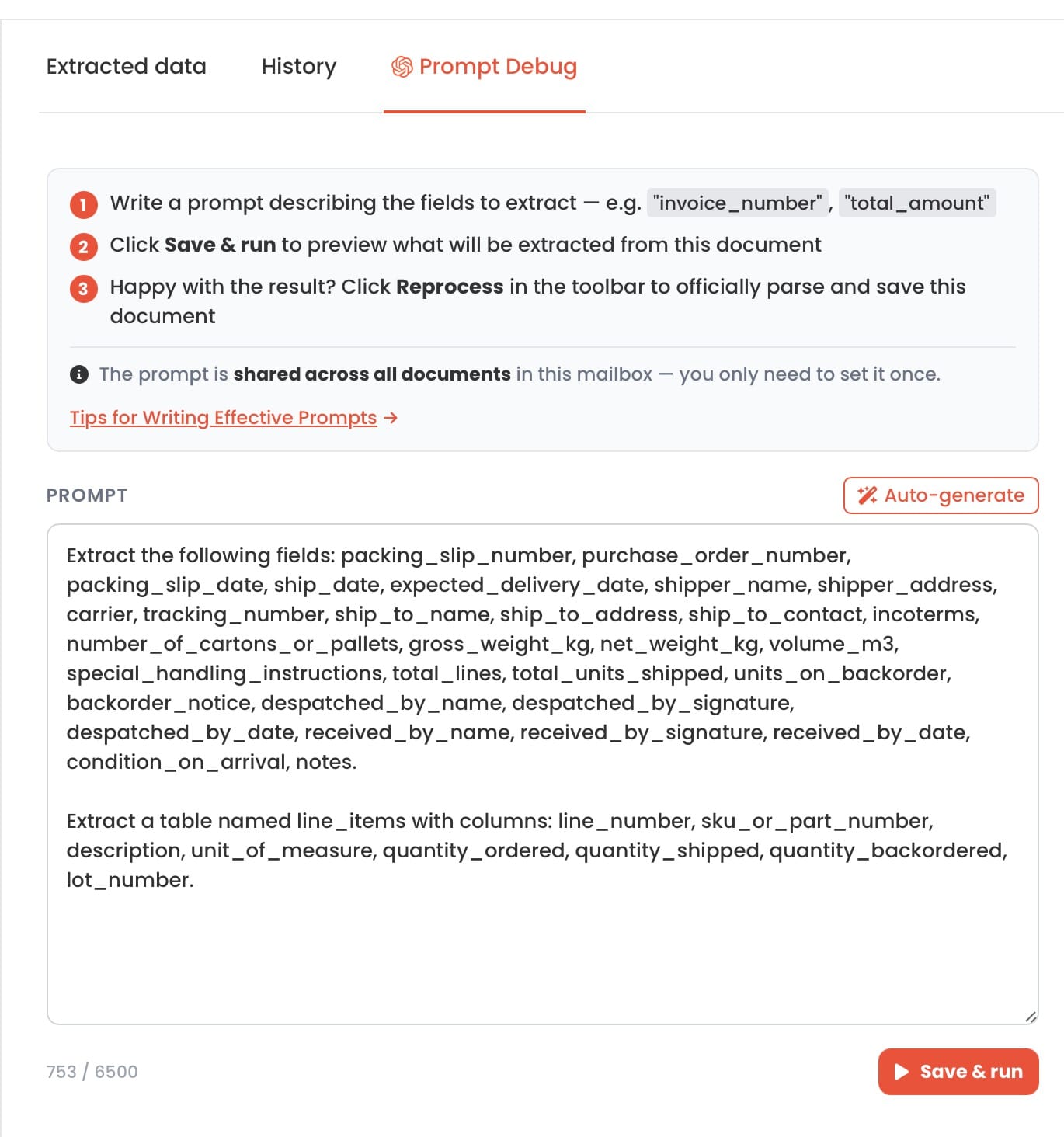
Step 4: Upload a sample document. Drop in a representative packing list. Parsio processes it immediately and shows you the extracted fields alongside the original document. Check that all header fields and line-item rows are captured correctly.
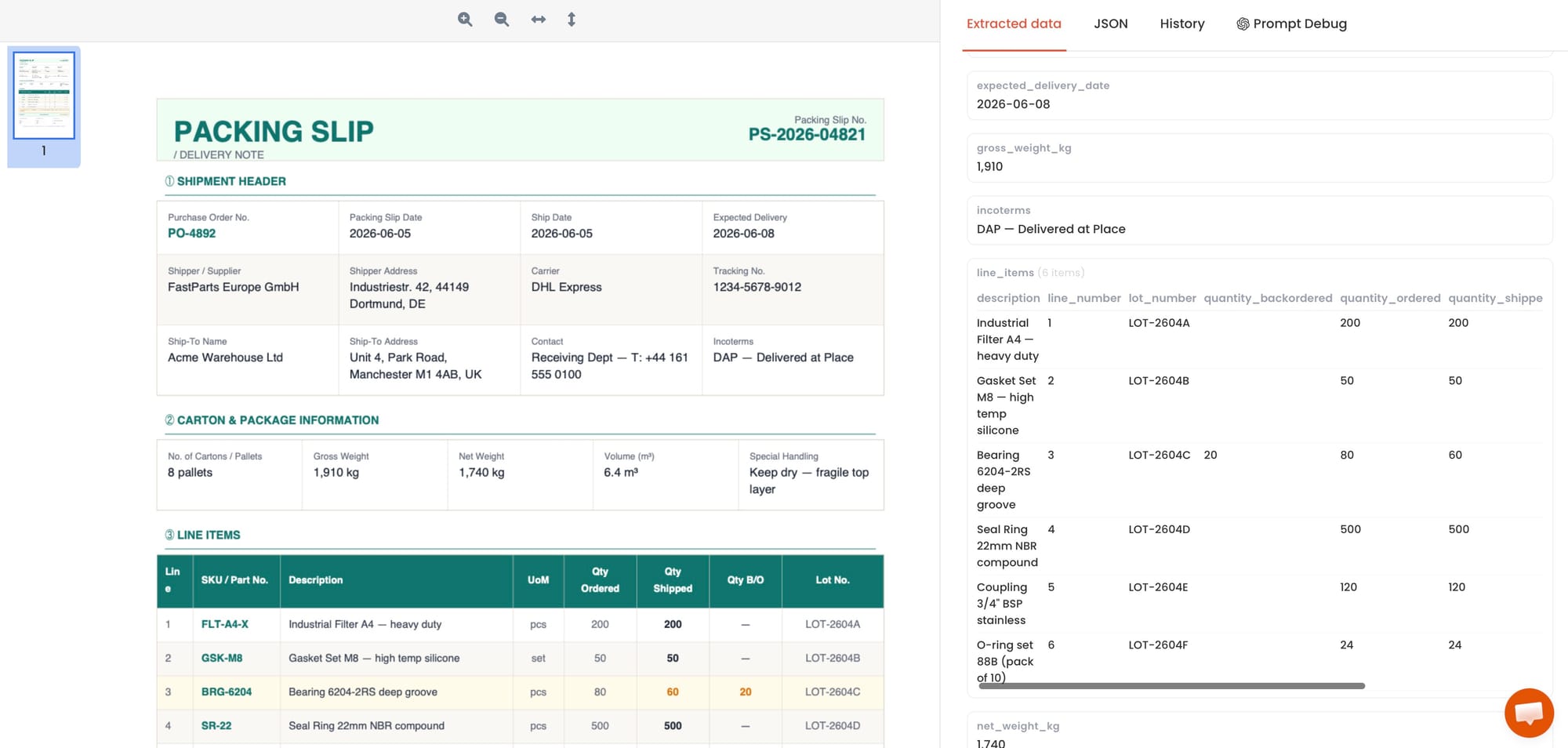
Step 5: Set up your ingestion method. Once the extraction is working, decide how new packing lists will enter Parsio. Options include:
- Email forwarding: forward packing list emails (with PDF attachments) to your Parsio inbox address
- Manual upload: drag and drop files directly into the inbox
- API: push documents programmatically from your existing systems
- Zapier or Make: connect a file-storage trigger (Google Drive, Dropbox, OneDrive) to Parsio automatically
Step 6: Configure your export destination. Set up where the extracted data goes. Parsio supports Google Sheets, webhooks, Zapier, Make, n8n, and direct CSV or JSON download.
What extracted packing list data looks like
After processing, Parsio returns a structured record for each document. For a packing list, this typically looks like a flat header plus an array of line items. A simplified example:
{
  "supplier": "Global Parts Co.",
  "po_number": "PO-2026-4418",
  "shipment_date": "2026-05-15",
  "carrier": "DHL",
  "line_items": [
    {
      "sku": "GP-10042",
      "description": "Stainless bolt M8x20",
      "qty_per_carton": 500,
      "cartons": 4,
      "total_qty": 2000,
      "net_weight_kg": 12.4
    },
    {
      "sku": "GP-10087",
      "description": "Hex nut M8",
      "qty_per_carton": 1000,
      "cartons": 2,
      "total_qty": 2000,
      "net_weight_kg": 5.8
    }
  ]
}
This structured output can go directly into a receiving spreadsheet, a WMS receiving record, or a reconciliation workflow that compares the packing list against the corresponding purchase order.
How to export extracted data to your systems
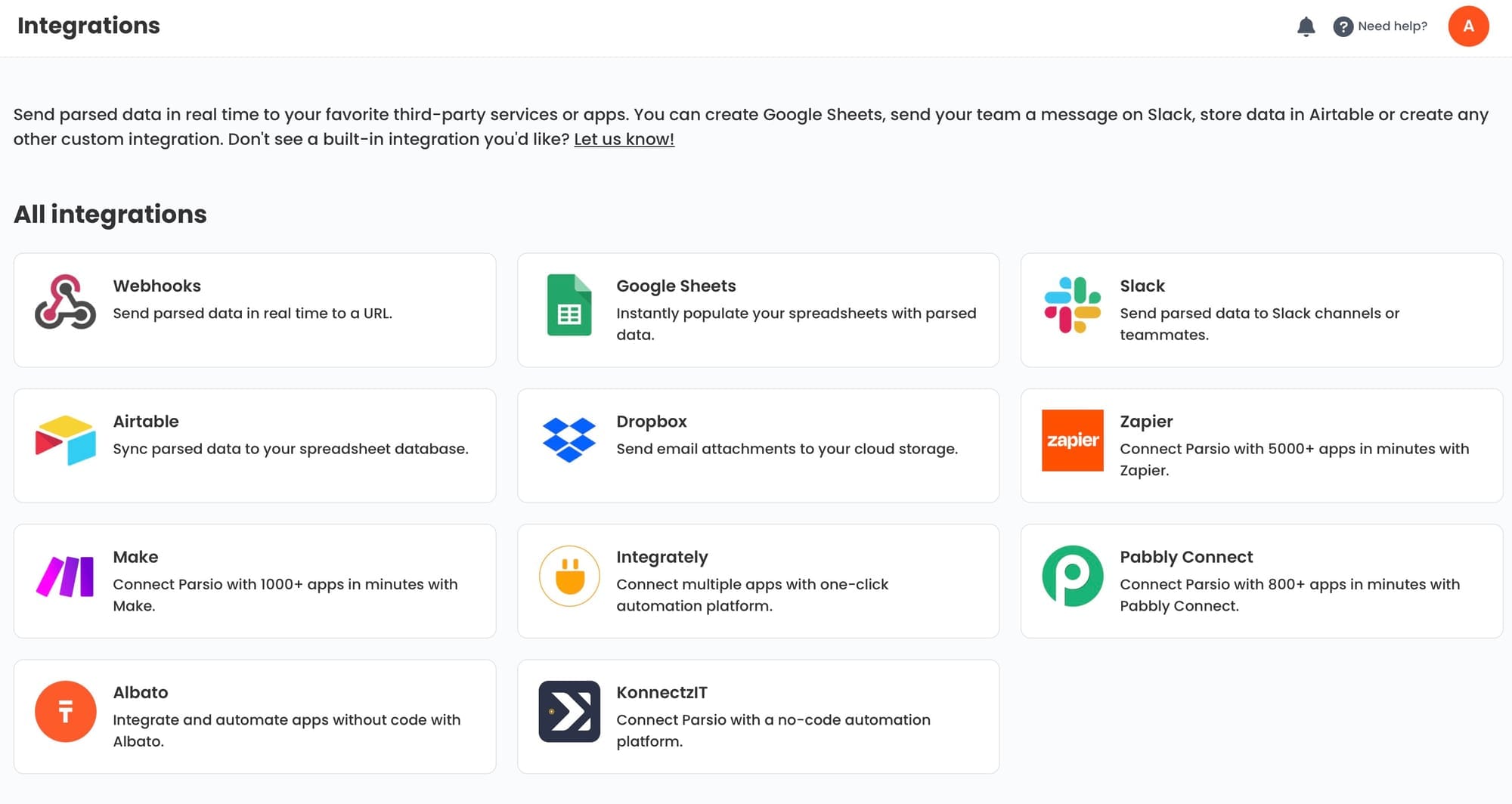
Once Parsio extracts the packing list fields, the data needs to go somewhere useful. Common destinations for logistics and operations teams include:
Google Sheets — The simplest option for smaller teams. Parsio has a built-in Google Sheets integration. Every processed packing list appends a row (or multiple rows for line items) to a specified sheet. Useful for tracking incoming shipments, building a receiving log, or comparing against expected quantities.
Webhook to a WMS or ERP — For teams using warehouse management systems or ERP platforms, a webhook is the most direct route. Parsio sends a JSON payload to your system's endpoint every time a document is processed. Your system receives the data without any manual step in between.
Zapier or Make — If your receiving workflow involves multiple steps — for example, creating a purchase order receipt in your ERP, notifying a team in Slack, and updating a spreadsheet — Zapier and Make let you chain those actions together without code. Parsio triggers the zap or scenario, and the automation handles the rest.
CSV or JSON download — For one-off needs or batch processing, you can download all extracted records as a CSV or JSON file directly from the Parsio dashboard.
For teams that receive packing lists alongside related shipping documents, it is also worth automating bills of lading, delivery notes, and freight invoices in the same pipeline. Processing them together means you can reconcile quantities, weights, and charges across documents without switching tools.
Common failure modes and how to avoid them
Even with a good AI parser, a few recurring issues can reduce accuracy or require manual cleanup. Understanding them upfront saves time.
Multi-page tables split across pages. Packing lists with hundreds of line items often span multiple pages. Some parsers only extract the first page. Verify that your tool handles multi-page table extraction before processing large documents. Parsio processes the entire document and reassembles repeating rows across pages.
Merged cells and non-standard column headers. Some suppliers use merged cells or unconventional column labels like “Pcs/Ctn” instead of “Quantity per carton.” Template-based parsers break in these cases. The GPT-powered parser handles this better because it reads the document semantically rather than matching fixed positions.
Scanned packing lists with low image quality. If your packing lists arrive as scanned images or are photographed at an angle, OCR quality drops sharply. Use high-resolution scans (300 DPI minimum) and avoid photographs taken at an angle. Parsio's OCR layer handles moderate scan quality, but very degraded images will reduce accuracy regardless of the extraction method.
Mixed-language documents. Some suppliers, particularly in international trade, send packing lists with column headers in another language. The GPT-powered parser handles this more gracefully than template or rule-based approaches because it understands context rather than matching character strings.
Layout drift over time. Suppliers occasionally update their document templates. A template-based extraction setup breaks when this happens. The GPT parser is resilient to layout changes because it reads the document structure semantically rather than matching fixed field positions. For more on when template parsing makes sense versus when it does not, see When to Use Rule-Based Parsing: 5 Real-World Examples.
Frequently asked questions
Can Parsio extract line items from packing lists with variable row counts?
Yes. Parsio extracts repeating table rows as an array of structured records, regardless of how many line items the document contains. Whether the packing list has 5 rows or 500, the extraction output is a clean array where each element represents one item line with its associated fields. The GPT-powered parser handles this by understanding the table structure semantically, so it adapts to different row counts and column arrangements without needing a fixed template. You do not need to configure a separate rule for each number of rows.
What is the difference between a packing list and a delivery note?
A packing list details the contents of a shipment: the items, quantities, weights, and carton breakdown. It is created by the shipper and travels with the goods. A delivery note is typically generated by the seller or logistics provider and confirms that specified goods have been dispatched or delivered. In practice, some companies use the two terms interchangeably, and the documents often overlap in content. However, delivery notes may include delivery conditions, signatures, or acceptance fields that packing lists do not. Both document types can be processed with the same AI parsing approach. If you are also automating delivery notes, see How to Extract Data from Delivery Notes Automatically for a parallel guide.
How does packing list extraction fit into a broader receiving workflow?
In a typical warehouse receiving workflow, a packing list arrives with or before the physical shipment. Automating extraction means the data — SKUs, quantities, weights, PO reference — enters the receiving system before anyone touches the goods. This allows the team to pre-check the expected delivery against the purchase order, flag discrepancies immediately, and update inventory records as soon as items are confirmed. Connected to a WMS via webhook, Parsio can trigger a receiving record creation automatically. For teams using spreadsheets, the same data lands in a Google Sheet row that can be filtered, sorted, and compared against existing stock data. The key step is connecting the extraction output directly to wherever receiving decisions are made, so no one needs to re-enter the data by hand.
Can this workflow handle packing lists from dozens of different suppliers?
Yes, and multi-supplier variety is one of the core reasons to use an AI parser rather than a template tool. The GPT-powered parser reads each document contextually and applies the extraction logic to whatever layout it encounters. Adding a new supplier does not require building a new template — you upload their document and Parsio processes it with the same configuration. If a particular supplier consistently uses an unusual layout that reduces accuracy, you can add a specific prompt adjustment or create a dedicated inbox for that supplier. For most standard commercial packing list formats, a single configuration handles the full supplier roster without any per-vendor setup.
What if my packing lists arrive as email attachments rather than uploaded files?
Parsio supports email-based ingestion as a standard workflow. Each inbox has a dedicated email address. When you forward a packing list email to that address, Parsio automatically detects the PDF attachment, processes it through the configured parser, and returns the extracted data. This means your existing email workflow does not need to change — operations staff just forward the supplier email to the Parsio inbox address instead of opening the PDF and keying data manually. If you also want to extract data from the email body itself (for example, to capture a shipment reference or carrier name from the email text), Parsio can do both in a single pass. For more on automating email document workflows, see How to Automate Data Extraction from Emails.
How accurate is automated packing list extraction compared to manual entry?
For clean, machine-generated PDF packing lists from standard ERP or accounting systems, AI extraction accuracy is typically very high — comparable to manual entry by a careful operator, with the advantage of being consistent and immediate. The bigger reliability risk is document quality: scanned PDFs with low resolution, skewed angles, or faint print reduce accuracy more than layout variation does. For high-stakes workflows where every line item matters, it is reasonable to add a lightweight verification step: compare the extracted total item count or total weight against the document footer to catch any missed rows. For most receiving workflows, the combination of AI extraction plus a quick sanity check is faster and more reliable than fully manual entry at scale.
Automate your packing list processing with Parsio
Parsio extracts item descriptions, SKUs, quantities, and weights from packing list PDFs automatically — no templates required for GPT-powered extraction. Connect to Google Sheets, a webhook, or Zapier in minutes.
Try Parsio for free See how it works